Enhanced Billing Custom Views with Resource Filtering, Sorting, and Audit Logging
Access Custom Views
Create a Resource-Based Custom View
Modify Resource Selections
Sort Custom View Records
Change Sorting Direction
Review Custom View Audit History
Edit Custom View Configuration
Delete a Custom View
What’s New
Resource-Based Filtering
- Added Resource as an additional selection criterion when creating or editing Custom Views.
- Users can select one or multiple Resources alongside existing Location and Provider filters.
- Resource selections are saved with the Custom View and restored when the configuration is reopened.
- Resource criteria are applied alongside other configured filters to display matching billing records.
- Existing Custom Views without Resource selections remain unaffected.
Column-Based Sorting
- Added ascending and descending sorting to Custom View worklists.
- Users can sort records using the following columns:
- Patient
- Appointment Date
- Status
- Provider/Resource
- Plan
- Plan Balance
- Patient Balance
- Sorting allows users to organize records alphabetically, chronologically, or by balance amount.
- Sorting changes the display order without modifying the underlying Custom View criteria or billing records.
Audit Logging and Soft Delete
-
- Added a dedicated Log button for each Custom View to access its configuration history.
- Changes made through Edit Custom View are recorded in the audit log.
- Audit entries identify the user responsible for the change, the configuration changes made, and the corresponding date and time.
- Deleting a Custom View removes it from the front-end listing while retaining its underlying record in the backend.
- A deletion activity is recorded in the audit history to preserve traceability.
- Existing Custom View management workflows remain unchanged.
How It Works
1. Configuring Resource-Based Custom Views
- Navigate to Billing > Professional > Charges > Custom Views.
- Create a new Custom View or open an existing one for editing.
- Locate the Resource selection control.
- Select one or more Resources from the available options.
- Configure additional criteria, including Location and Provider, as needed.
- Save the Custom View.
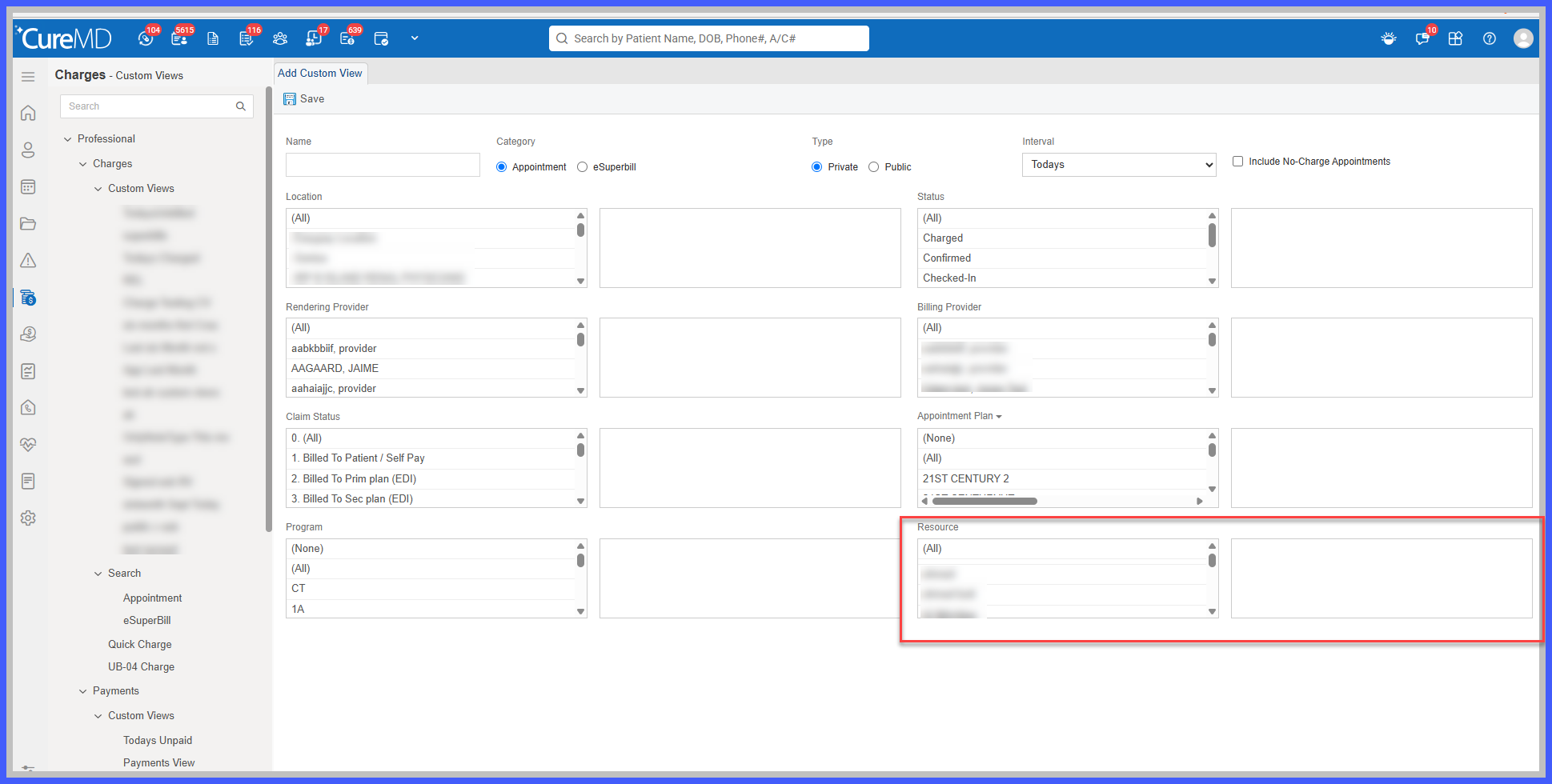 When the Custom View is applied, CureMD displays records that satisfy the saved Resource selections and other configured filtering criteria.
Users can reopen the Custom View to review or modify their Resource selections at any time.
2. Sorting Custom View Records
-
- Open an existing Custom View.
- Locate the column you want to sort.
- Select the supported column header to arrange the displayed records.
- Switch between ascending and descending order as needed.
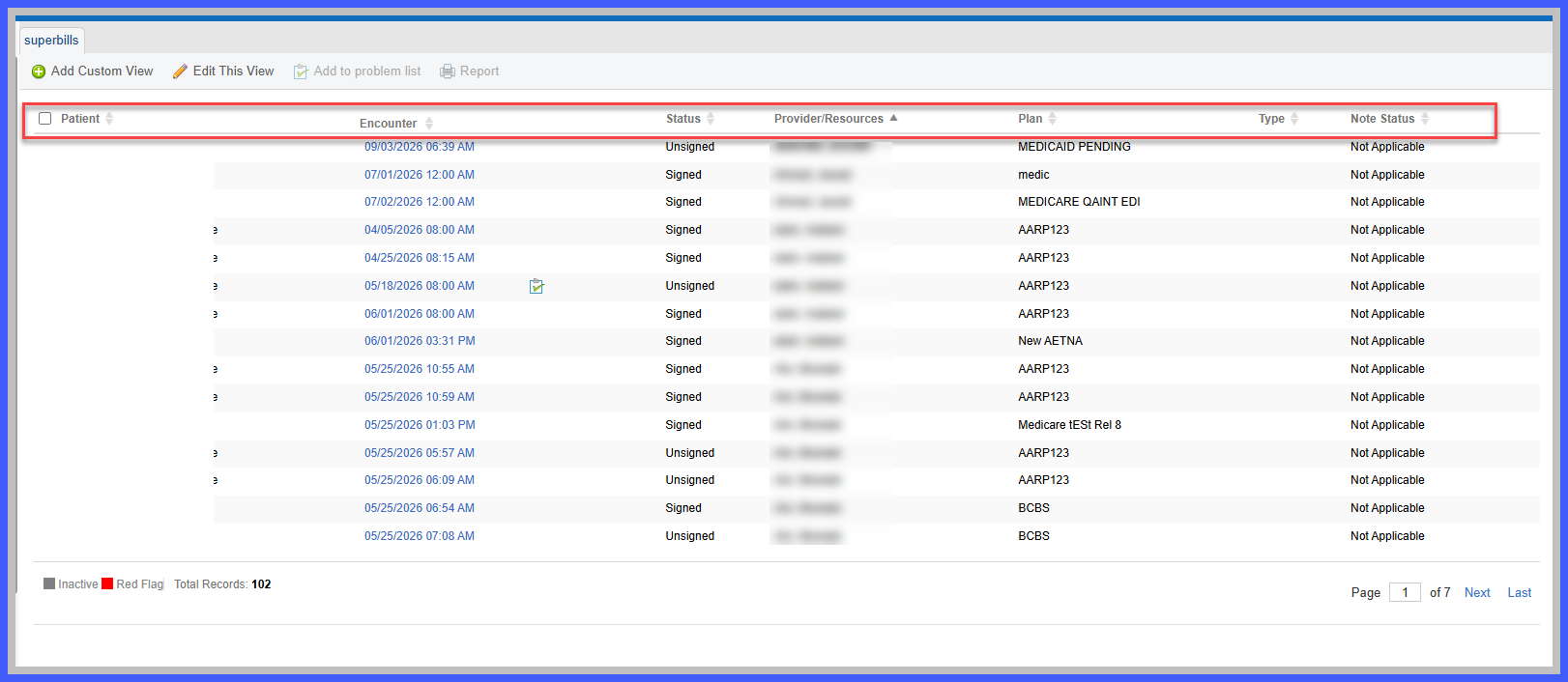 3. Reviewing Custom View Audit Logs
- Navigate to the Custom Views section.
- Locate the Custom View you want to review.
- Click the Log button associated with the view.
- Review the recorded configuration changes, including the responsible user and corresponding timestamps.
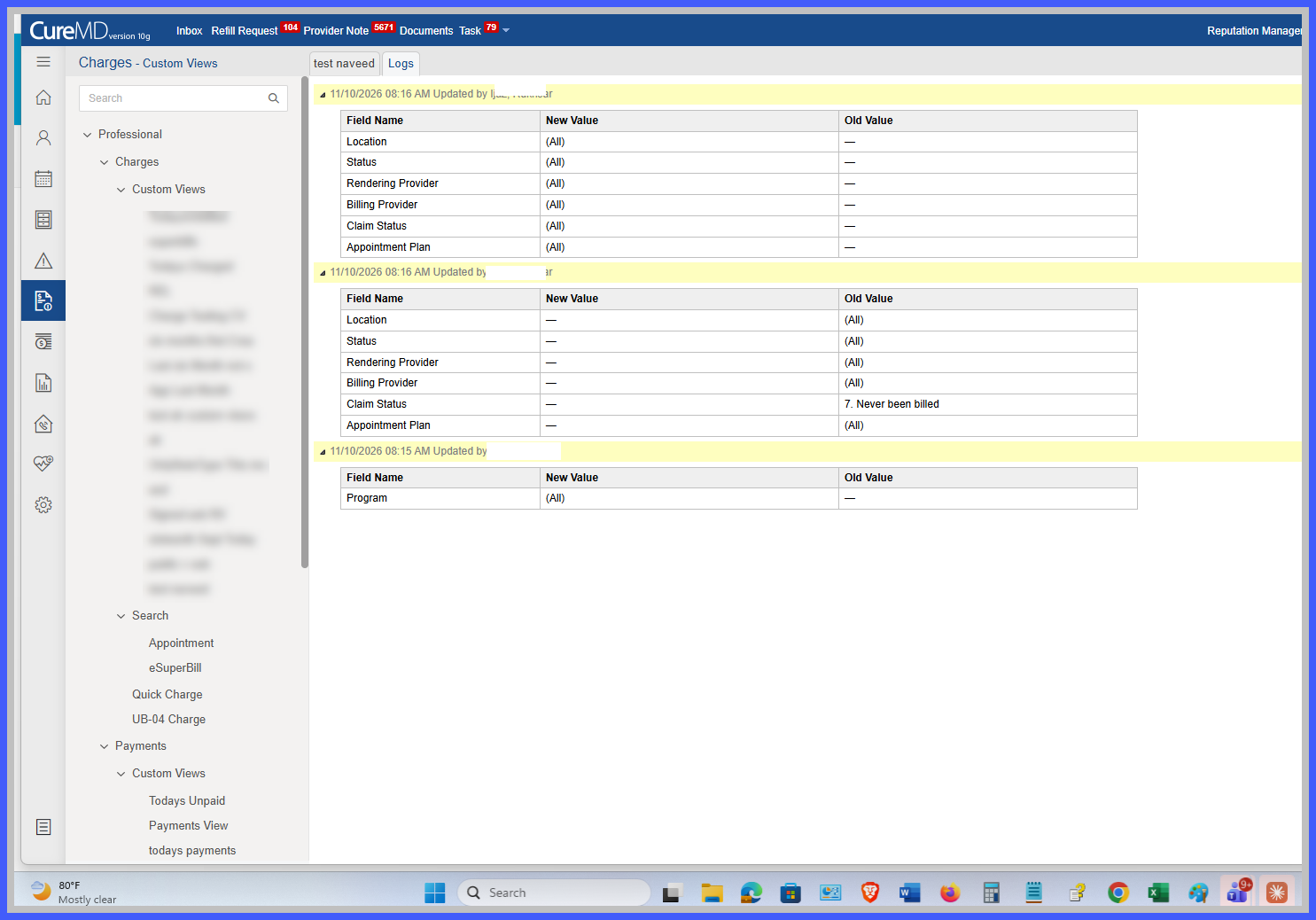 4. Soft Delete Functionality
When a user deletes a Custom View, CureMD performs a soft deletion rather than permanently removing the underlying record.
- The deleted Custom View is removed from the front-end listing.
- The Custom View record remains stored in the backend.
- A deletion entry is recorded in the audit history.
This preserves the history of deleted configurations while removing them from active Custom View listings.
Benefits
- Improved Worklist Organization: Allows billing teams to create more focused worklists using Resource, Location, and Provider filtering.
- Faster Record Identification: Enables users to sort billing records by appointment date, patient, provider, plan, status, and outstanding balances.
- Greater Workflow Flexibility: Allows users to organize Custom View results according to their operational priorities without modifying saved filtering criteria.
- Improved Accountability: Provides visibility into Custom View configuration changes, including the responsible user and timestamp.
- Enhanced Traceability: Preserves deleted Custom View records and associated deletion activities for future reference.
- Reduced Administrative Effort: Simplifies worklist organization and makes it easier to investigate unintended configuration changes.
- Consistent User Experience: Maintains existing Custom View functionality while introducing additional filtering, sorting, and audit capabilities.
