Configure Work Status, Marital Status, and Referral Source as Mandatory Demographic Fields
Configure Mandatory Demographic Fields
Register a New Patient
Review or Update Patient Demographics
Access Quick Add
Review Configuration Changes
What’s New
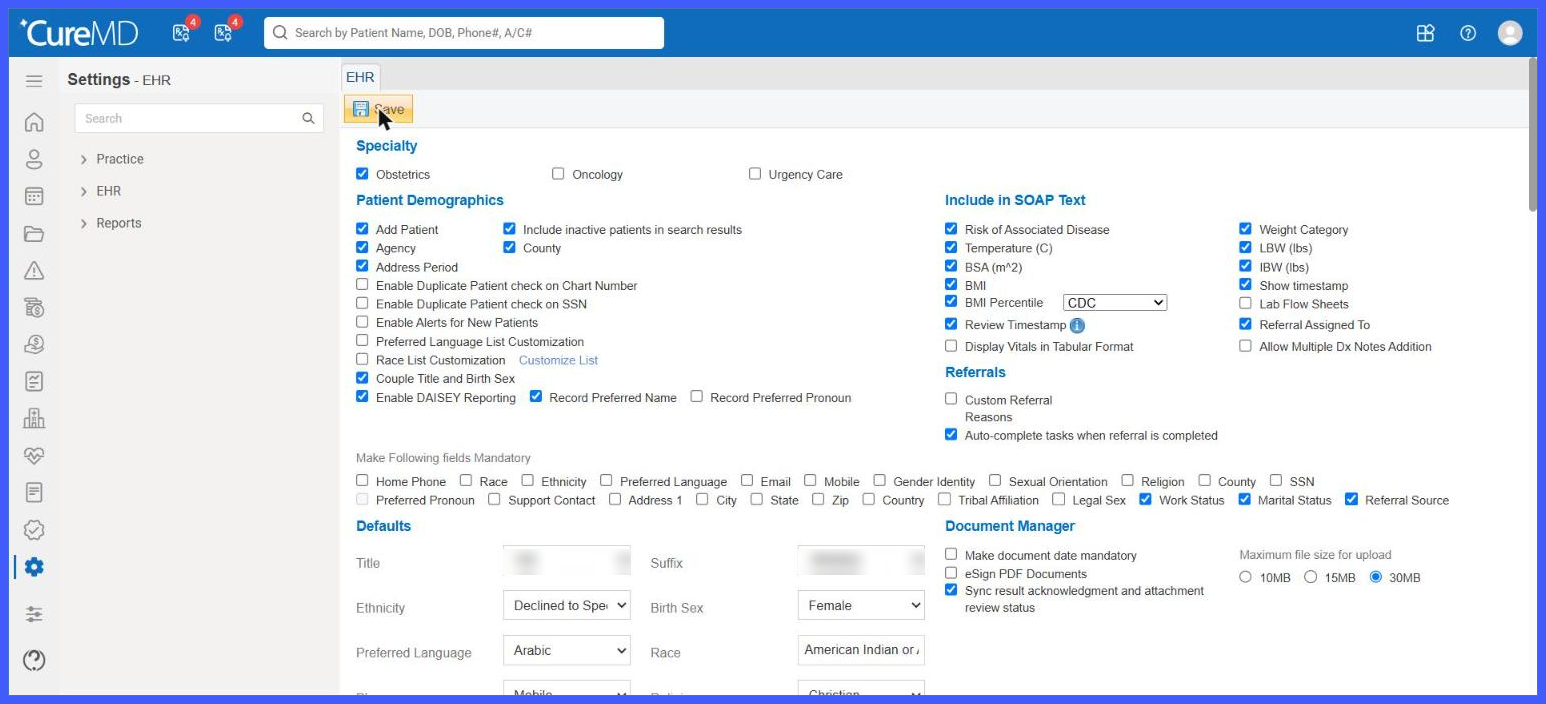
- Added Work Status, Marital Status, and Referral Source to the Make Following Fields Mandatory section within EHR Settings.
- Each field is available as an individual checkbox, allowing administrators to configure which demographic fields are required.
- Selected fields become mandatory at the practice level once the configuration is saved.
- Mandatory fields display an asterisk (*) on the applicable patient registration and demographic forms.
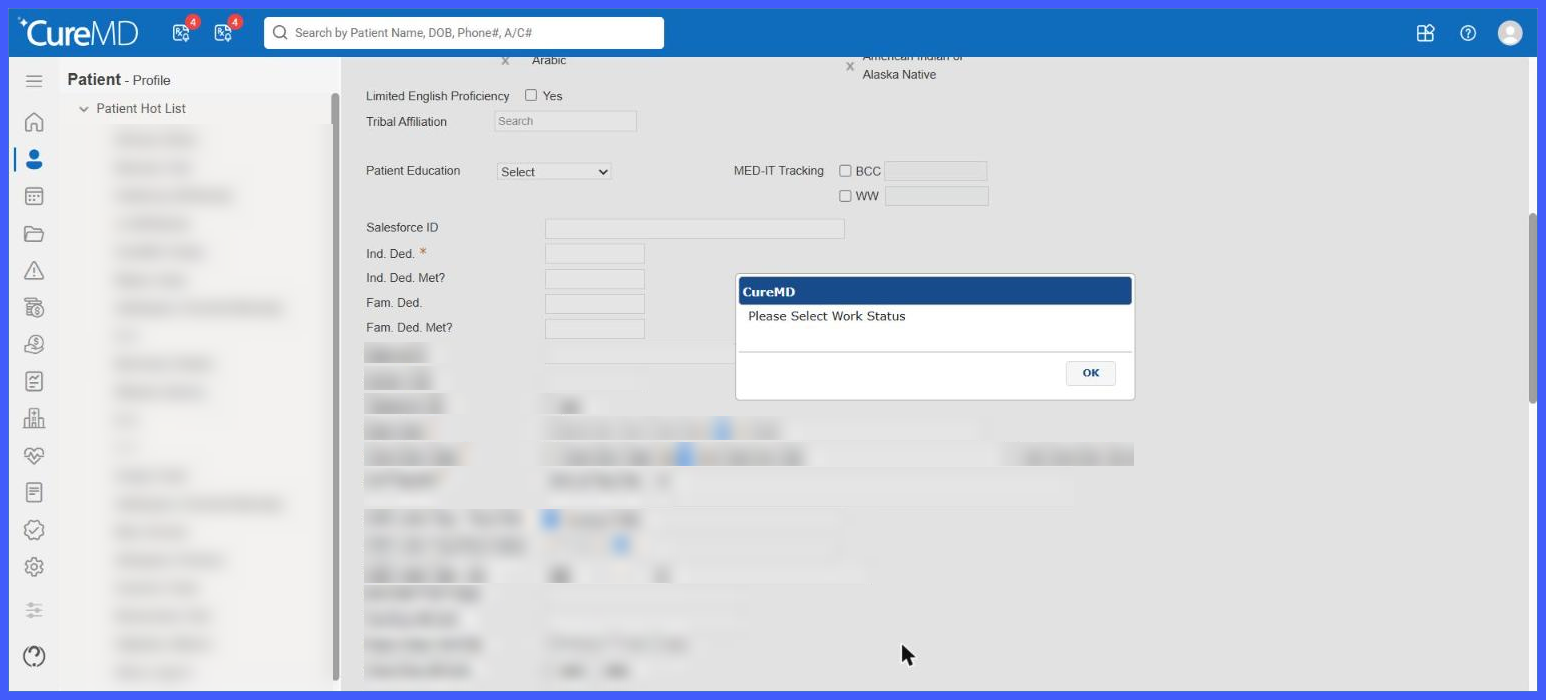
- When a required field is left empty, CureMD prevents the record from being saved and displays the corresponding validation message:
- “Please Select Work Status”
- “Please Select Marital Status”
- “Please Select Referral Source”
- The system automatically moves focus to the field requiring completion.
- Mandatory field validation also applies to Quick Add for fields available within that workflow.
- All changes to mandatory field configurations are recorded in the Audit Trail.
- Fields that are not configured as mandatory remain optional.
- Existing patient registration functionality and validation rules remain unchanged.
How It Works
- Navigate to Settings > Practice > My Practice Settings > EHR.
- Locate the Make Following Fields Mandatory section.
- Select the checkboxes for Work Status, Marital Status, and/or Referral Source, depending on the practice’s requirements.
- Click Save to apply the configuration.
- Open the Add Patient or applicable Patient Demographics screen.
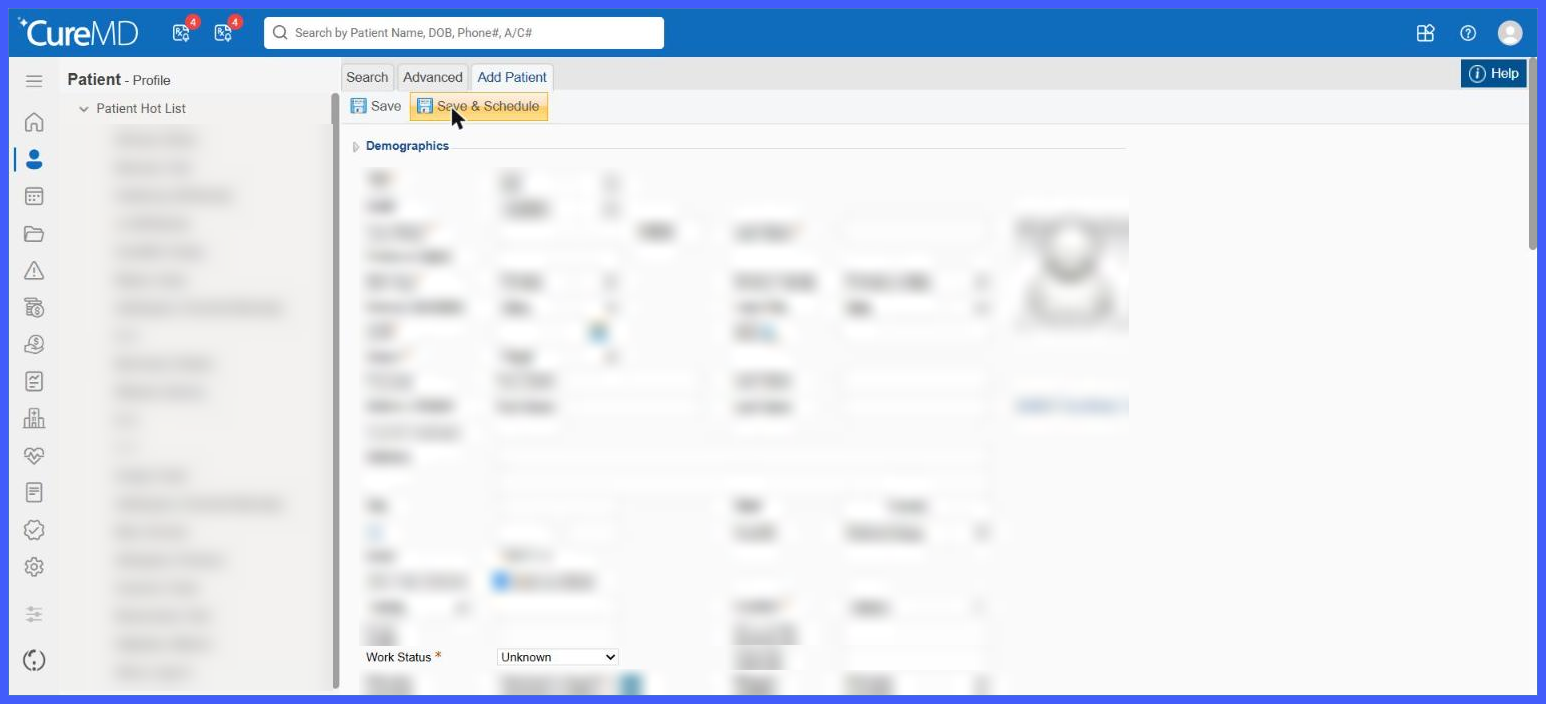
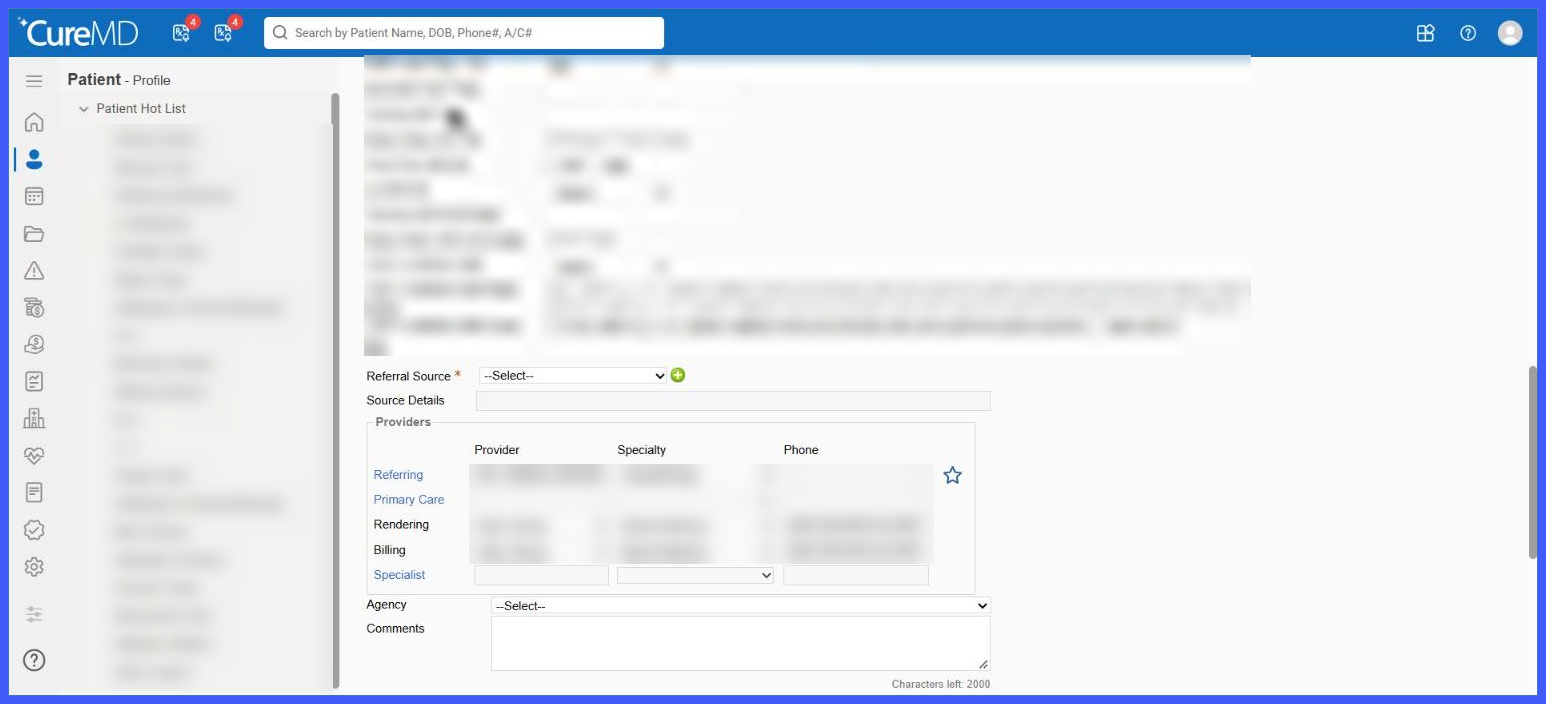
- Fields configured as mandatory are identified with an asterisk (*).
- If a mandatory field is left empty, the system prevents saving, displays the applicable validation message, and moves focus to the field requiring completion.
- Complete the missing information and save the record again.
Benefits
- Improved Data Completeness: Helps practices capture required demographic information during patient registration.
- Greater Configuration Flexibility: Allows administrators to determine which additional demographic fields are mandatory based on practice requirements.
- Reduced Incomplete Records: Prevents users from saving patient records when configured mandatory fields have not been completed.
- Clearer Registration Experience: Uses asterisks and targeted validation messages to help users identify missing information.
- Improved Data Consistency: Supports standardized demographic data collection across the practice.
- Enhanced Accountability: Records mandatory field configuration changes in the Audit Trail for review.
- Existing Workflow Compatibility: Extends the current mandatory field configuration without changing unrelated registration functionality.
