Customize AI Scribe to Document Assessment and Plan Information in Diagnosis Comments
Access AI Scribe Note Output Settings
Configure Diagnosis Assessment
Configure Diagnosis Plan
Configure Combined Assessment and Plan
Manage Existing Diagnosis Comments
Generate Provider Note
Review Diagnosis-Specific Documentation
What’s New
- Added a new Diagnosis Assessment option under AI Scribe > Note Output > Assessment, alongside the existing Diagnosis toggle.The existing Diagnosis Plan option remains available under Plan Documentation.
- Practices can independently configure whether Diagnosis Comments contain:
- Assessment only
- Plan only
- Both Assessment and Plan
- Neither Assessment nor Plan
- When both options are enabled, AI Scribe distinguishes the documented information using “Assessment:” and “Plan:” prefixes.
- Both options depend on the Diagnosis toggle. Disabling Diagnosis makes both options unavailable, while re-enabling it restores their previously selected values.
- Diagnosis Assessment and Diagnosis Plan remain mutually exclusive with the combined Assessment / Plan documentation option.
- When Assessment / Plan is enabled, the assessment and plan are documented in the Assessment / Plan component rather than Diagnosis Comments.
- AI Scribe documents only the assessment or plan information discussed during the encounter and associated with the relevant diagnosis.
- Existing Append comments functionality continues to control whether generated content is added to or replaces existing Diagnosis Comments.
- Changes to Note Output settings apply the next time Generate Note is selected.
- Existing AI Scribe extraction, diagnosis linkage, and note generation workflows remain unchanged.
How It Works
- Open AI Scribe and access the Settings overlay.
- Navigate to the Note Output section.
- Under Assessment, ensure the Diagnosis toggle is enabled.
- Locate the new Diagnosis Assessment option beside the Diagnosis toggle.
- Under Plan Documentation, locate the existing Diagnosis Plan option.
- Enable Diagnosis Assessment, Diagnosis Plan, or both, depending on the information you want documented within Diagnosis Comments.
- Ensure the combined Assessment / Plan option is disabled when using either diagnosis-specific option.
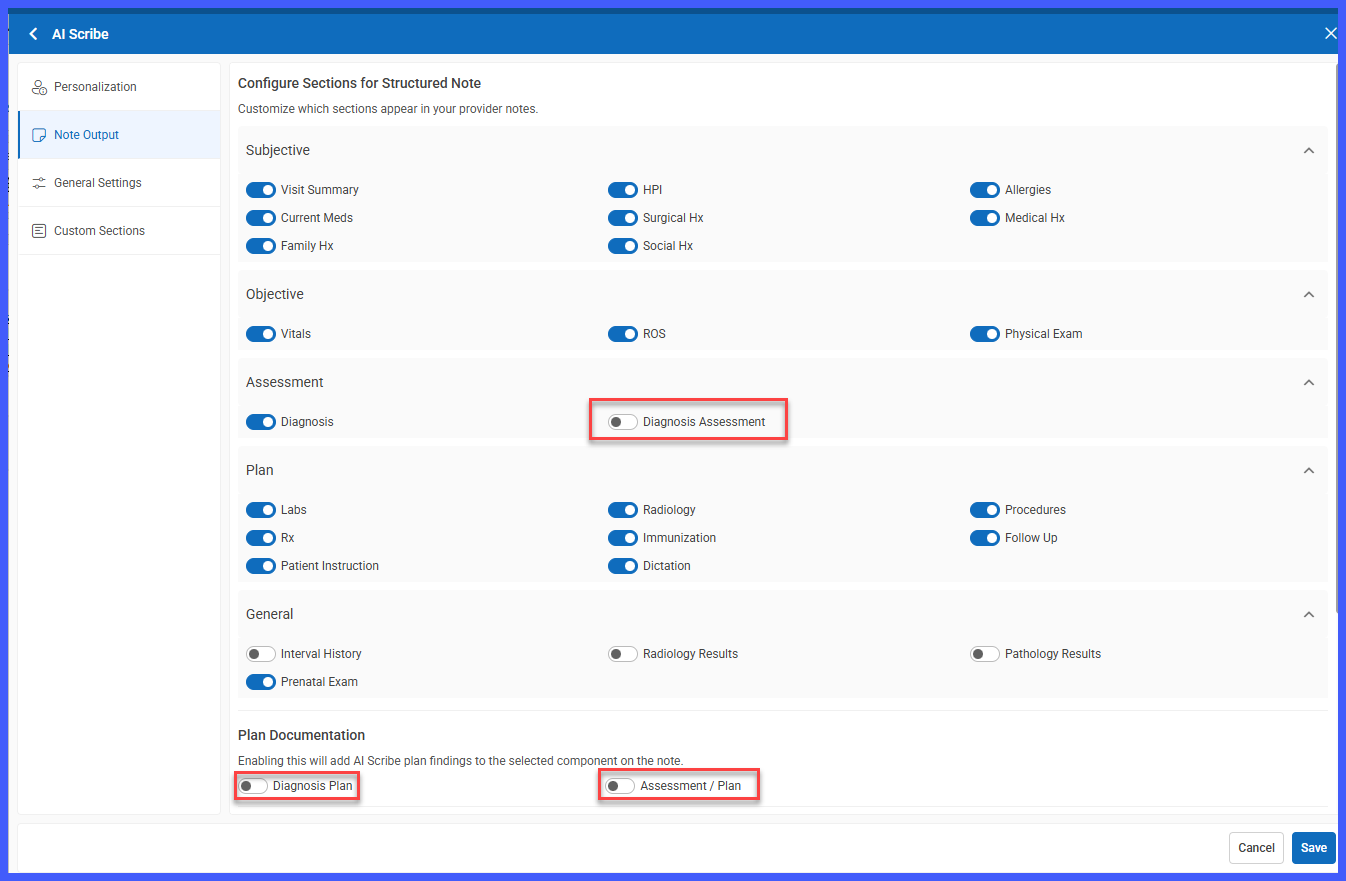
8. Configure Append comments > Diagnosis Comments according to whether existing comments should be retained or replaced.
9. Save the Note Output settings using the existing workflow.
10. Select Generate Note to create the Provider Note using the configured documentation preferences.
AI Scribe automatically populates the Diagnosis Comments of each linked diagnosis with the applicable assessment and/or plan information discussed during the encounter.
Benefits
- Greater Documentation Flexibility: Allows practices to independently determine whether assessment information, plan information, or both are documented against individual diagnoses.
- Improved Clinical Context: Keeps relevant assessment and plan information associated with the corresponding diagnosis, making the documentation easier to review.
- Clearer Diagnosis Narratives: Uses separate Assessment and Plan labels when both types of information are documented, helping providers distinguish clinical findings from planned care.
- Reduced Manual Documentation: Automatically incorporates the applicable assessment and plan information into Diagnosis Comments, reducing the need to manually transfer information between note sections.
- Practice-Level Customization: Allows practices to adjust their preferred documentation format directly through existing AI Scribe settings.
- Preserved Documentation Control: Maintains the existing Append comments functionality, allowing practices to retain or replace previously documented Diagnosis Comments according to their preferences.
- Consistent Clinical Workflows: Introduces additional documentation flexibility without changing existing diagnosis linkage, note generation, or Assessment / Plan functionality.
