How to View OBGYN History?
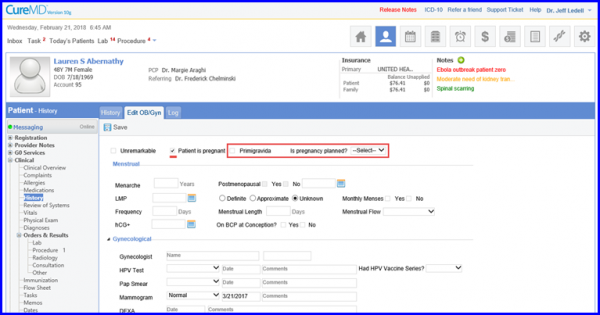
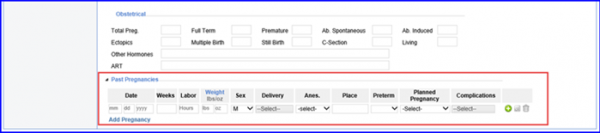
OB/ GYN History of a patient can be added/edited by clicking on the ‘OB/Gyn History’ link. In case the patient has no significant OB/Gyn History, the user can check the ‘Unremarkable’ checkbox. If the patient is pregnant, users can enable the checkbox labelled ‘Patient is Pregnant’. This prompts a dropdown to appear besides the checkbox and a section labeled ‘Past Pregnancies’ is displayed at the bottom of the page.
From the dropdown, select ‘Yes’ or ‘No’ to specify whether the pregnancy was planned or not.
Similarly, add a pregnancy in the ‘Past Pregnancy’ section and fill out the relevant details.
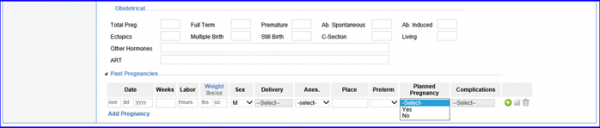
Select a status (planned/unplanned) for this pregnancy.
Additionally, this feature can also be specified via the Case Review section. Add a new Case Review and select an option from a dropdown named ‘Is Pregnancy planned?’
OB/ GYN History of a patient can be added edited by clicking on the OB/Gyn History link. In case the patient has no significant OB/Gyn History, the user can check the ‘Unremarkable’ box. The user can mark if the patient is currently pregnant by checking the ‘Patient is pregnant’ box.
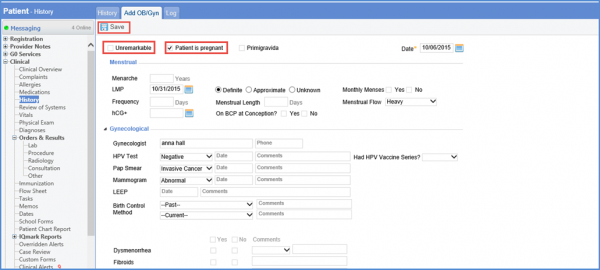
The following enhancements have been made to the OB/ GYN report to improve overall user experience.
- The negative values in OB/ Gynecology History are highlighted in red on the SOAP note
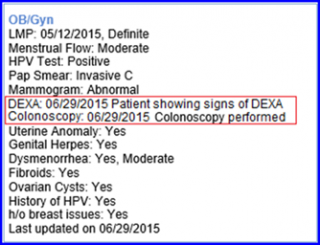
- The date, comments for DEXA and Colonoscopy under “gynecological” section of the OB/ GYN History
To view the changes in the OB/ GYN History, follow the steps described below.
Suppose the following selections are made while recording the OB/ GYN History:
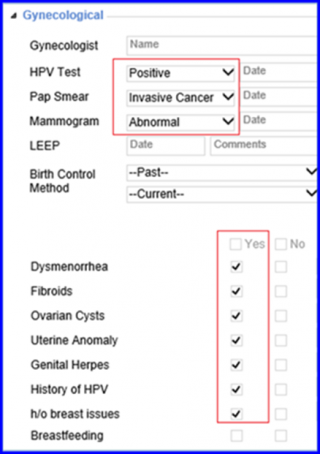
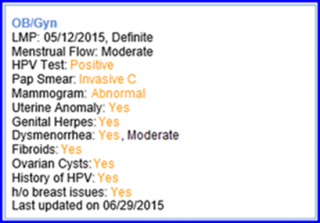
- When the SOAP note is created for this patient, the negative values of the OB/ GYN history appear highlighted on it.
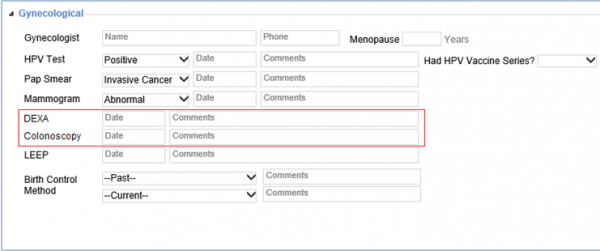
- In the Gynecology History section, fields for DEXA and Colonoscopy are added below Mammogram.
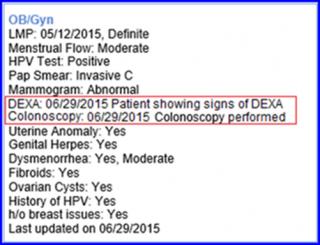
- Add the relevant information in these fields and click on Save button. The SOAP note is updated accordingly.
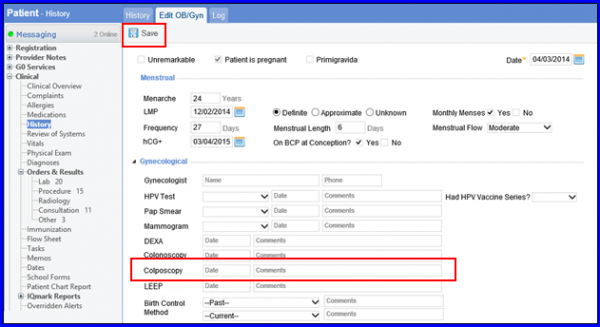
- Colposcopy field is added in the Gynecology History section. User can add date and comments for Colposcopy in the respective fields.
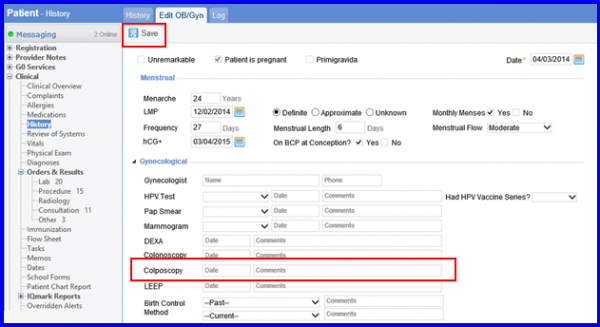
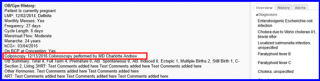
- Upon saving the changes, SOAP note is updated accordingly.
The following enhancements have been made to the OB/ GYN report to improve overall user experience:
- The negative values in OB/ Gynecology History are highlighted in red on the SOAP note
- The date, comments for DEXA and Colonoscopy under “gynecological” section of the OB/ GYN History
To view the changes in the OB/ GYN History, follow the steps described below.
- Navigate to: Patient > Clinical > History > Gynecological
- Suppose the following selections are made while recording the OB/ GYN History:
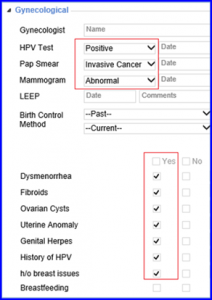
- When the SOAP note is created for this patient, the negative values of the OB/ GYN history appear highlighted on it.
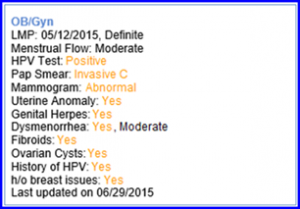
- In the Gynecology History section, fields for DEXA and Colonoscopy are added below Mammogram.
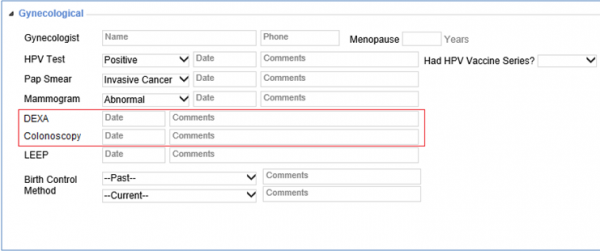
- Add the relevant information in these fields and click on Save button. The SOAP note is updated accordingly.
- Colposcopy field is added in the Gynecology History section. User can add date and comments for Colposcopy in the respective fields.
- Upon saving the changes, SOAP note is updated accordingly.
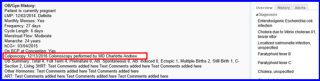
Colposcopy in SOAP Note
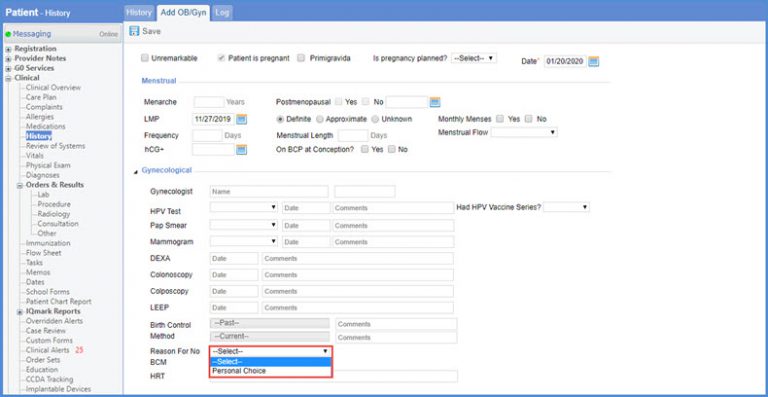
A dropdown of ‘Reason for No BCM’ is added in the OB/GYN History.
‘Reason for No BCM’ dropdown values can be added from settings. To view more, click here.
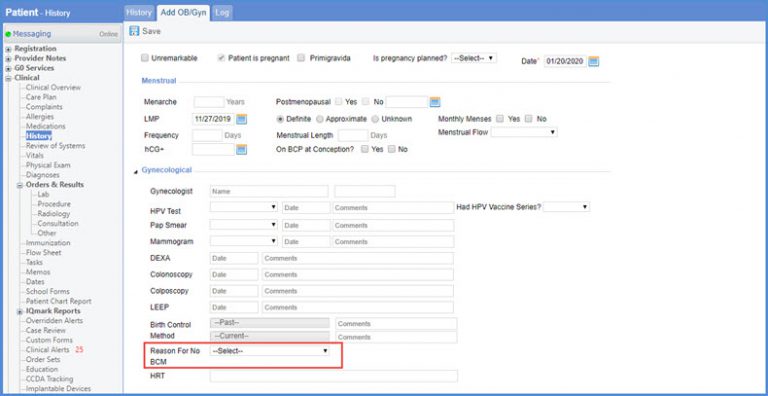
User selects a value from the dropdown as a Reason for No BCM
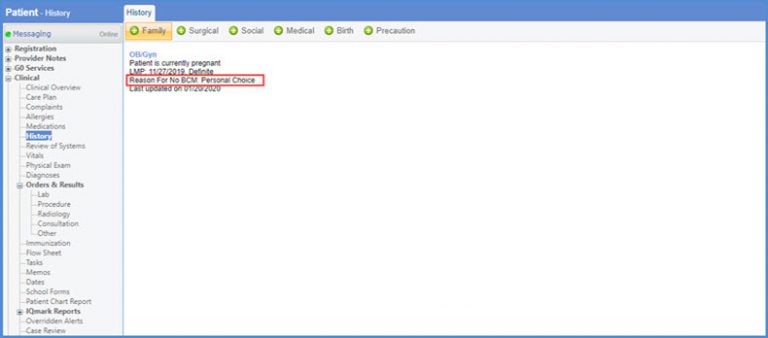
Upon saving, the Reason for No BCM is displayed under the OB/GYN History Section.
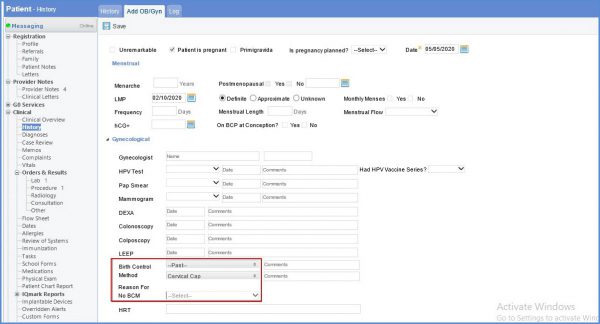
On selecting a ‘Current BCM’ the ‘Reason for no BCM’ drop down gets disabled.
This prevents user from recording logically contradictory information in patient history. Once a current BCM is recorded the option to enter a reason for no BCM becomes unnecessary.
Similar enhancement is made in the ‘Social History’. To view more, click here.
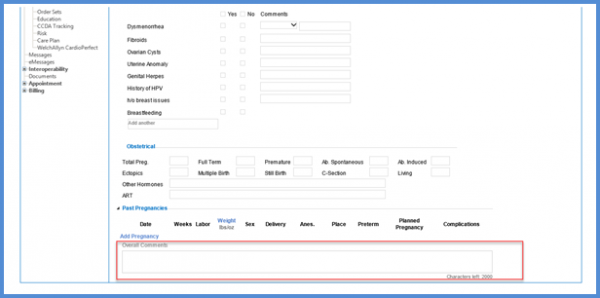
User can add comments in the overall comments box in the OB/Gyn History component. 
Additional patient information can be recorded here.
Similar enhancement is made in the provider notes. To view more, click here.
