Customize Block Colors for Unavailable Days and Time Slots in Scheduler
Enable Custom Block Colors
Assign Color to a Calendar Block
Configure Recurring Block Colors
Configure Global Block Colors
Review Block Colors
What’s New
- Added a new Enable Block Colors checkbox under Practice Scheduler Settings.
- The setting is disabled by default, preserving the existing Scheduler appearance.
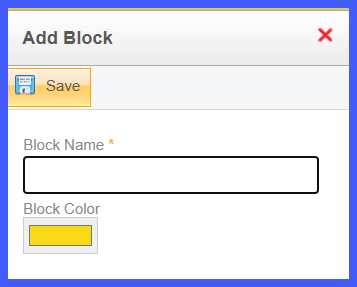
- When enabled, a color picker becomes available on supported block creation and editing screens.
- Users can assign custom colors to individual calendar blocks.
- The default block color is light grey (#ebebeb).
- Custom colors can be configured for Block Recurrence, Add Block, Global Block Settings, Calendar Recurrence, and Slot Blocks.
- Previously assigned colors are displayed when editing existing blocks.
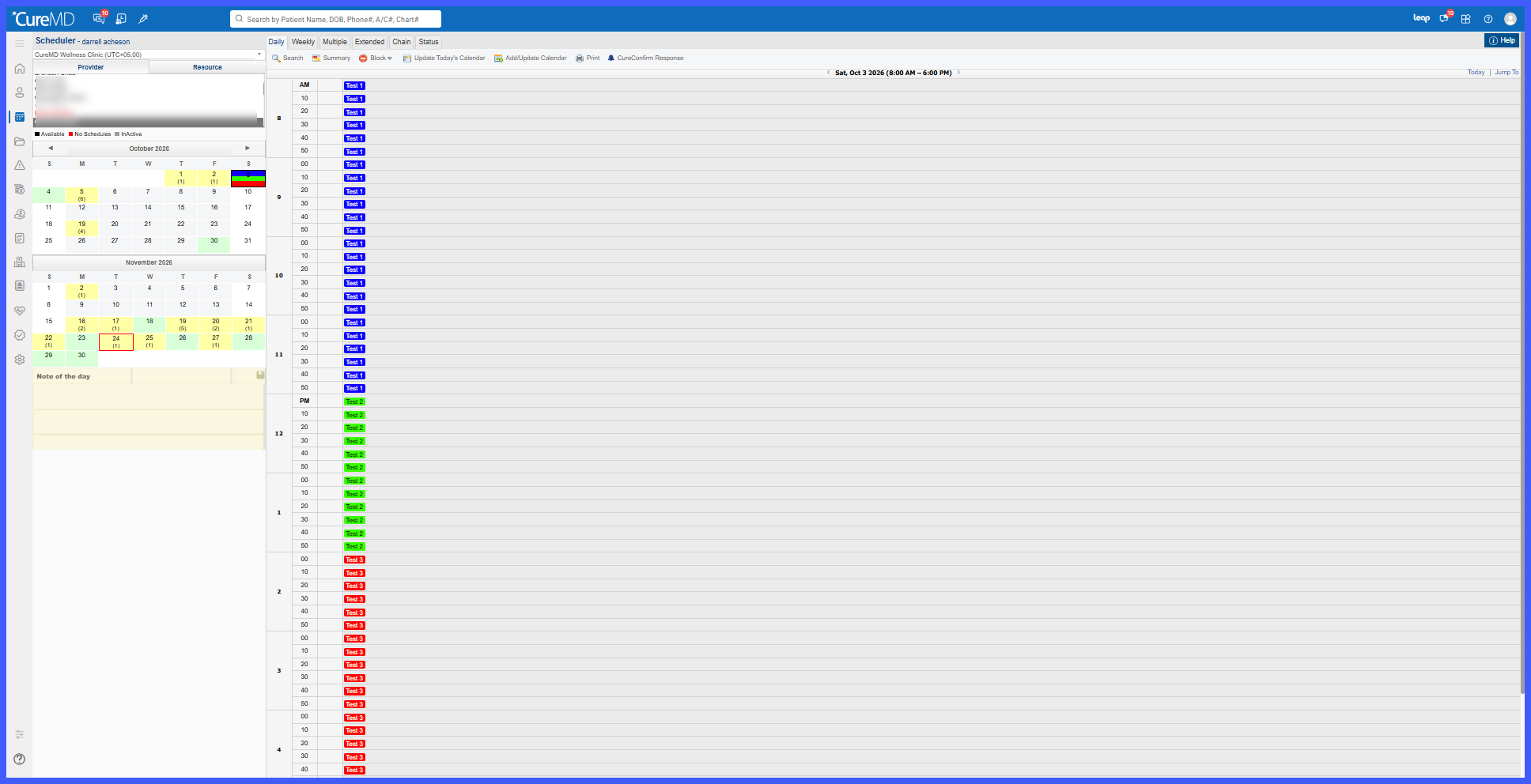
- Custom block colors are reflected across supported Scheduler views, including the Mini Calendar, Daily, Weekly, Multiple, Extended Multiple, and Practice views.
- Fully blocked days in the Mini Calendar display their assigned colors.
- When multiple blocks with different colors exist on the same day, the Mini Calendar displays a color gradient.
- Blocked time slots display their configured background colors, with text colors automatically adjusted for readability in Daily View.
- Disabling Enable Block Colors restores the existing default appearance without removing previously saved custom colors.
- Saved colors become visible again when the setting is re-enabled.
- Existing Scheduler workflows and block functionality remain unchanged.
How It Works
- Navigate to Practice Scheduler Settings.
- Locate the new Enable Block Colors checkbox.
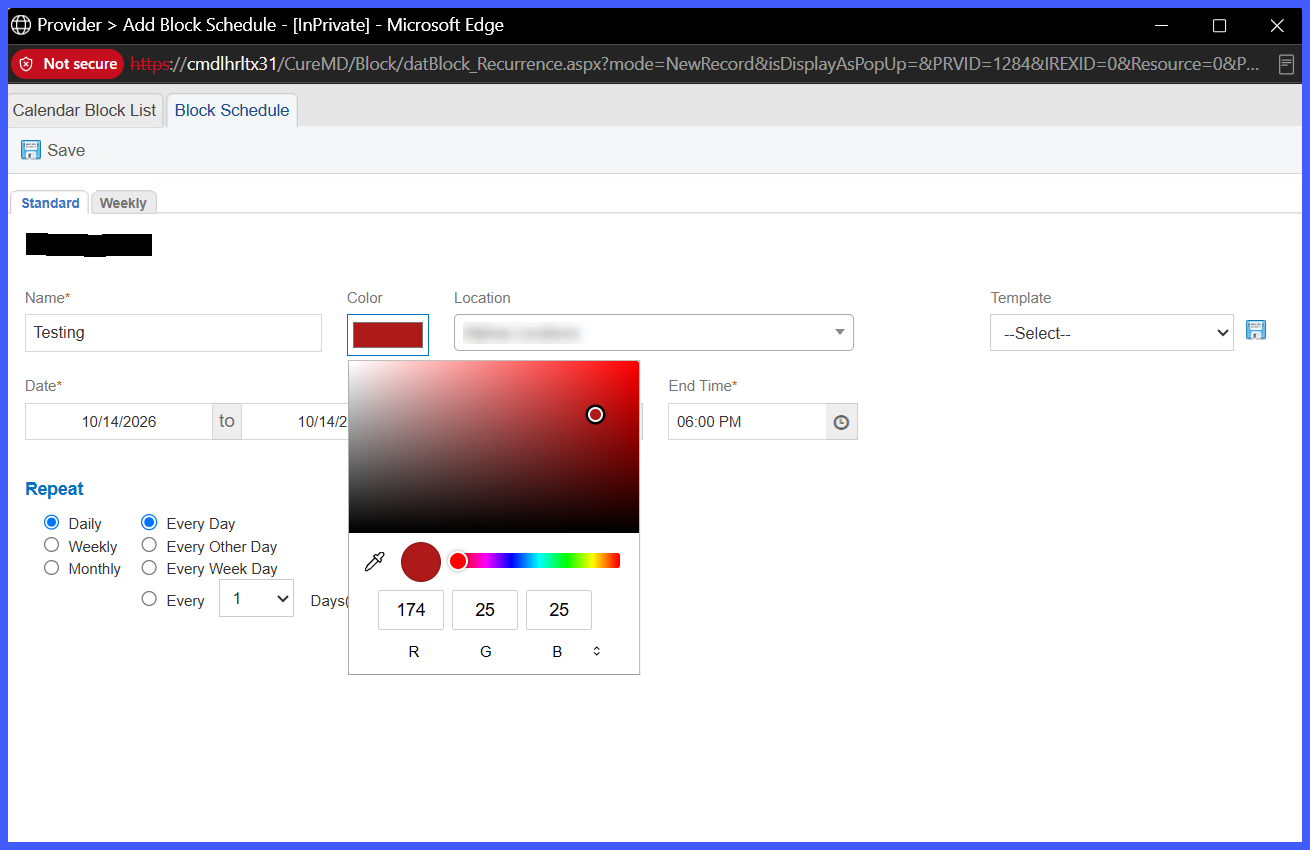
- Select the checkbox to enable custom block colors.
- Open a supported block creation or editing screen within the Scheduler.
- Locate the Block Color picker.
- Select the preferred color for the block.
- Save the block using the existing workflow.
- The selected color is displayed across the applicable Scheduler views.
- Users can subsequently edit a block to change its assigned color.
Benefits
- Makes it easier to identify unavailable days and blocked time slots across Scheduler views.
- Provides greater flexibility in visually organizing calendar blocks.
- Helps scheduling staff distinguish different blocked periods without relying solely on the standard block appearance.
- Improves visibility when reviewing provider and resource availability.
- Reduces the effort required to identify blocked scheduling periods across multiple calendars.
- Supports clearer calendar presentation through customizable colors and automatic text contrast adjustments.
- Preserves existing Scheduler functionality for practices that prefer the default appearance.
- Retains previously saved block colors when the feature is temporarily disabled.
- Allows practices to adopt the enhancement without changing existing scheduling workflows.
