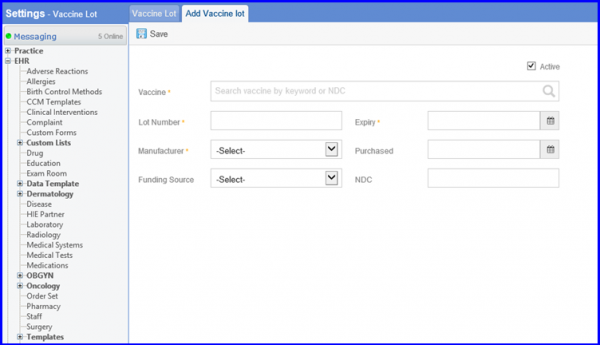
How to Add Vaccine and Lot From Settings?
Vaccine:
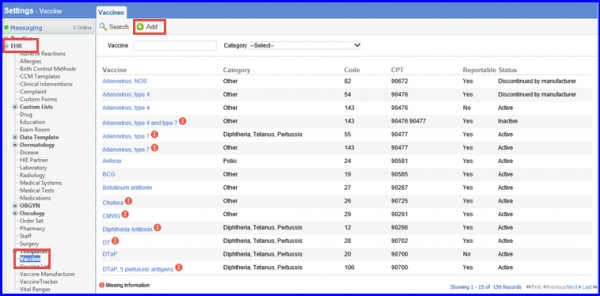
Follow the workflow above to land on the ‘Vaccine’ page.
All the vaccines existing in the library are displayed here.
Click ‘+Add’ button.
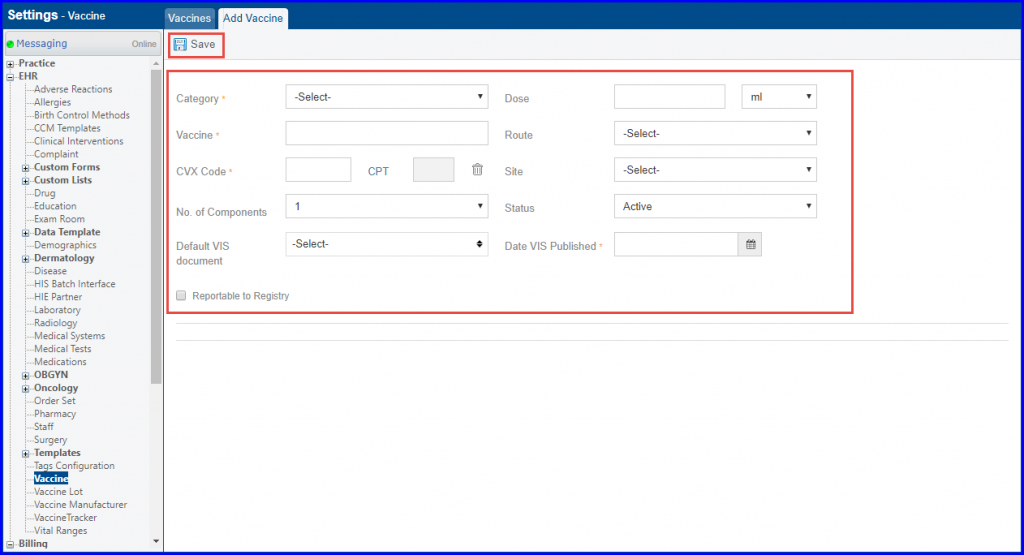
Doing so displays the ‘Add Vaccine’ screen.
Here, users can provide following details of a vaccine, which are auto populated when a vaccine is administered:
- Category
- Dose
- Vaccine
- Route
- CVX Code
- CPT
- Site
- of Components
- Status
- VIS Documentation
- Date VIS Published and Reportable to Registry
When Done, click ‘Save’ button.
Workflow: Settings > EHR > Vaccine Lot
Vaccine Lot:
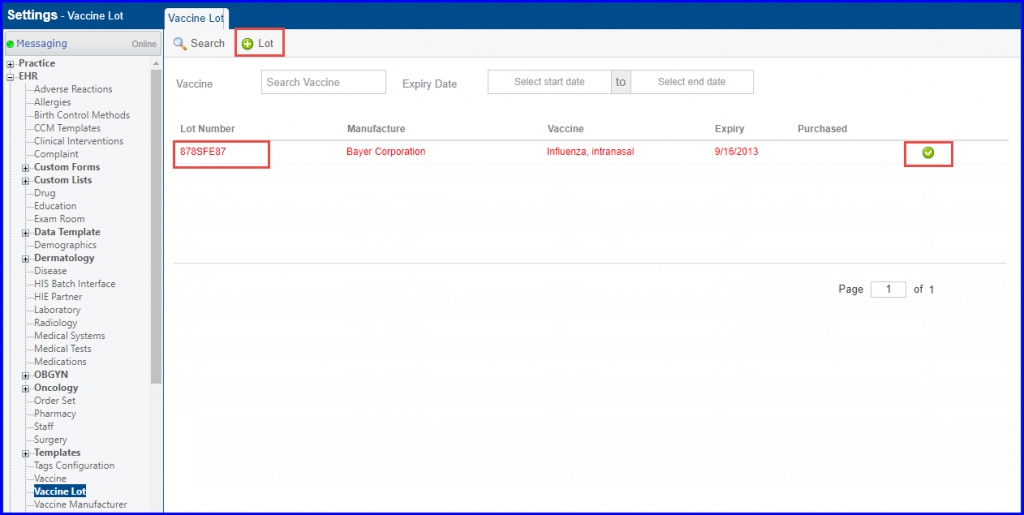
Follow the workflow above to land on the ‘Vaccine Lot’ screen.
All the vaccine lots existing in the library are displayed here.
The  icon against records infers that the lot is in active state.
Users can edit a lot by clicking on the lot number.
To add a lot, click ‘+Lot’ button.
On ‘Add Vaccine Lot’ screen, users can enter following details:
- Vaccine
- Lot Number
- Expiry
- Manufacturer
- Purchased
- Funding Source
- NDC
When done, click ‘Save’.