Specimen Storage Tooltip and Storage Mismatch Pop-up Enhancements
What’s New
- Tooltips now display the specimen storage type when hovering over any added lab order tile.
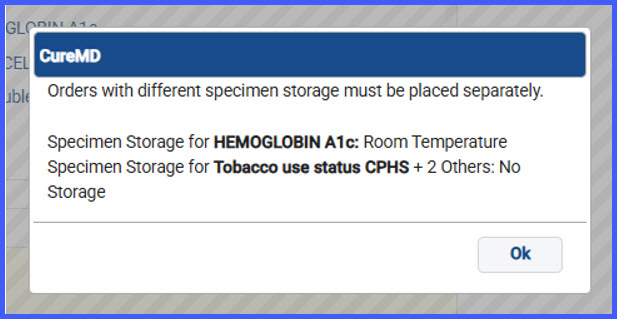
- A new validation pop-up appears when the user selects an additional order whose storage type differs from or is unspecified compared to existing added orders.
- Tooltip formatting matches the style used in the order search results section.
- A new validation pop-up appears when the user selects an additional order whose storage type differs from or is unspecified compared to existing added orders.
- The pop-up lists the storage type of the selected order and the storage type(s) of existing orders, using “Unspecified” when no value exists.
- When multiple orders are already added, the pop-up lists the first order name followed by “+n orders” to indicate additional items.
- The pop-up instructs users that orders with different or unspecified storage types must be placed on separate requisitions.
How It Works
- Add one or more lab orders from Clinical or Provider Note workflows.
- Hover over any added order tile to view the specimen storage type tooltip.
- If adding another order with a different or unspecified specimen storage type, the system triggers a pop-up alert.
- The pop-up identifies:
– The selected order’s storage type
– The existing order’s storage type (and “+n orders” if applicable) - Users must separate orders with mismatched storage requirements into different requisitions.
Benefits
- Ensures proper handling of lab specimens by preventing incompatible orders from being combined.
- Provides instant visibility into storage requirements via tile-level tooltips.
- Reduces submission errors and clarifies when separate requisitions are required.
- Improves user awareness and consistency across lab order workflows.