Shared Exam Rooms and Occupied Room Assignment
Configure Shared Exam Rooms
Assign Exam Room from Today’s Patients
Assign Exam Room from Clinical Status
What’s New
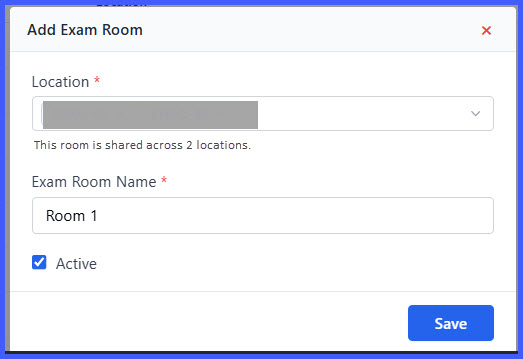
- Exam rooms can now be associated with multiple locations from Settings > EHR > Exam Room.
- A single exam room can be shared across two or more locations.
- The Exam Room listing displays all associated locations for shared rooms.
- Users can search and filter the Exam Room listing by location, including shared rooms.
- When an exam room is shared, the system displays a message indicating the associated locations.
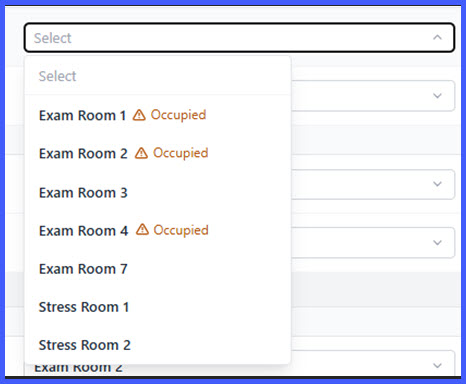
- During room assignment, the room dropdown displays all eligible rooms for the selected appointment location, including shared rooms.
- Occupied rooms display an inline Occupied indicator within the room selection list.
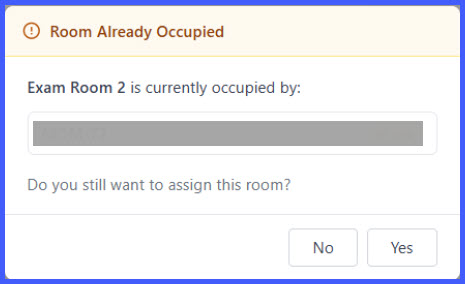
- Selecting an occupied room displays a confirmation prompt showing:
– Current patient occupying the room.
– Location(s) where the room is currently in use. - Users can choose:
– Yes to proceed with the assignment.
– No to cancel the assignment. - The same occupied room behavior is available from:
– Today’s Patients
– Clinical Status / Change Status
How It Works
- Navigate to Settings > EHR > Exam Room.
- Create or edit an exam room and associate it with one or more locations.
- Save the exam room configuration.
- During appointment room assignment, open the Exam Room dropdown.
- The system displays eligible rooms for the selected location, including shared rooms.
- If a room is currently occupied, an Occupied indicator appears beside the room.
- Selecting an occupied room displays a confirmation prompt identifying the current occupant and associated location(s).
- Select Yes to assign the room or No to cancel the assignment.
Benefits
- Eliminates the need to maintain duplicate exam room records across multiple locations.
- Simplifies room assignment by displaying shared rooms automatically.
- Improves operational awareness through occupied room indicators.
- Helps staff coordinate room usage by displaying current occupancy before assignment.
- Provides consistent room assignment behavior across Today’s Patients and Clinical Status workflows.