Preferred Language in Patient Banner & Banner Tooltip
What’s New
In EHR settings, the user navigates to Settings > My Practice Settings > EHR, opens Preferred Language Customization, and switches on Show preferred language in patient banner.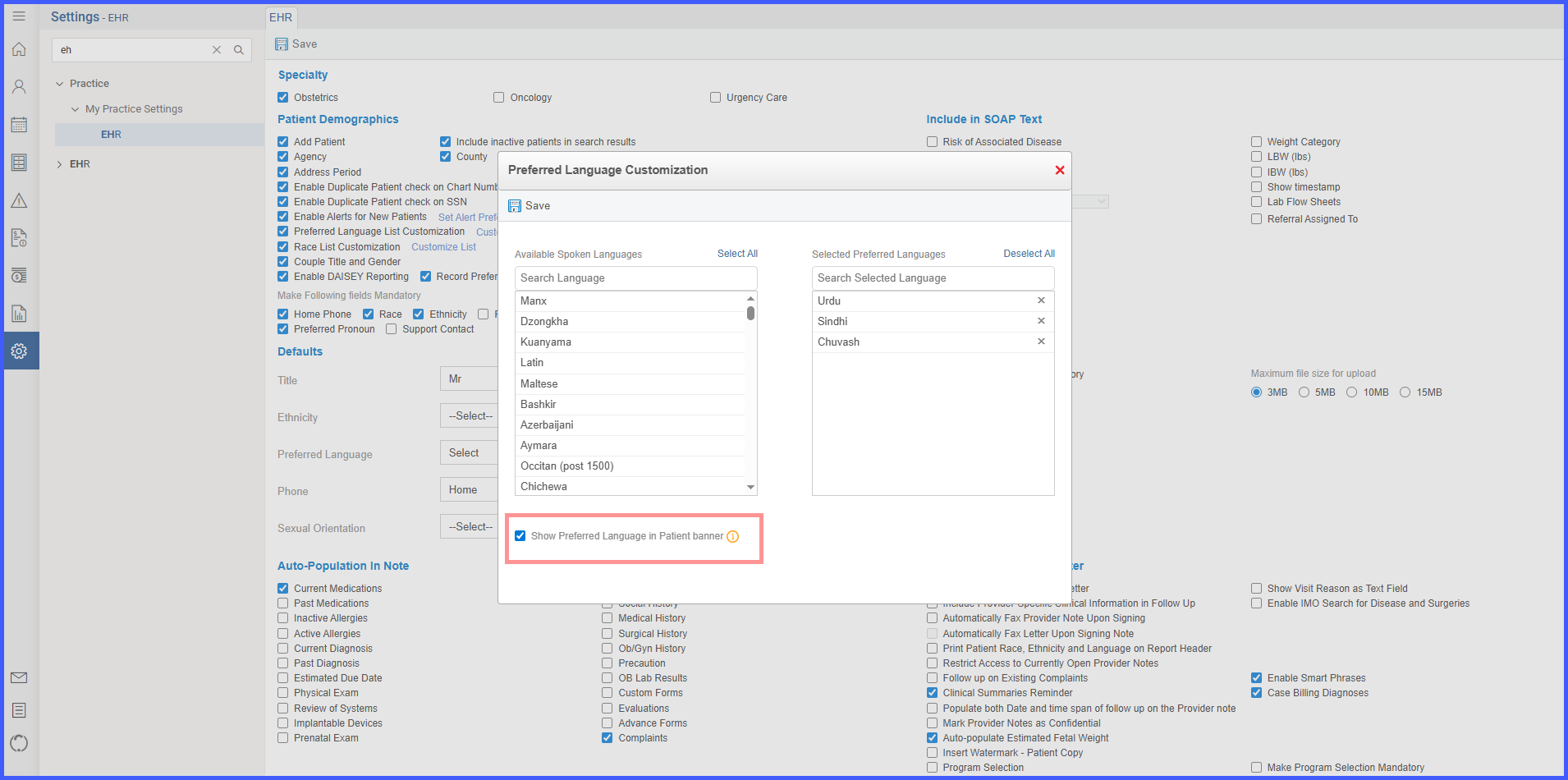
In the chart, the user goes to Patient Profile > Demographics > Preferred Language and adds one or more languages for the patient.
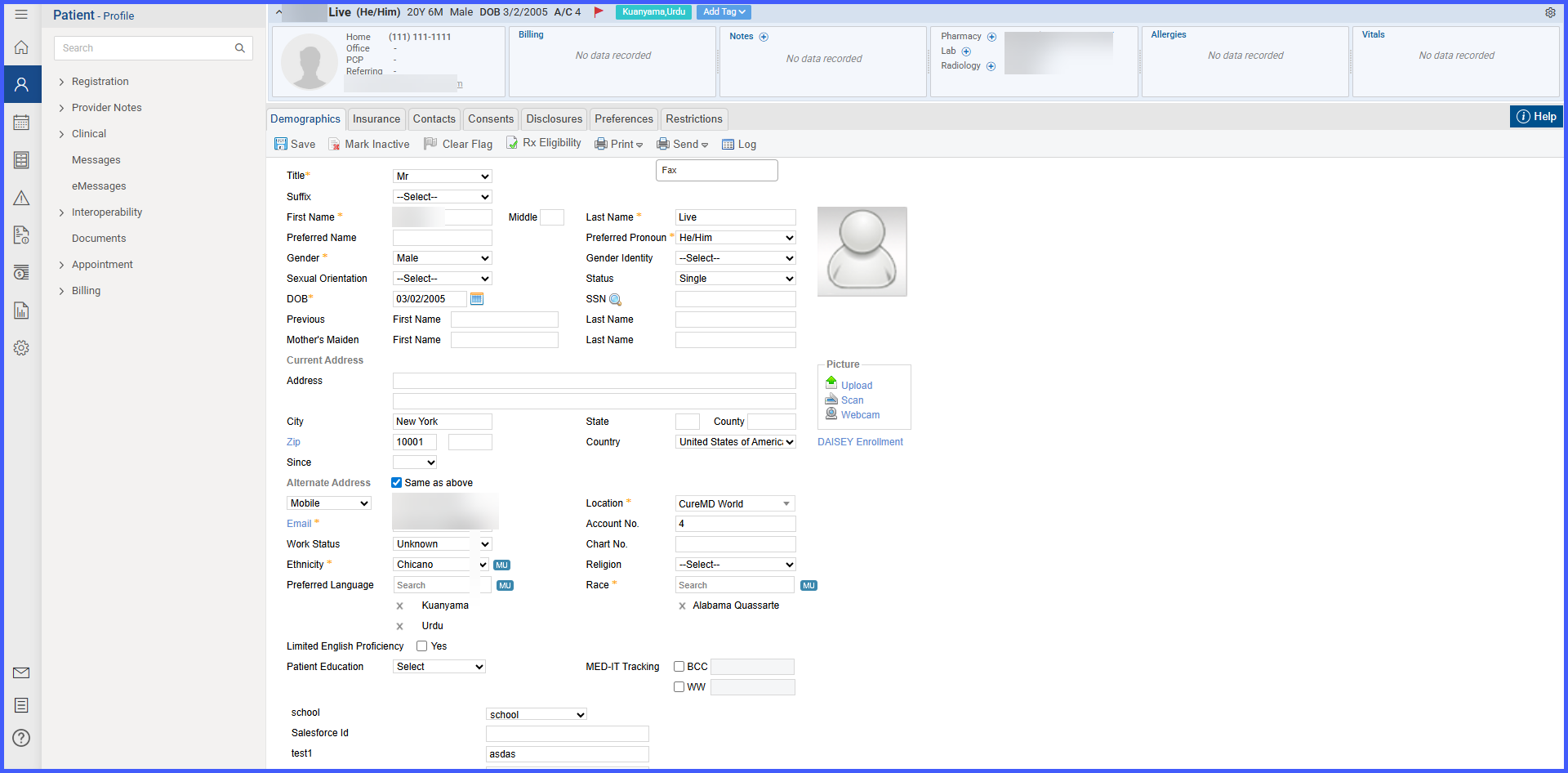
Patient Banner:
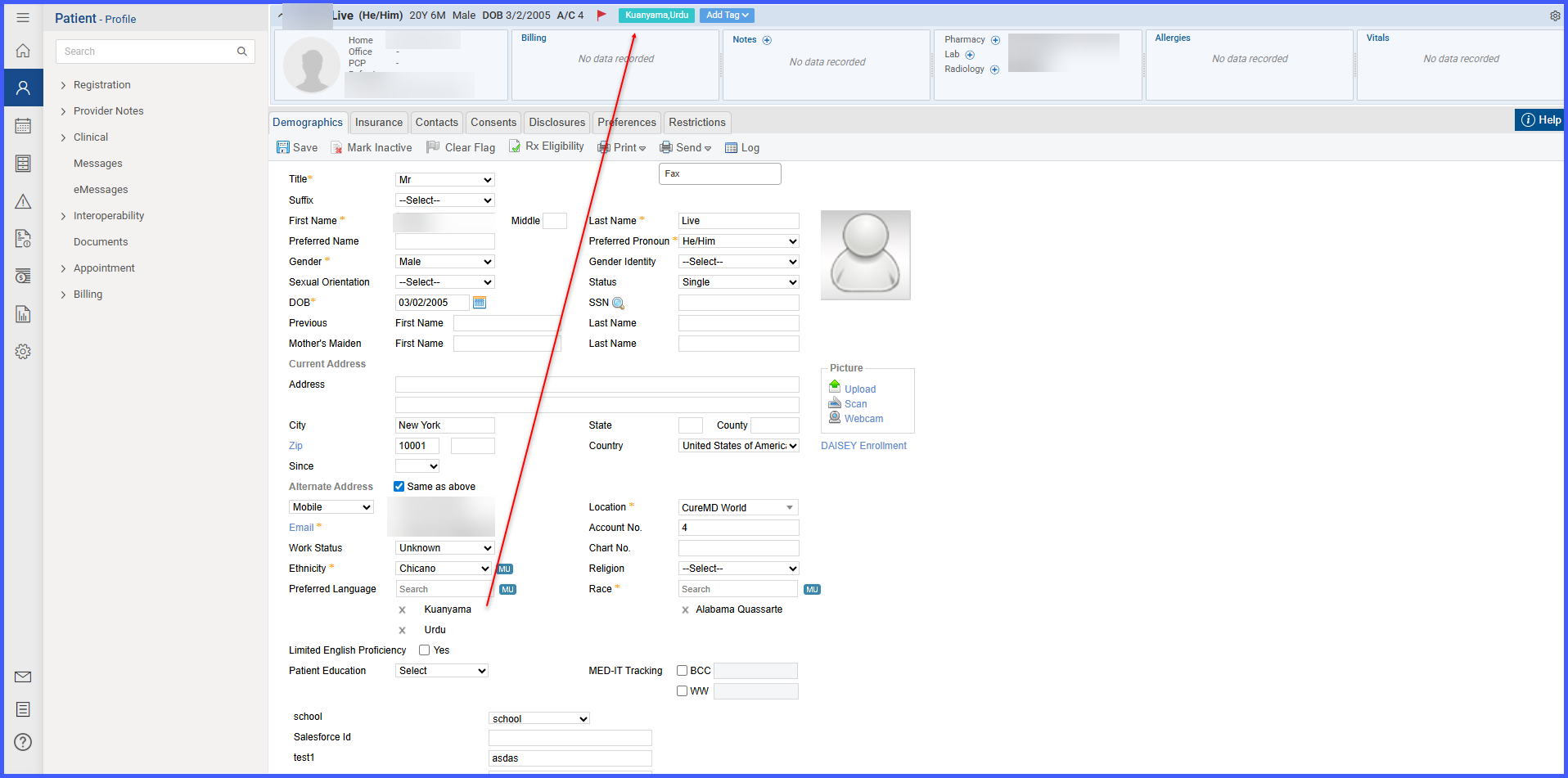
In the patient chart, go to Patient Profile > Demographics > Preferred Language and select one or more languages; the patient banner displays a Preferred Languages chip.
The chip does not include a remove icon; edits occur in Demographics > Preferred Language.
When more than two languages are selected, the chip displays: [language 1], [language 2], +[count] (for example, English, Spanish, +2).
Hovering over the +count shows an overlay listing all selected languages.
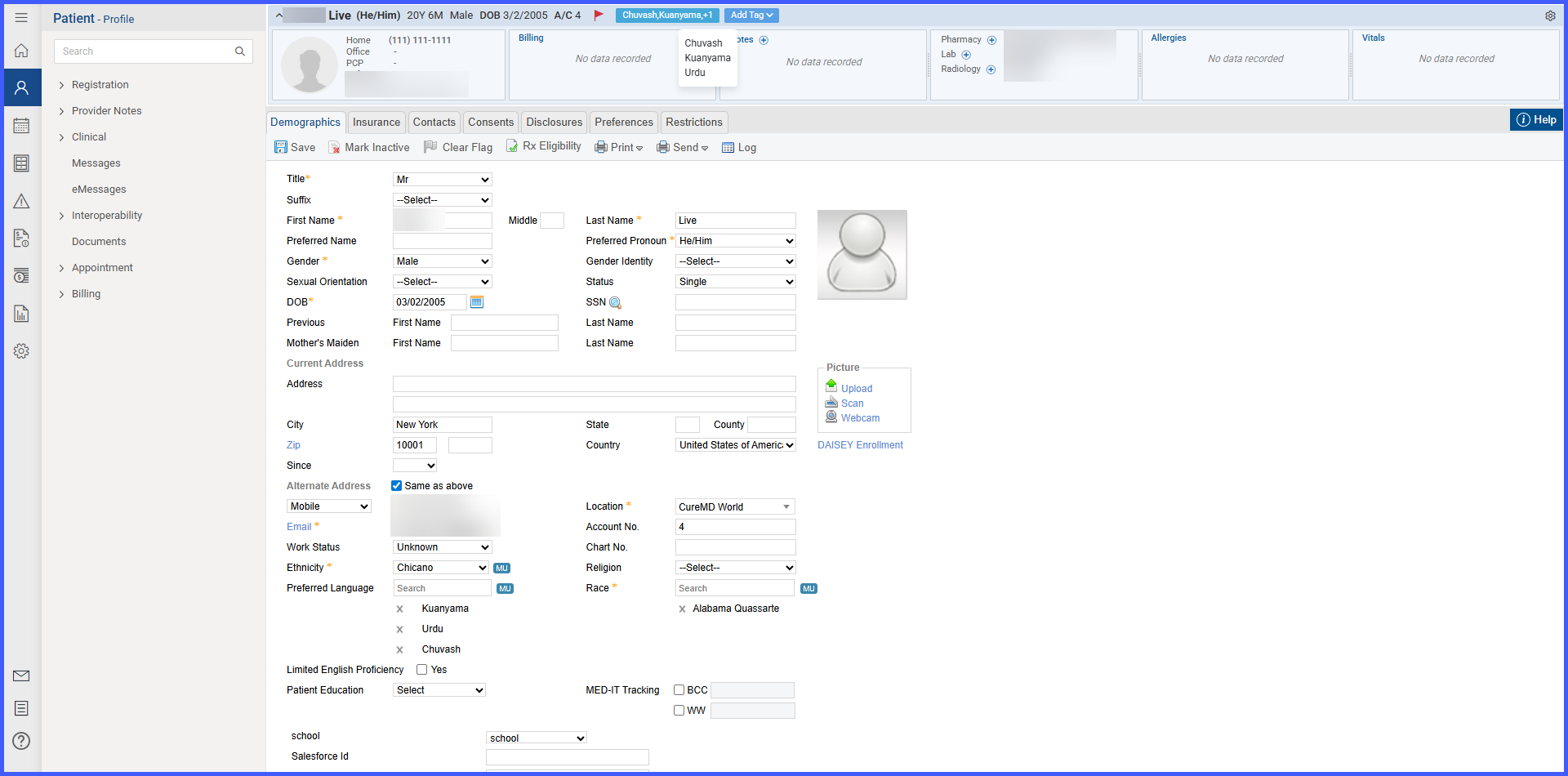
Updates made in Preferred Language reflect automatically in the chip without additional actions in the banner.
To hide the Preferred Languages chip, return to Settings > My Practice Settings > EHR > Preferred Language Customization and switch off Show preferred language in patient banner; the chip is removed from the banner.
Patient Banner Tooltip:
In the patient banner, the user clicks the patient name to open the tooltip; a line displays Preferred language: followed by the selected languages (for example, Preferred language: English, Spanish).
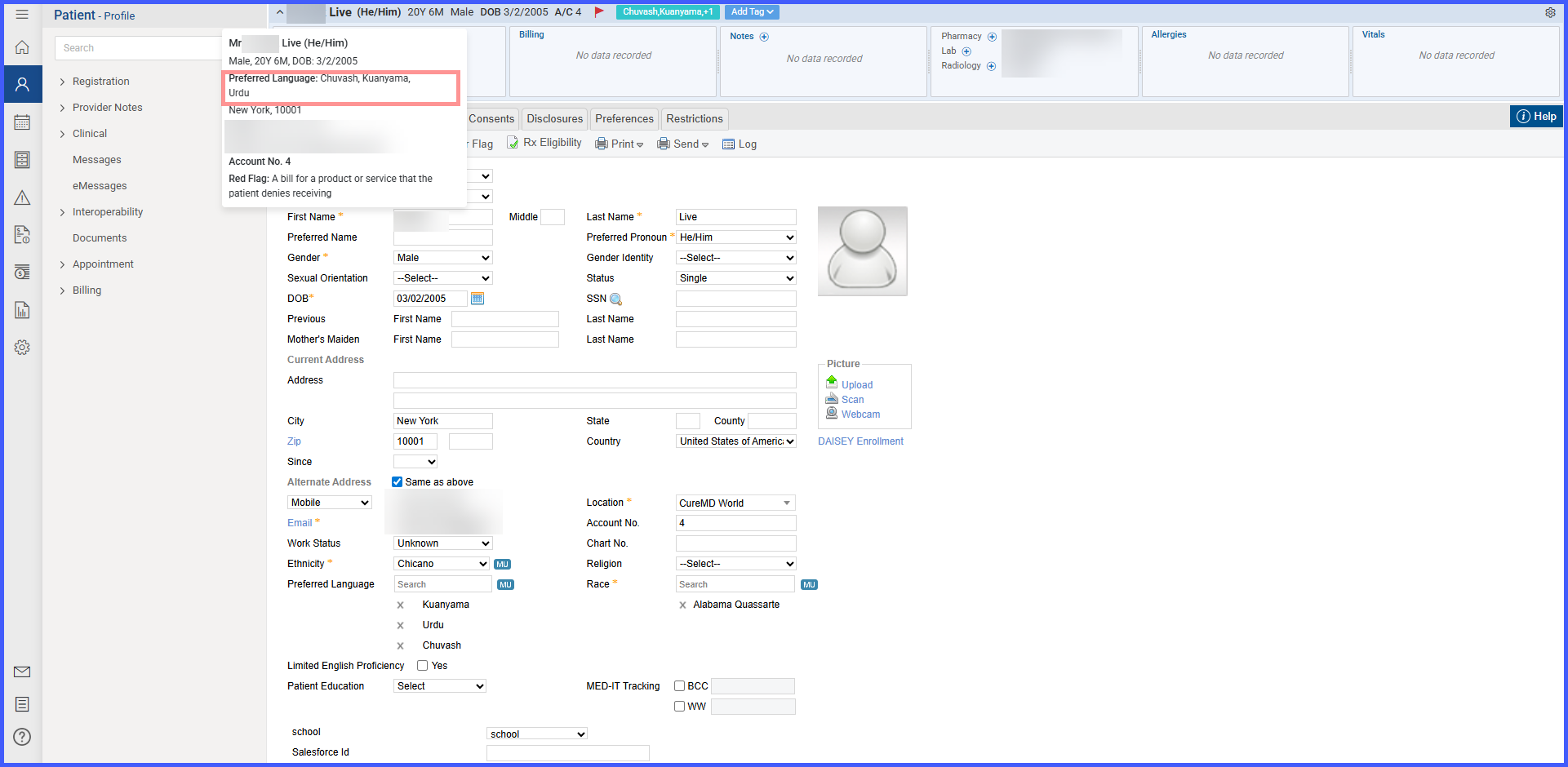
Updates made in Demographics > Preferred Language reflect automatically in the tooltip without additional actions.
To remove the Preferred language line from the tooltip, the user returns to Settings > My Practice Settings > EHR > Preferred Language Customization and switches off Show preferred language in patient banner; the tooltip entry is removed from the patient banner.
