Enhanced Smart Phrases with Dynamic Fields and Flag Support
Create an Enhanced Smart Phrase
Insert Dynamic Fields
Use Enhanced Smart Phrase in Provider Note
What’s New
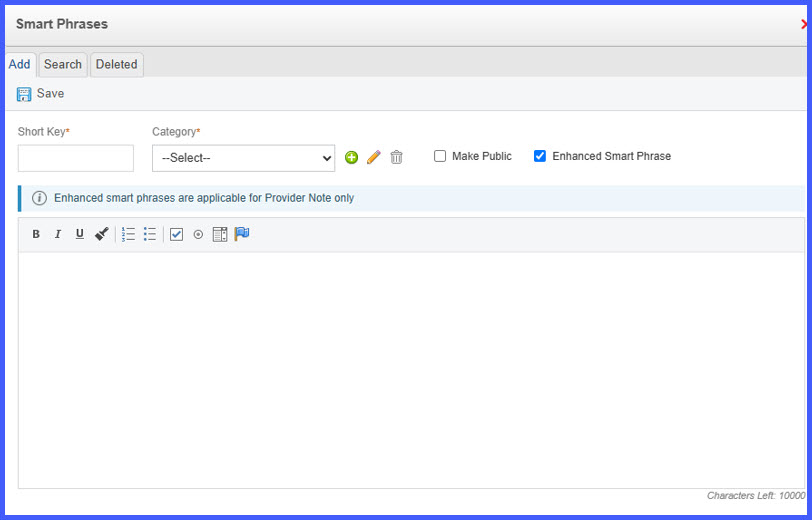
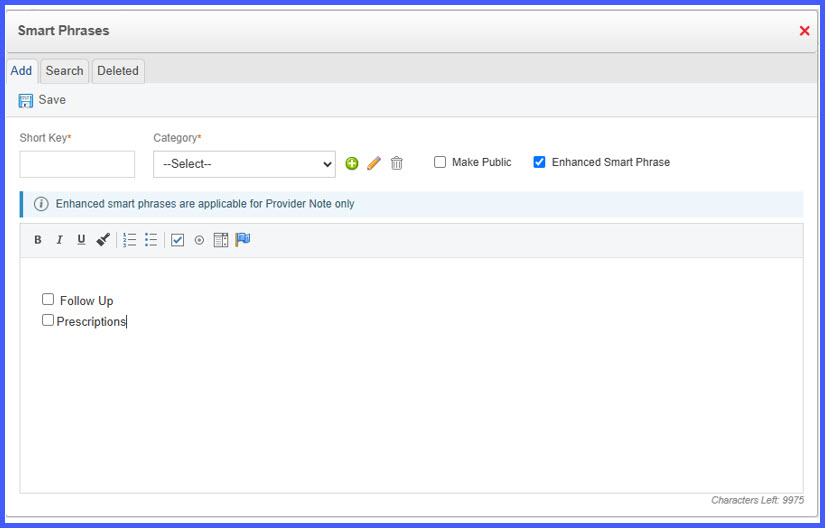
- A new Enhanced Smart Phrases option is available within the Smart Phrase editor.
- Enabling Enhanced Smart Phrases displays:
– An enhanced authoring toolbar.
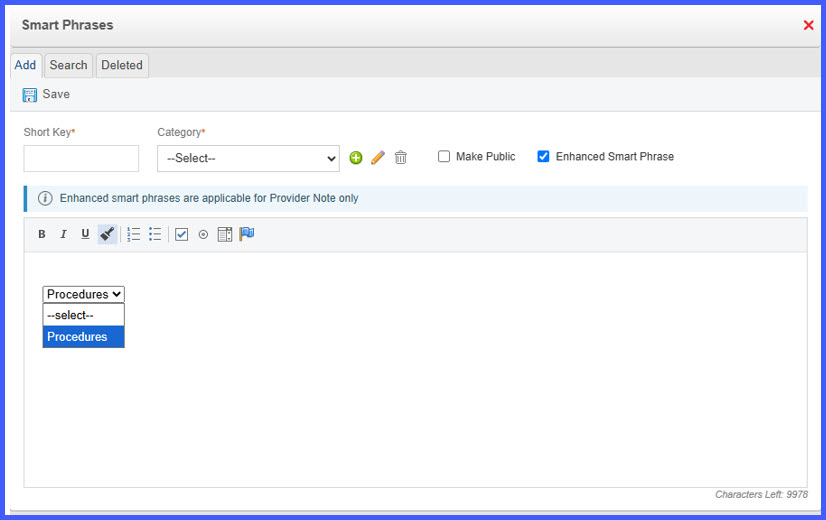
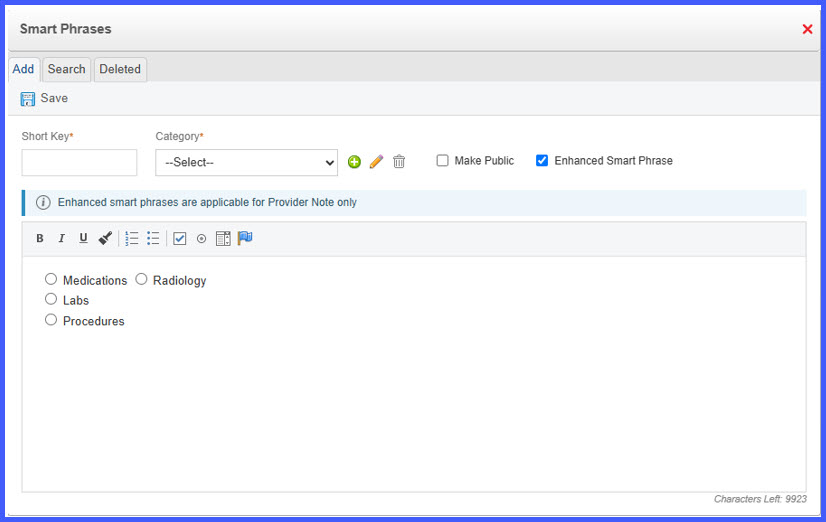
– A banner indicating that Enhanced Smart Phrases are applicable to Provider Notes only. - The editor now supports structured controls, including:
– Checkbox
– Radio Button
– Dropdown - Existing formatting options remain available, including:
– Bold
– Italic
– Underline
– Numbered Lists
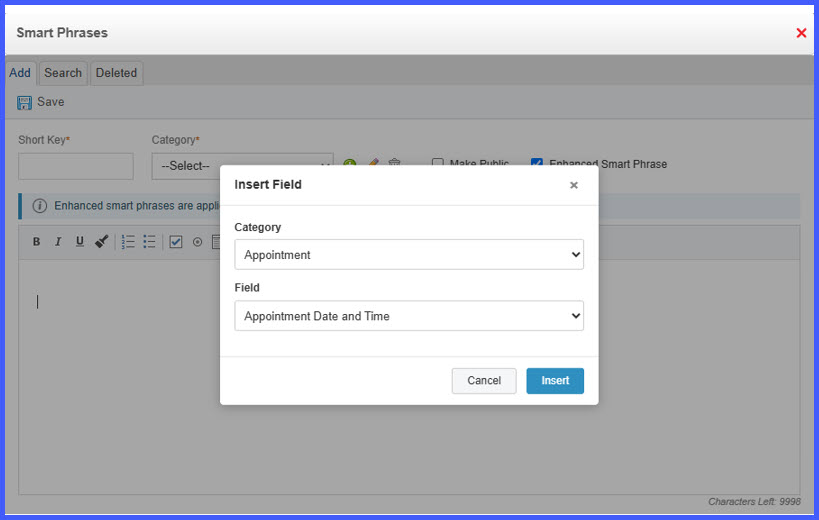
– Bulleted Lists - A new Flag option allows insertion of dynamic fields through the Insert Field dialog.
- Dynamic fields can be inserted from the following categories:
– Patient
– Provider
– Visit
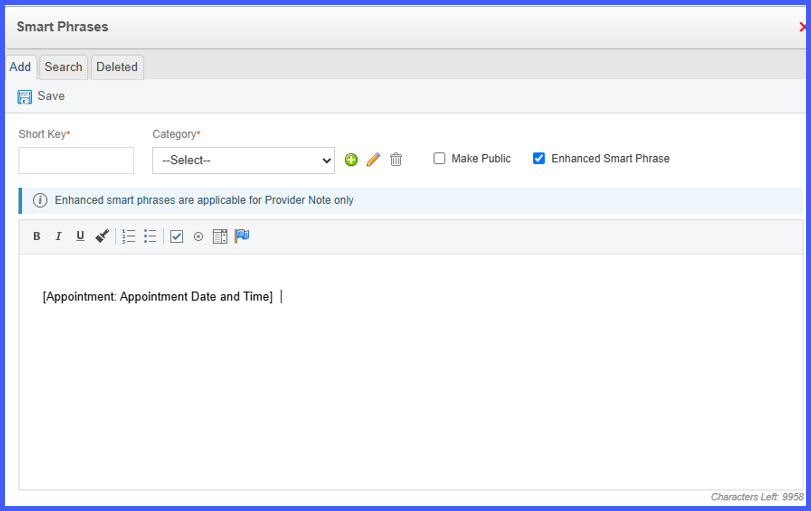
– Insurance - Selected fields are inserted as tokens using the format [Category: Field].
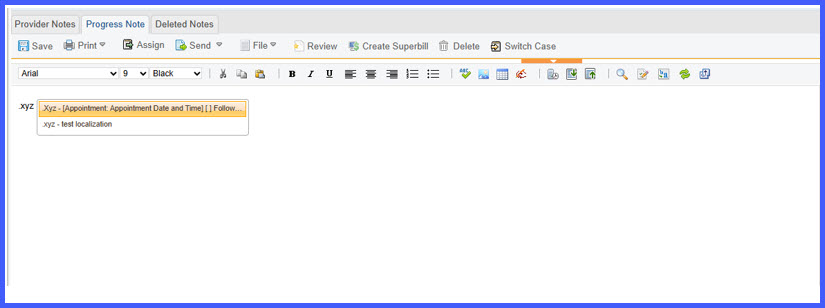
- Enhanced Smart Phrases are inserted into Provider Notes using the existing IntelliSense workflow (. + first two characters of the Smart Phrase shortcut or CTRL + Space).
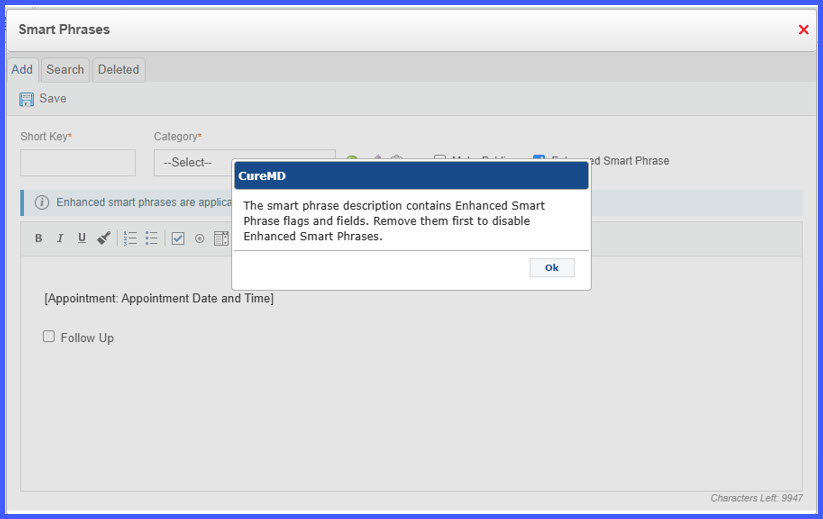
- Enhanced Smart Phrases cannot be disabled while enhanced flags or fields remain within the Smart Phrase. A warning message is displayed until the fields are removed.
- Smart Phrases can now be created and saved without defining a Short Key.
How It Works
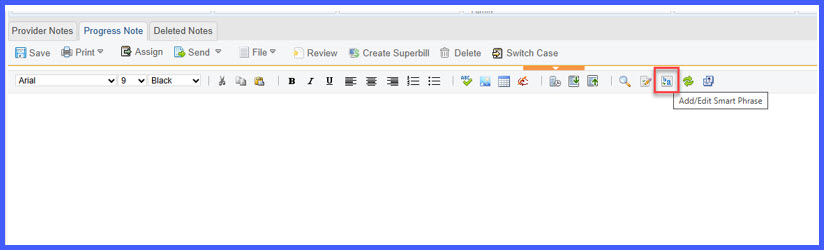
- Open the Smart Phrase editor and create or edit a Smart Phrase.
- Enable Enhanced Smart Phrases.
- Use the enhanced toolbar to add structured controls or select the Flag option.
- Choose the desired Category and Field from the Insert Field dialog.
- Insert the selected field into the Smart Phrase as a dynamic token.
- Save the Smart Phrase.
- Within a Provider Note, type “.” followed by the first two characters of the Smart Phrase shortcut or use CTRL + Space to display matching Smart Phrases.
- Select the Smart Phrase to insert the structured content and dynamic fields into the Provider Note.
Benefits
- Improves Provider Note efficiency by allowing reusable Smart Phrases to contain structured selections and dynamic patient information.
- Reduces repetitive manual data entry by automatically inserting Patient, Provider, Visit, and Insurance values.
- Supports more consistent documentation through reusable structured content.
- Simplifies Smart Phrase creation by allowing Smart Phrases to be saved without requiring a Short Key.
- Preserves existing Smart Phrase behavior for workflows outside Provider Notes.