How to Submit Order & Queue Order?
The system allows you to queue orders when the order submission is Automatic, and to immediately submit orders when the order submission is Manual.
- Automatic Submission:
Click on the Add button from the top of the screen, this takes you the following screen:

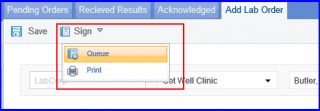
To queue the order in the Unsubmitted bucket, click on the Sign button from the top. A dropdown is displayed, with the Queue and Print options, click on Queue.
You can update the collection date and time.

By clicking on the order number from the Order No. column, a Lab Order pop-up is displayed. Update the collection date and time by clicking on the Update Collection Date and Time button from the top of the screen.

Manual Submission:
Click on the Add button from the top of the screen, this takes you the following screen:
Now In order to submit the order in the submitted bucket, click on the Sign button from the top. A dropdown is displayed, with the Submit and Print options, click on Submit.
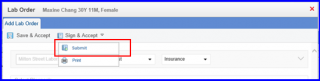
The Submit option sends the order instantly to the lab upon Signing, instead of queuing it in the Un-submitted bucket.
