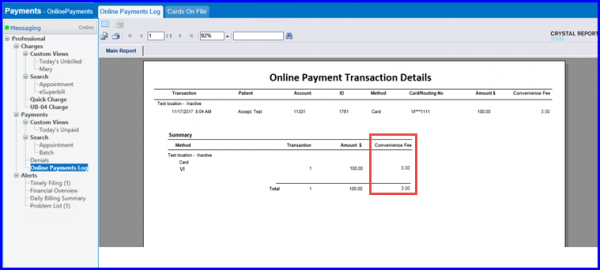
How to Record Convenience Fee and Send it to EasyPay?
Users can report convenience fee and send its data separately to EasyPay.
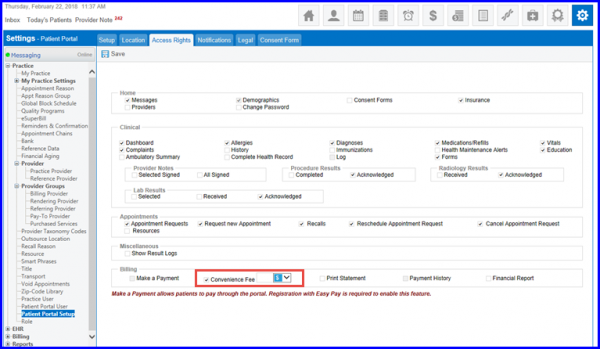
In order to do this, the ‘Convenience Fee’ functionality must be enabled. Follow the workflow mentioned above and go to the ‘Access Rights’ screen. In the ‘Billing’ section, enable ‘Convenience Fee’ check box.
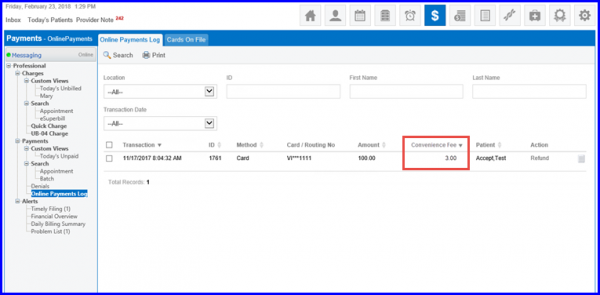
If user wishes to void the transaction, clicking on the Void link under Action column will display the pop-up below. On this screen, the amount will be inclusive of the convenience fee.
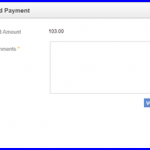
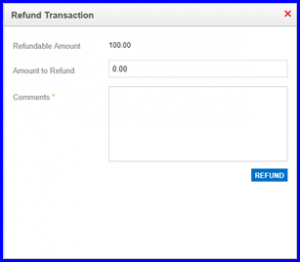
On refunding a transaction, system allows the user to refund upto the transaction subtotal amount only excluding the convenience fee.
Moreover, user can view the convenience fee against each transaction in online patient payments log.