How to Move Appointments from One Calendar to Another?
Users can move appointments from one calendar to another. 
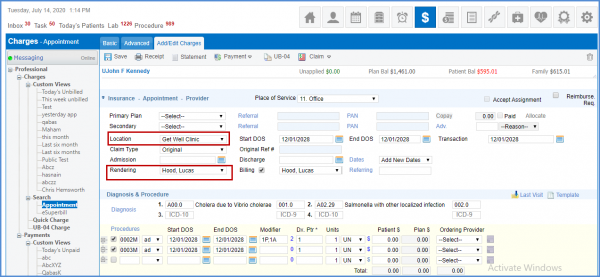
Follow the above mentioned workflow to land on the ‘Add/Edit Charges’ screen.
Update the rendering provider or the location of the appointment to move it to another calendar and click ‘Save’.
If the appointment can be moved, then the following warning message is displayed.
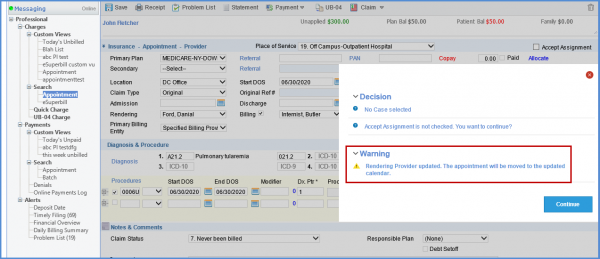
User clicks continue to move appointments. The details of this appointment are saved in the audit log as a rescheduled appointment.
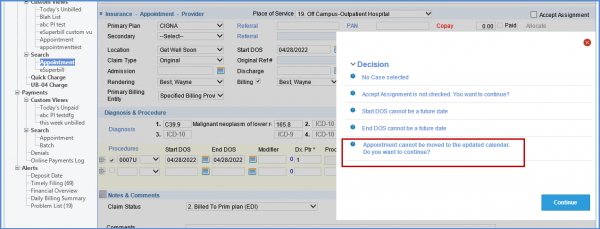
If an appointment cannot be moved, the following message is displayed.