How to ePrescribe New Medication?
Follow the workflow mentioned above to land on the ‘Refill’ screen.
Users can replace the refill request and can ePrescribe a new medication by clicking the ‘Replace’ button.
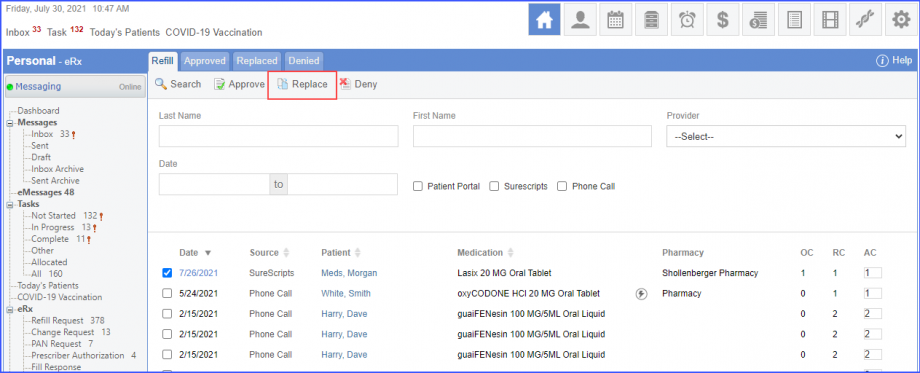
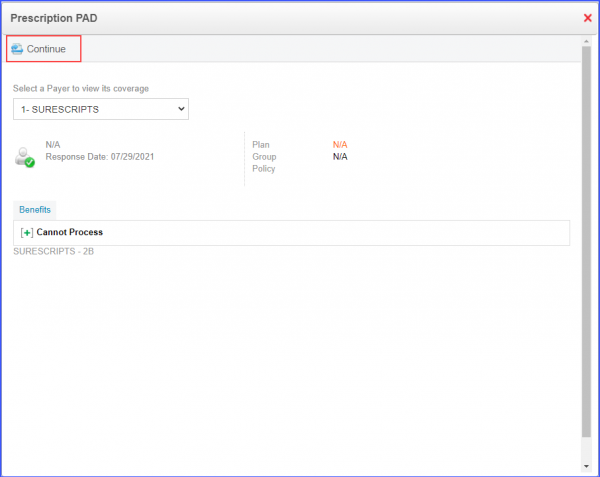
Click Replace to display the ‘Prescription PAD’ pop up screen. Users can select a ‘Payer to view its coverage, from the dropdown and click the ‘Continue’ button.
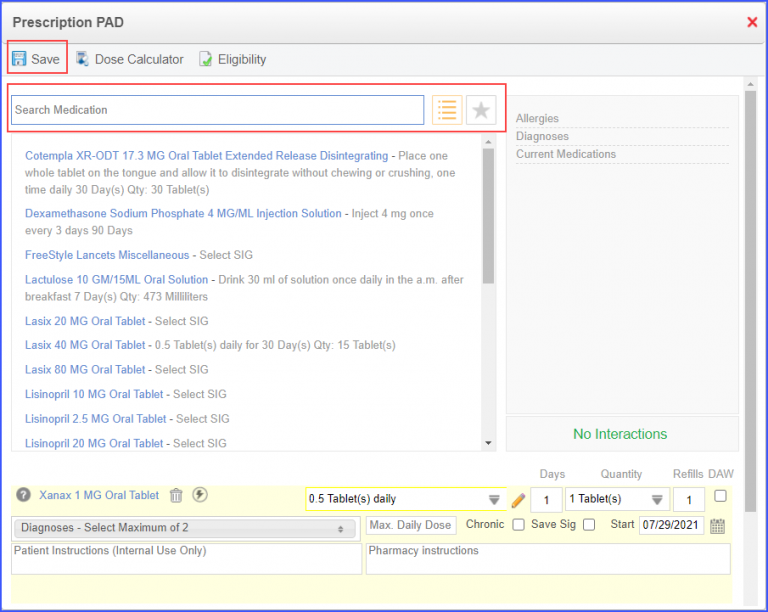
On the ‘Prescription PAD’, medication can be searched or selected from the hotlist or favorites option.
Users have the option to calculate dosage and check the eligibility.
Click the ‘Save’ button to save medication.
Once the ‘Save’ button is clicked, the system displays the ‘Summary Screen’ where a note can be added for the pharmacy. Then click ‘Replace’.
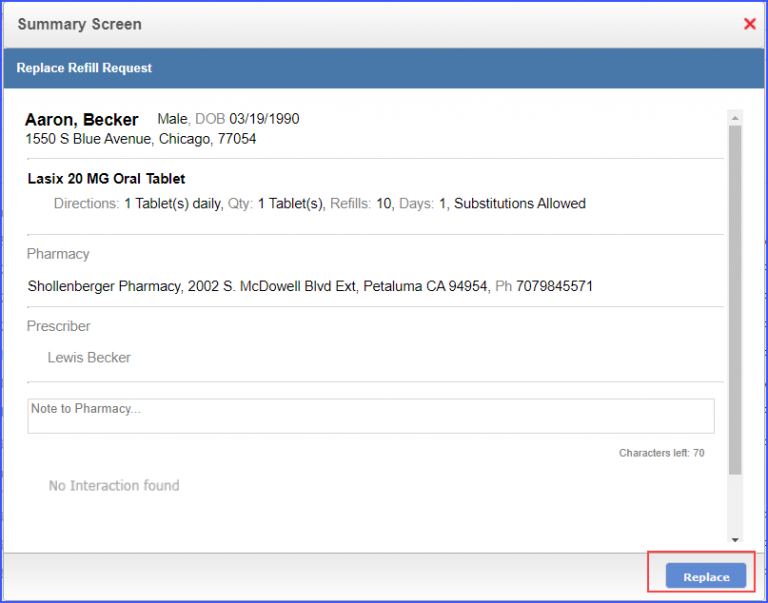
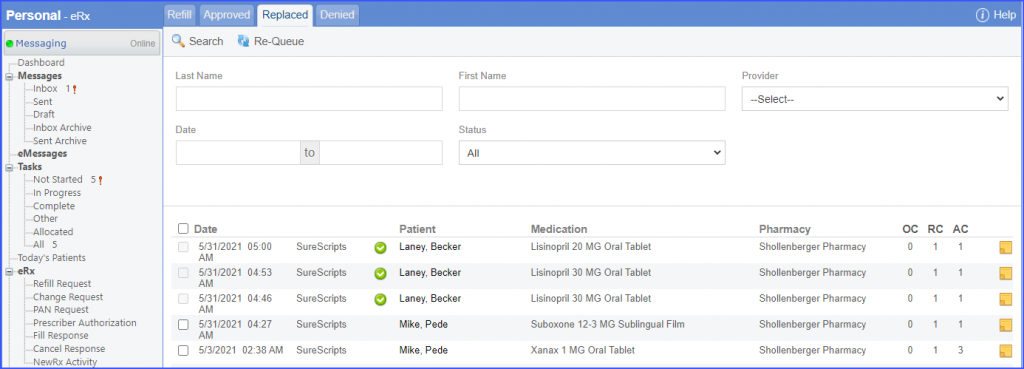
The refill request is then moved to the ‘Replaced’ tab.