How to Discontinue a Chemo Therapy/Plan?
Practice users can discontinue a specific therapy or the complete treatment plan of a patient.
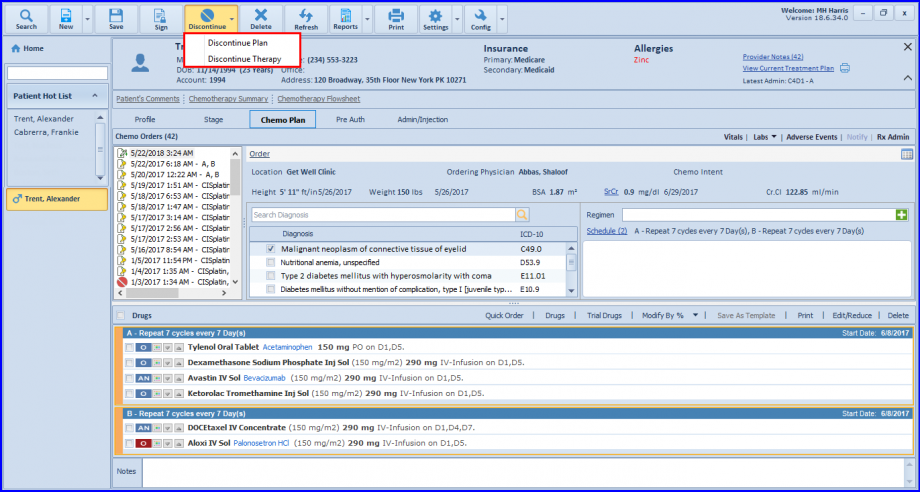
The Discontinue icon can be located at the main navigational panel and is only made accessible in Chemo Plan.

Discontinue Dropdown menu features two options.
- Discontinue Plan
- Discontinue Therapy
1. Discontinue Therapy:
Select Discontinue Therapy. This action prompts a Discontinue Therapy pop-up.
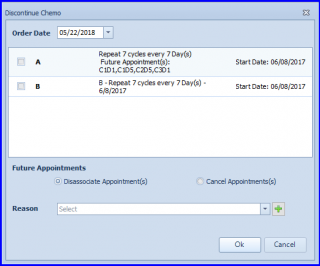
Now choose a therapy and select its reason for discontinuity.
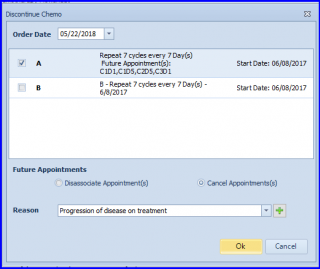
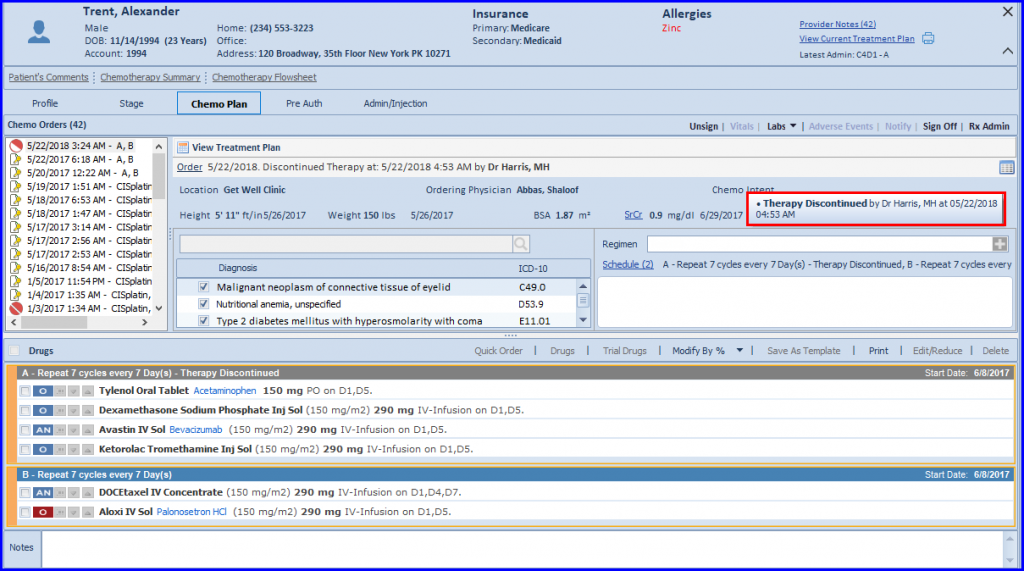
Press ‘Ok’ and the discontinued therapy can be seen greyed out under Drugs strip.

Additionally, the system marks  against discontinued therapies in Chemo Orders.
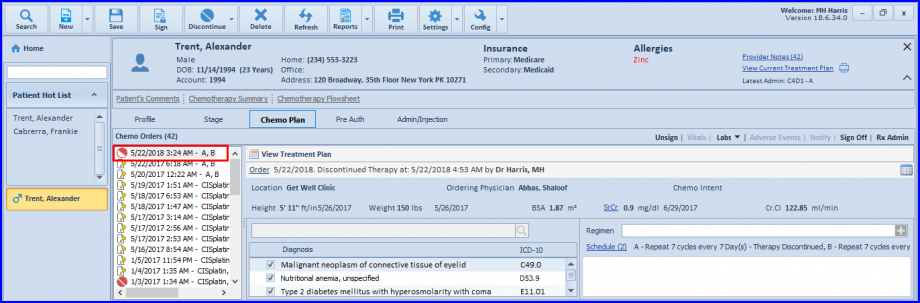
The discontinued therapy is highlighted with ‘Discontinued’ label. 
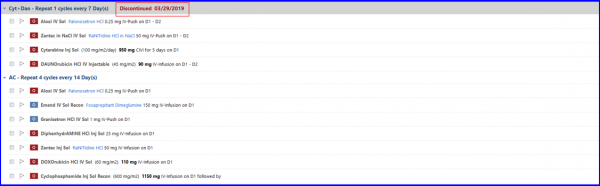
2. Discontinue Plan:
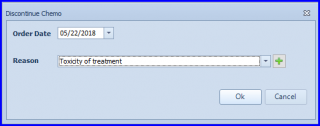
Select Discontinue Plan. This action prompts a ‘Discontinue Plan’ pop-up. Select a reason and choose an appropriate option for appointments.
Users can also recognize a discontinued plan by  icon in the Chemo Order section.
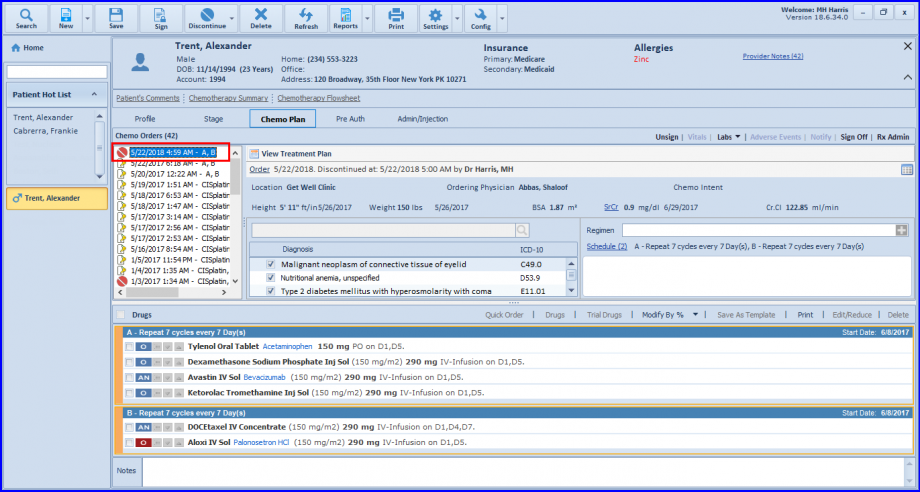
Lastly, a log is maintained to keep track of discontinued therapies.