How to Configure Topaz Signature Pads?
STEPS TO SETUP TOPAZ SIGNATURE PAD
The following are the steps to configure Topaz Signature Pads. User should install the browser SDK and activate the Topaz Chrome extension.
- Installation for SDK:
- Click here to download the installer.
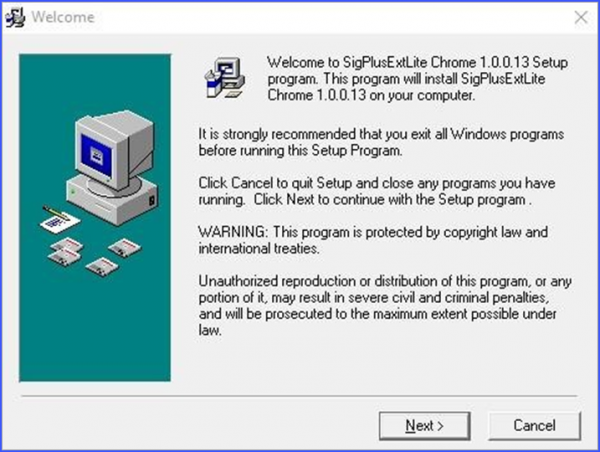
- On this first page click the ‘Next’ button.
-
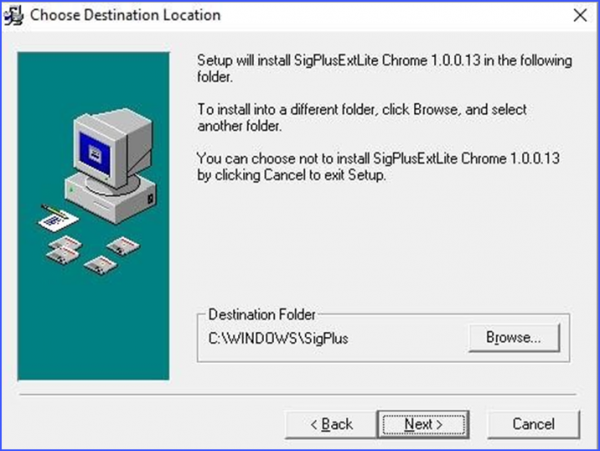
- Select the folder where you want to install and click ‘Next’.
-
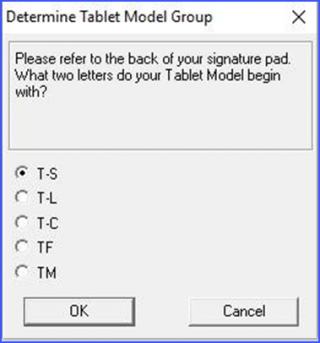
- Select the Model group as mentioned at the back of your Topaz device.
-
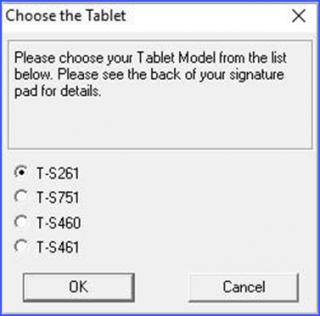
- Select the tablet model as mentioned at the back of your Topaz device and click ‘OK’.
-
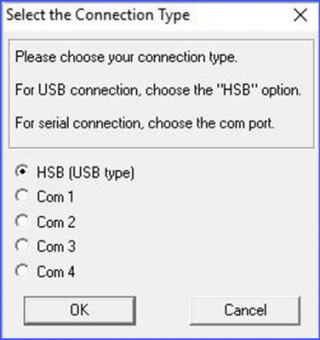
- Select the device connection type and click ‘OK’.
-
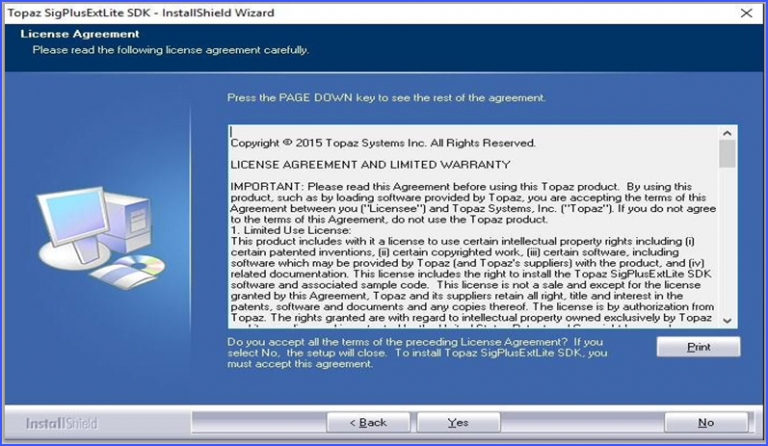
- Click ‘Agree’.

-
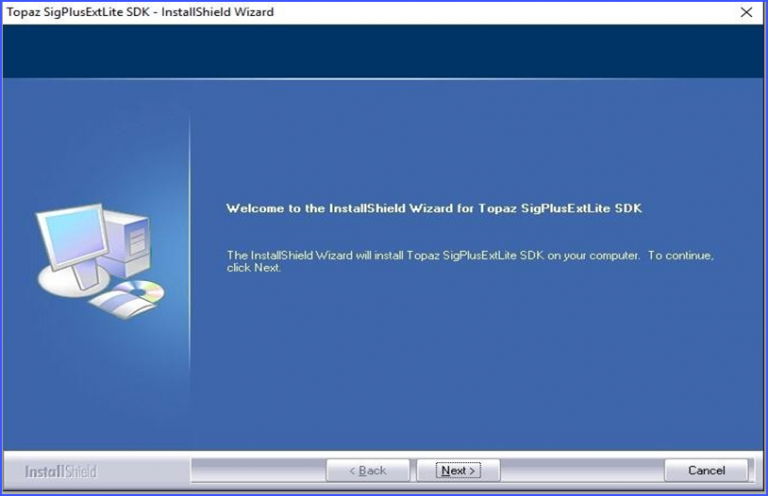
- Click ‘Next’.
-
- Click ‘Yes’.
-
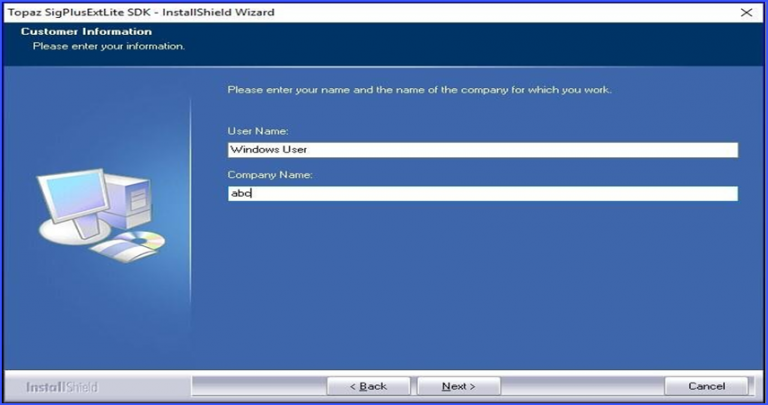
- Enter practice name and click ‘Next’.
-
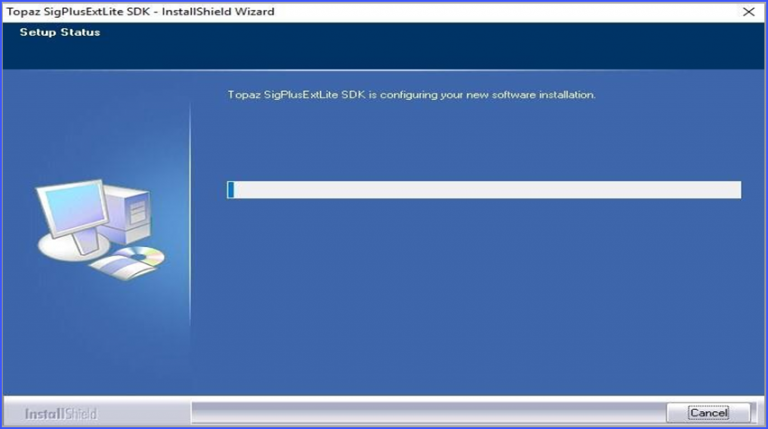
- The installation begins. Click finish when the installation is complete.
- Add Topaz Extension:
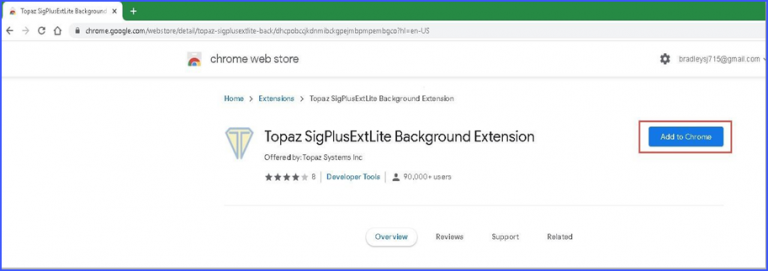
- To download and add the Topaz extension to Chrome browser, please click here. Click the “Add to Chrome” button to activate.
-
- Please close all of the Chrome browsers and relaunch.
