How to Re-Open Closed Tickets?
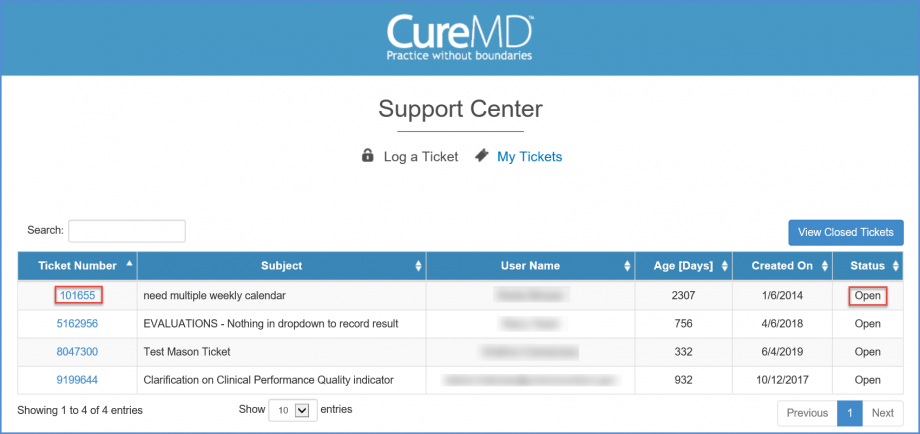
Log into the application and click the ‘Support’ hyperlink on the application header. This will display the ‘Support Menu’. Click the ‘My Tickets’ option.

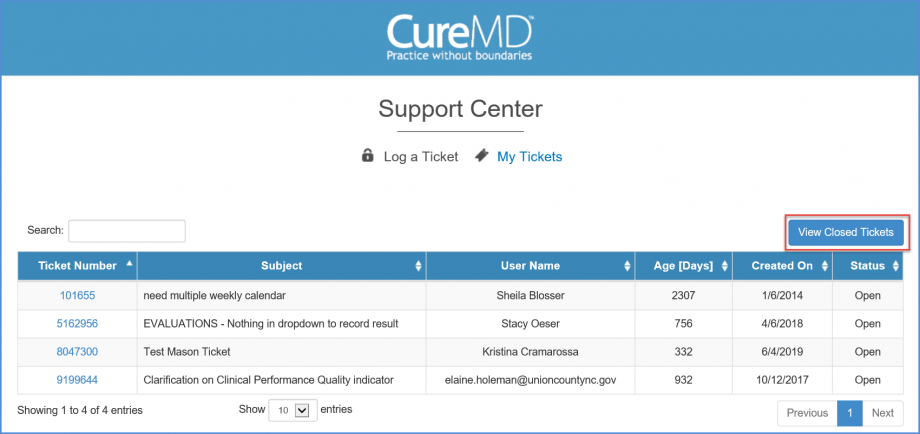
‘My Tickets’ section of the ‘Support Center’ will be displayed in a new window. This will contain a list of the all the open tickets. Click ‘View Closed Tickets’ button.
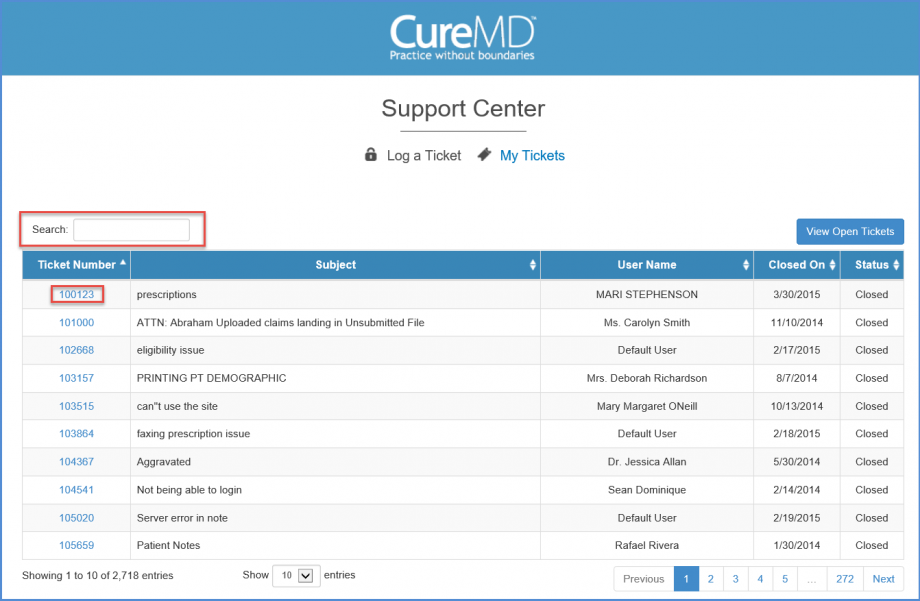
The list of closed tickets will be displayed. Users can either search for a ticket by the ticket number in the search field, or click on the required ticket from the ‘Ticket Number’ list.
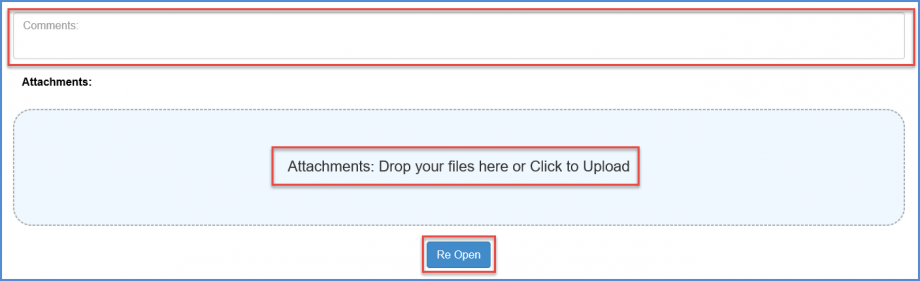
On the ticket window, scroll down to the comments section. Users can choose to insert comments and attach files. Click on ‘Reopen’ button to reopen the ticket.
The ticket will be reopened and displayed in the ‘Open Tickets’ list.