How to Create a Support Ticket?
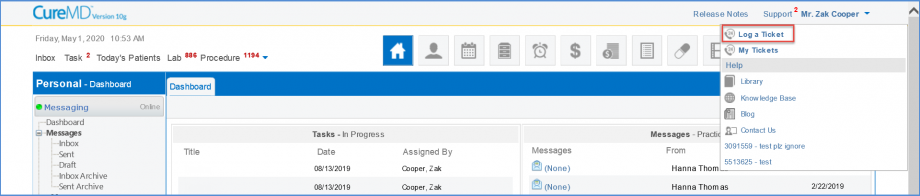
To create a support ticket, log into the CureMD application and click the ‘Support’ link in the top right corner of the screen.

This will display the ‘Support Menu’. Click the ‘Log a Ticket’ button.
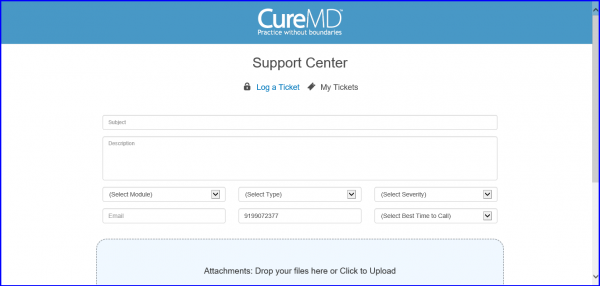
A new screen is displayed with the page to log a new ticket.”
Users can enter all accurate information in the required fields in order to create an effective support ticket. This includes a clear title and description.
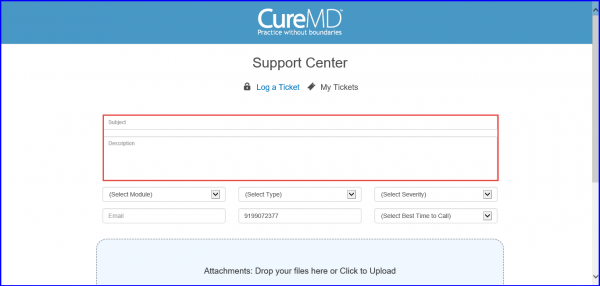
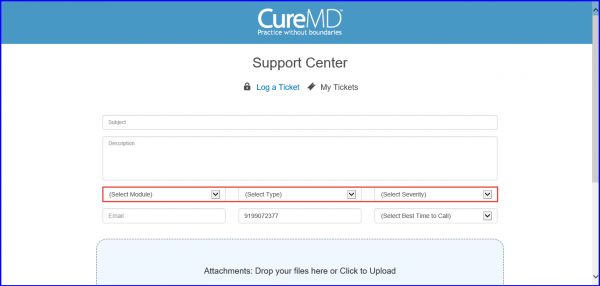
Following this are the drop down options to select the module, type as well as severity of the issue.
Minor = 72 hours
Major = 48 hours
Critical = 24 hours
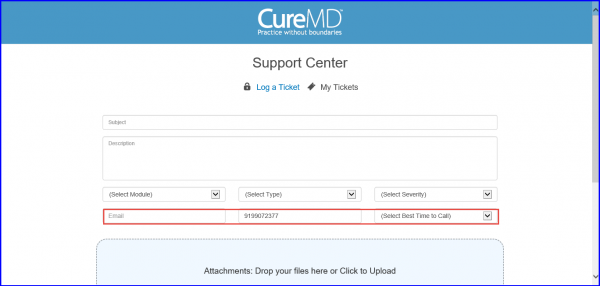
Along with these options, a user is required to enter their email, phone number and suitable time to call in order to coordinate an effective response from the client services team.
The system allows users to add attachments by dropping the files in the attachments section. This is an optional field to make sure the issue is clear and understandable to the support team.
In case a user does not know how to take a screen shot, click on the link at the bottom of the screen to display a new screen with an instructional guide for ‘Taking a Screenshot’.
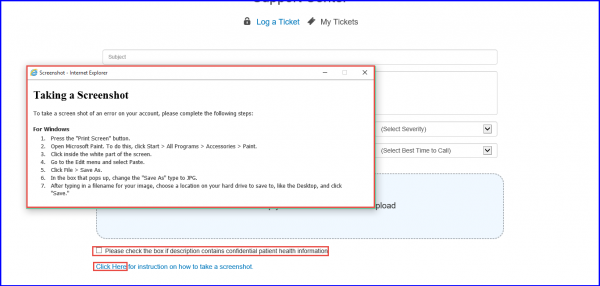
These instructions help users to attach or upload a file while logging a Support Ticket. In case an issue contains confidential information, the checkbox at the bottom of the page will notify the client services team.”
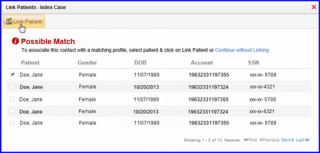
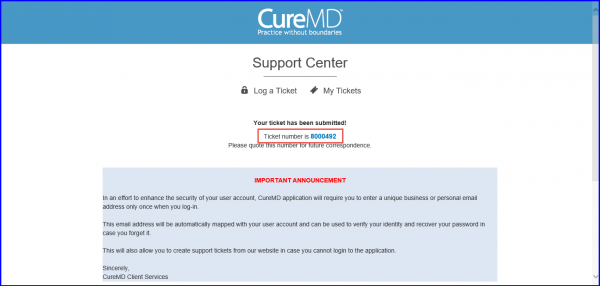
Once completed, click on the ‘Submit’ button. This will generate the ‘Ticket Number’ along with ticket submission message. The ‘Ticket Number’ can be used for future correspondence and status inquiry.