How to Preview Treatment Plan?
Follow the above mentioned workflow to land on the ‘Chemo Plan’ screen.
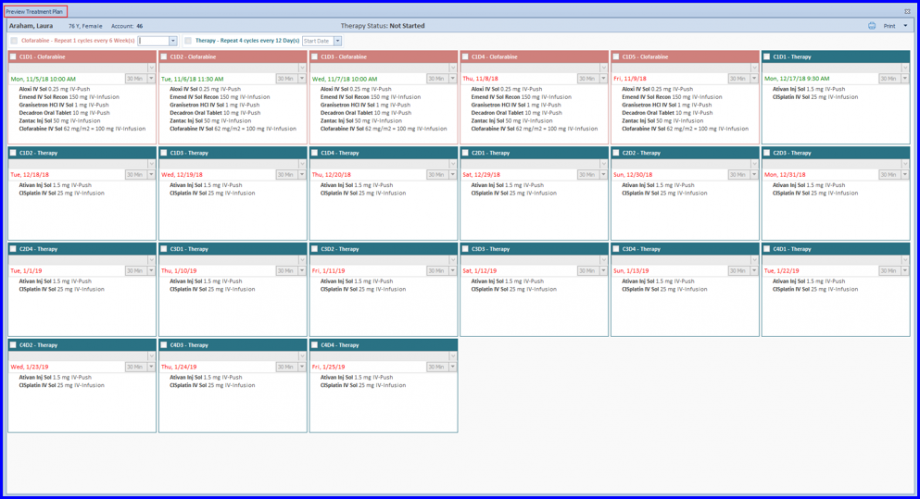
User can preview a treatment plan before signing a chemo plan. A ‘Preview Treatment Plan’ tag can be located in the chemo plan action toolbar.

Clicking it opens the preview version of an unsigned chemo plan.
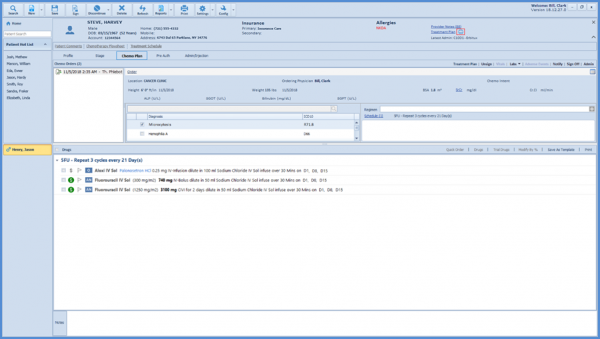
For a signed Chemo Plan, this link enables the users to perform all functionalities of Treatment Calendar which include attaching an appointment, editing infusion time, adding notes, printing therapies or marking a cycle day as ‘Done’ or ‘Skip’.

Click the print icon next to ‘Treatment Plan’ hyperlink.
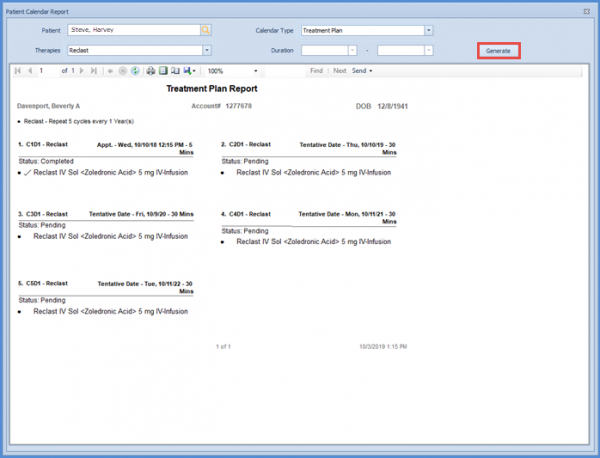
Doing so opens the ‘Patient Calendar Report’ screen, displaying three variants of treatment plan in a form of the report. It further comes with filtering options, such as ‘Patient Name’, ‘Therapies’ and ‘Duration.’
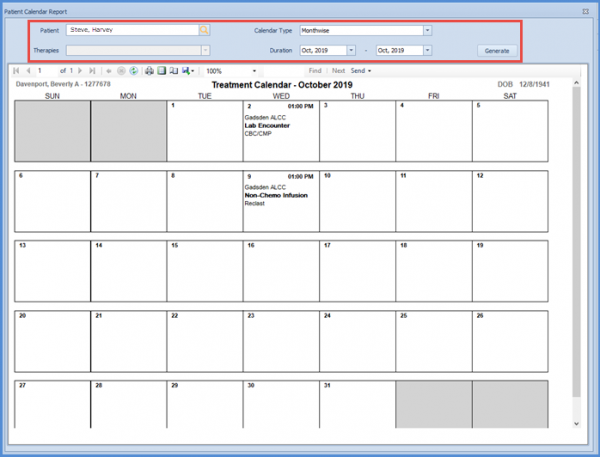
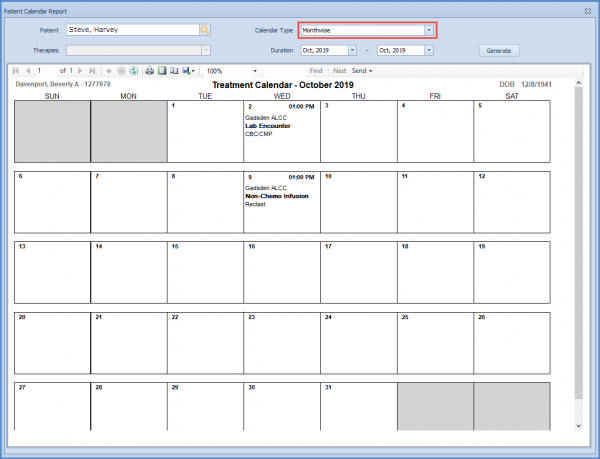
To view monthly calendar view, select ‘Monthwise’ from the ‘Calendar Type’ dropdown. 
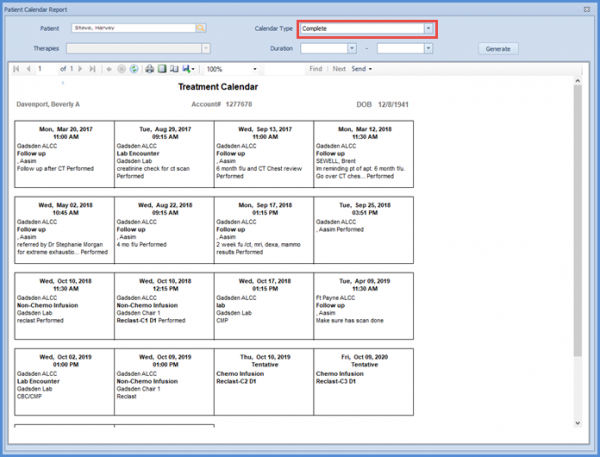
In order to view complete calendar details, choose ‘Complete.’
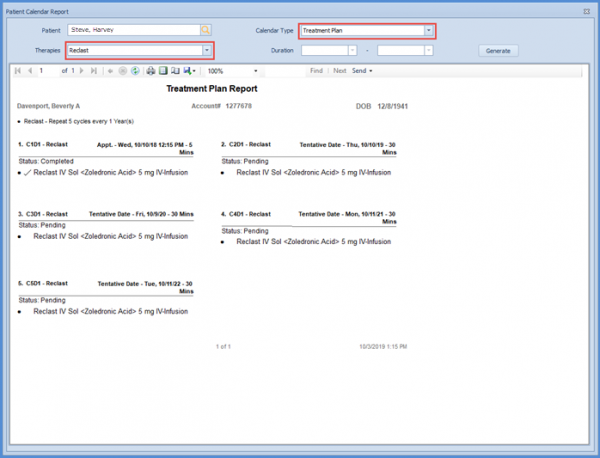
Selecting the ‘Treatment Plan’ from the ‘Calendar Type’ dropdown shows the calendar report according to the prescribed treatments.
The ‘Therapies’ filter allows the user to choose which therapies to include in the ‘Detailed Treatment Plan’ report.
However, once the desired calendar type is selected, click the ‘Generate’ button.