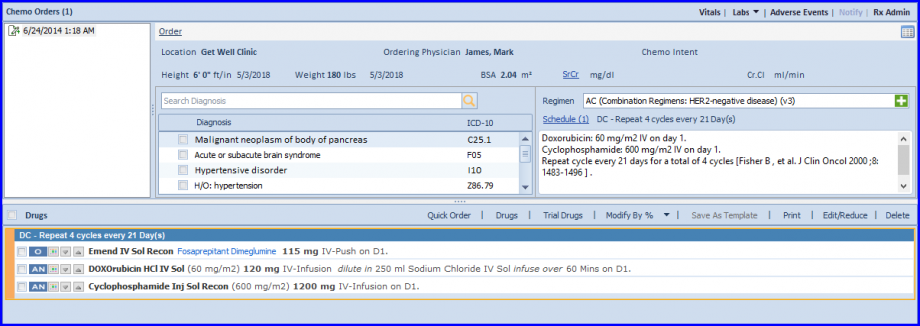
How to Create Quick Chemo Order?
Practice users can create error free chemo orders based on the smart suggestions proposed by Chemotherapy Manager.

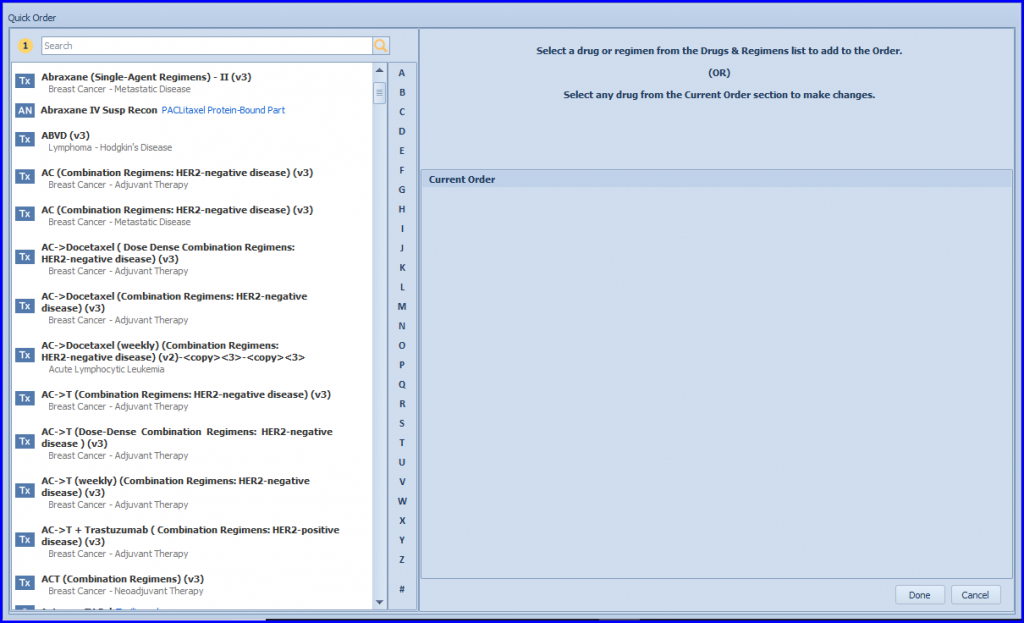
Clicking on
 opens a Quick Order pop-up.
This pop-up features a search section enlisting all drugs & regimens in an alphabetical order.
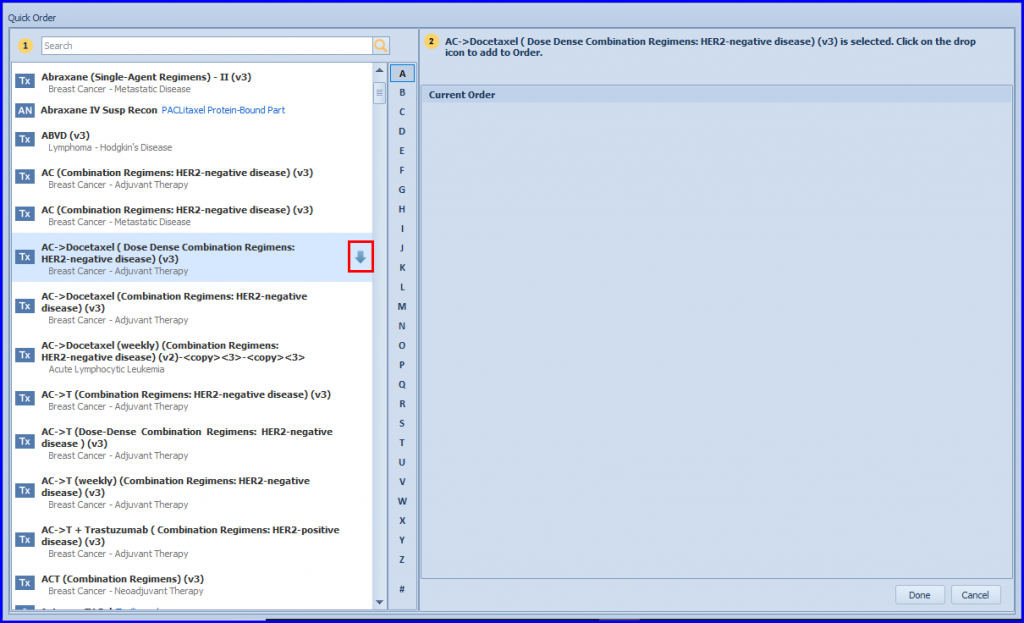
Select a drug/regimen and click on the drop icon to populate it in the Current Order section of Quick Order pop-up.
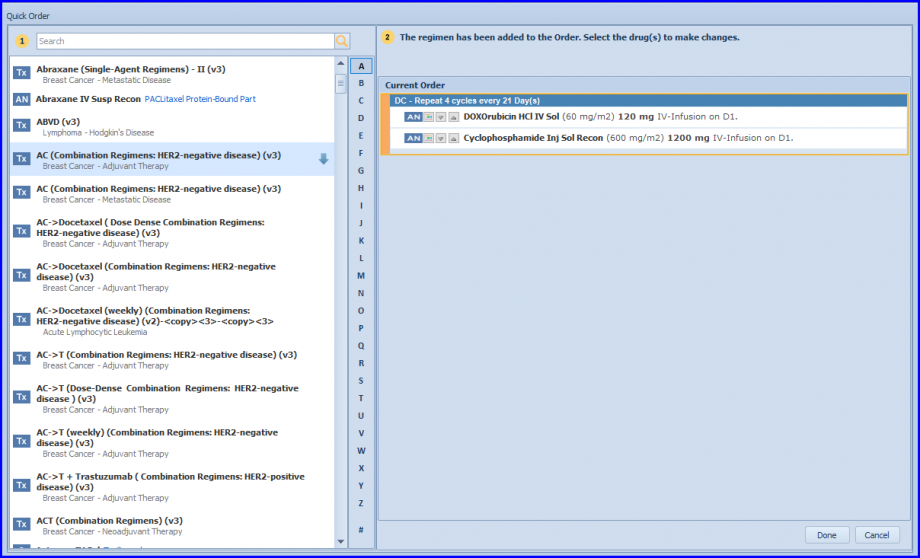
Click on a drug name to moderate its dosages, schedule and pre-medications.
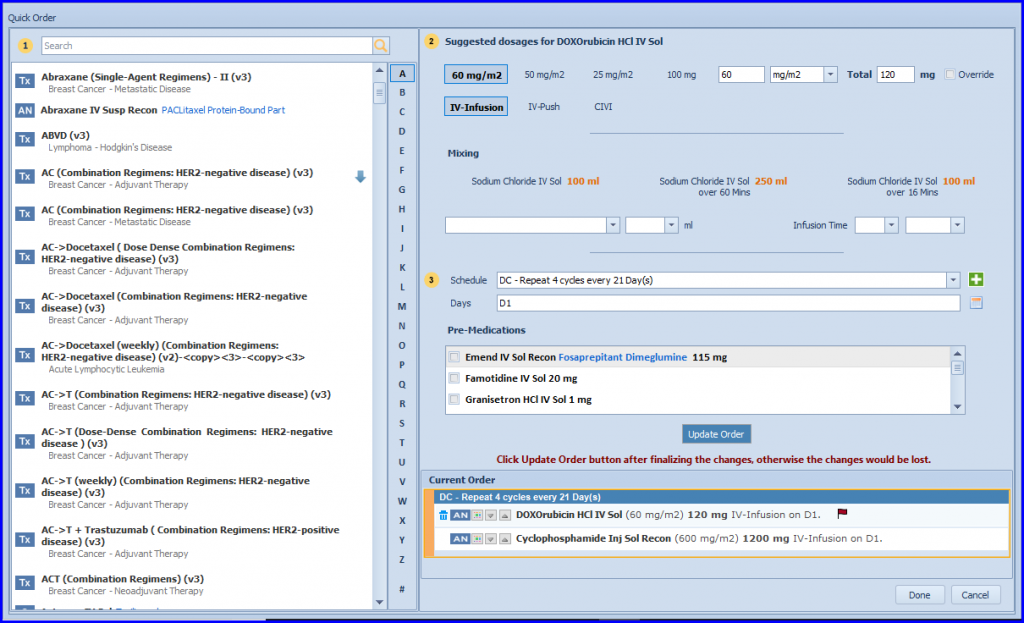
Drug dosages can be moderated by selecting anyone of the desired dosage. Based on user’s selection, the system displays a calculated dosage.

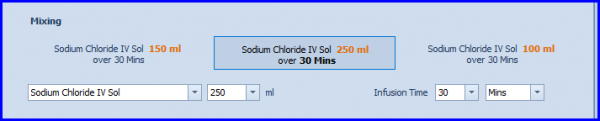
Similarly, selecting an option from the Mixing Instructions enables the system to display a pre-calculated infusion time.
Lastly, specify a schedule (if required) and cycle days for this medication.
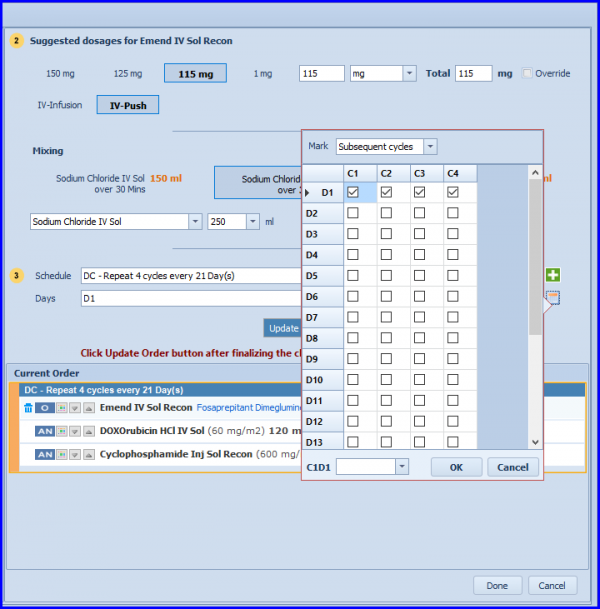
Once all the moderations have been completed, update this order by clicking on  button. Repeat this process for other medications in this Chemo Order and close Quick Chemo pop-up. The moderated Quick Order can now be seen in drug stip.