How to Configure eMessages?
To enable ‘eMessages’, follow the workflow mentioned above to land on the ‘User Profile’ screen.
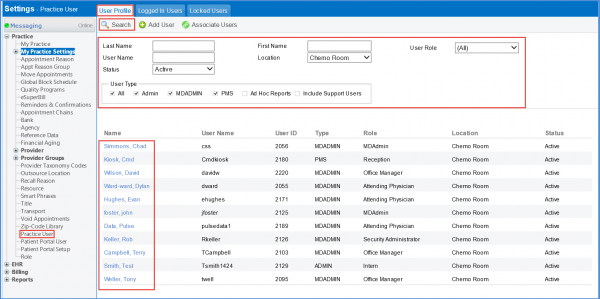
Search for the required user, or click user name from the list. This will display the user ‘Profile’ screen.
Click the ‘Permissions’ tab.
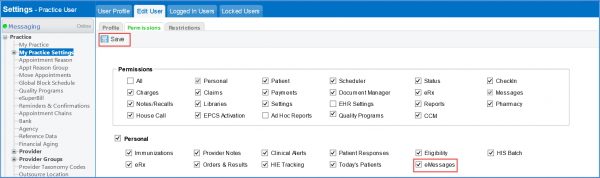
Go to ‘Personal’ section and enable ‘eMessages’ checkbox.
Click ‘Save’.
To associate provider/staff with ‘Profile’ go to the ‘Profile’ tab.
Click on ‘Provider’ and select the providers that are needed to be associated to the profile.
The direct address of all the ‘Practice Providers’ attached with the profile can also be used.
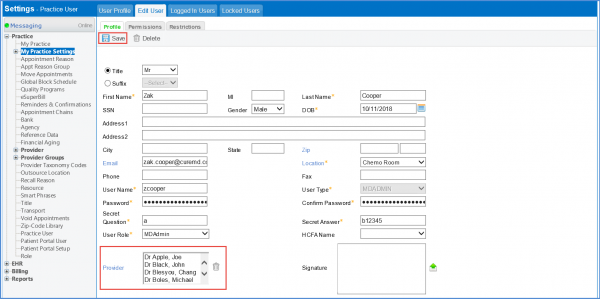
The Provider pop-up will be displayed.
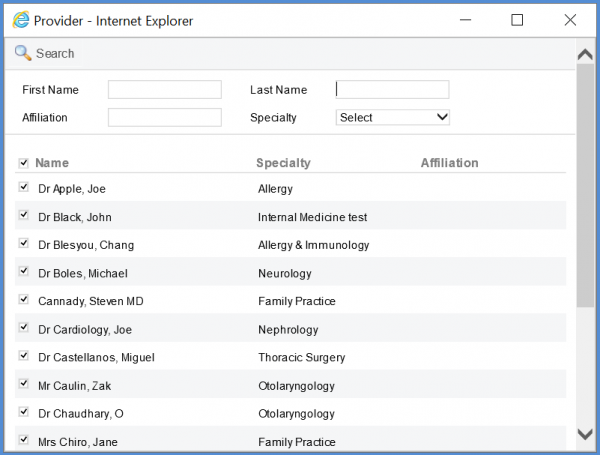
Enable the checkboxes for the providers to be associated.
Close the pop-up when done.
On the ‘Profile’ tab, click ‘Save’.
