How to Create Template for Letters and Notes from Settings?
Letter Template
Follow the workflow above to land on the ‘Templates’ screen.
Click ‘+Add’ button. This will display the ‘Letter Template’ screen.
Go to the ‘Template Fields’ section.”
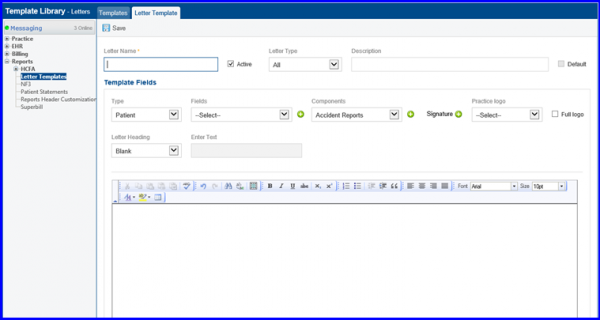
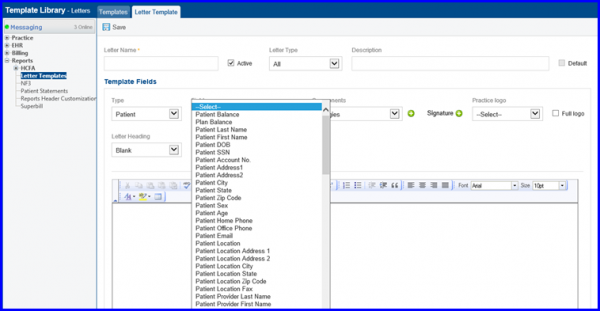
From the ‘Type’ dropdown, select ‘Patient’.
Select the required option from the ‘Field’ dropdown and click ‘+’ button.
The relevant flag will be added in the letter template.
Users also have the option to select ‘Patient Race’, ‘Patient Religion’, ‘Patient Ethnicity’, and ‘Patient Preferred Language’ from the ‘Fields’ dropdown.
Once done, click on the Save button.
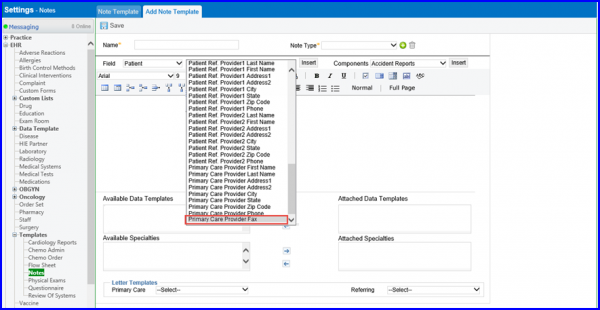
If the flag ‘Primary Care Provider Fax’ is selected from the ‘Fields’ dropdown, the Primary Care Provider’s fax number is added on the template when it is selected for a clinical letter.
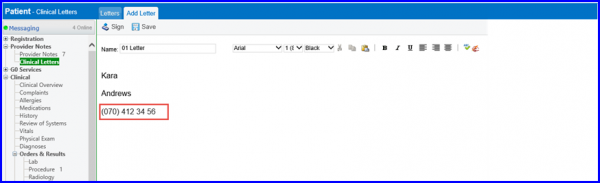
To see this flag on the clinical letter, go to
Note Template
Follow the workflow and click on the Add button on the Notes tab.
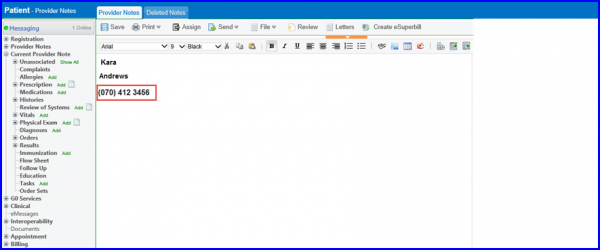
To see this flag on the clinical letter, go to