How to Add a Letter Template?
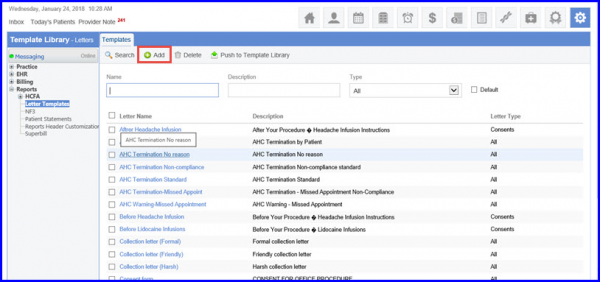
To add a ‘Letter Template’, follow the workflow above to land on the ‘Templates’ screen.
Click the ‘+Add’ button.
The ‘Letter Template’ screen will be displayed.
Here, users can customize the template by inserting the following information:
Letter name, type and description.
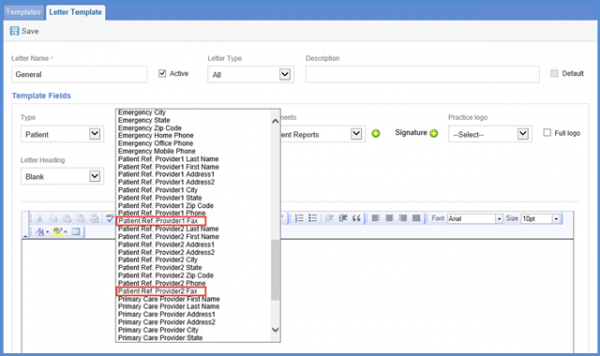
If ‘Patient’ field is selected from the ‘Type’ dropdown, users can also select ‘Patient Ref. Provider 1 Fax’ and ‘Patient Ref. Provider 2 Fax’ from the ‘Fields’ dropdown.
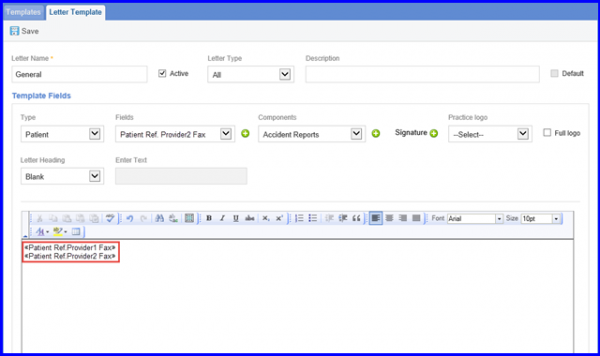
To populate the selected field on the template body, click on the ‘ ’ icon beside it. After adding all required fields, click on the Save button.
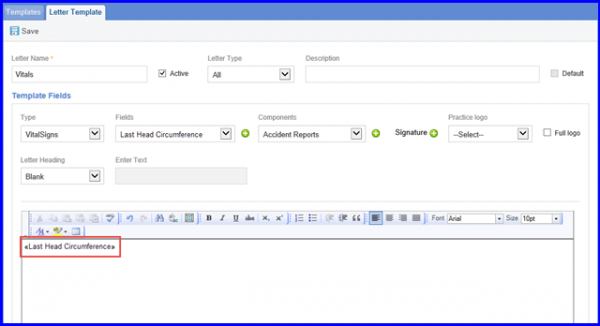
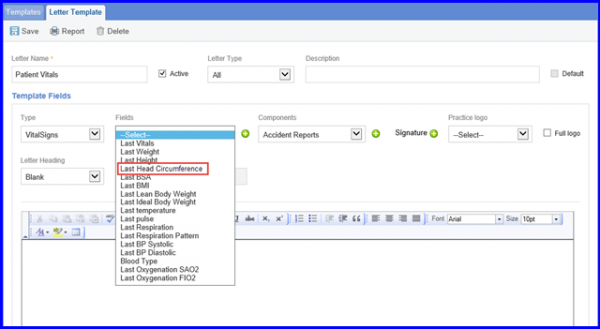
If ‘Vital Signs’ has been selected from the ‘Type’ dropdown, users can also add the ‘Last Head Circumference’ flag on the template body.
After adding all the fields and components onto the template body, users can drag and change the position of the populated flags. A tool tip header lets users edit the content and customize the letter template.