How to View Custom Lists Pushed into Template Library?
User can view the custom lists which have been pushed to template library from the Labs – LabCodes custom list page.
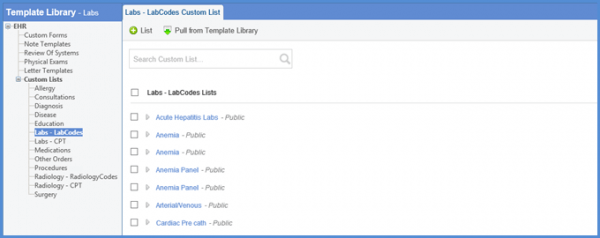
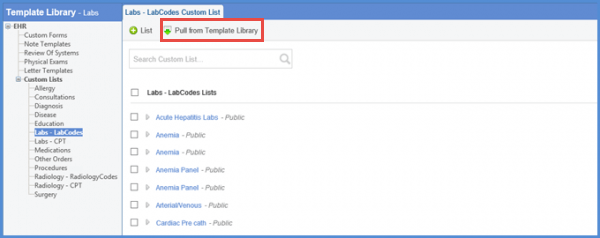
Moreover, custom lists in the template library can be imported into the application. The user can select a custom list and click ‘Pull from Template Library’.
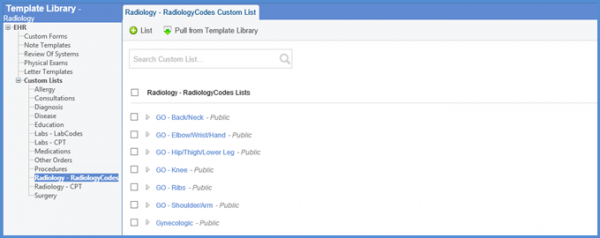
Similarly, the Radiology Custom Lists from the application are populated on the ‘Radiology-RadiologyCodes Custom List’ page in ‘Template Library’.
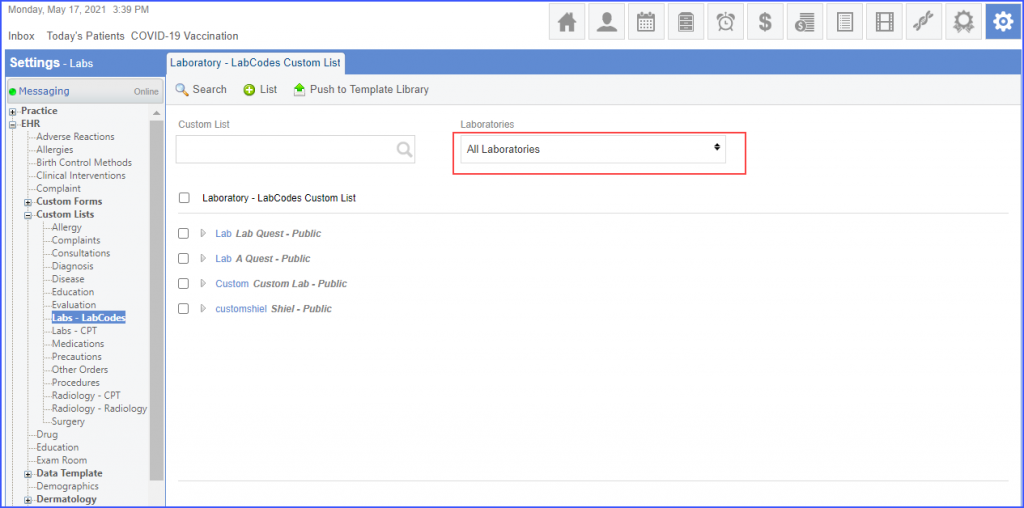
Users can filter custom lists based on a laboratory/laboratories. 
Click the ‘Laboratories’ drop-down and mark the checkboxes for the desired laboratories.
By default, ‘All Laboratories’ is selected.
When multiple laboratories are selected, the names of the laboratories are displayed separated by commas in the ‘Laboratory’ field.
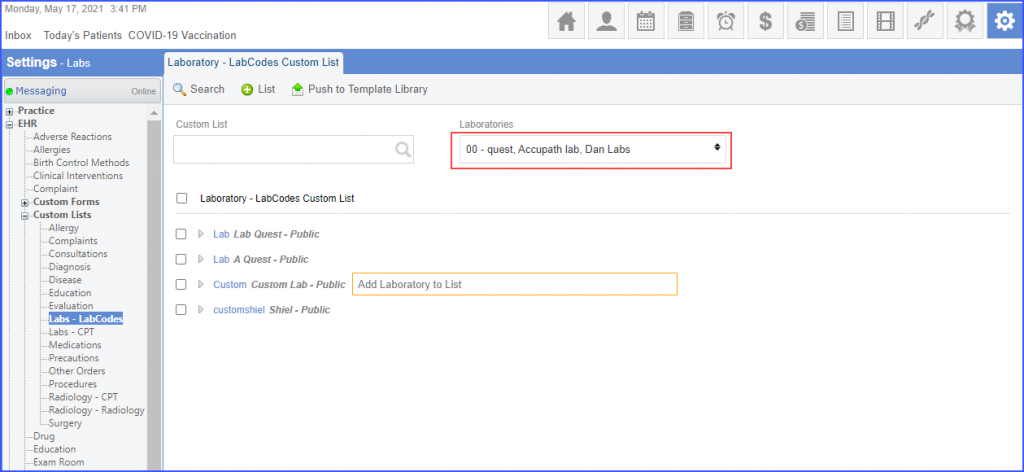
Click the ‘Custom List’ search bar or ‘Search’ button and the custom lists specific to a laboratory/laboratories are displayed.
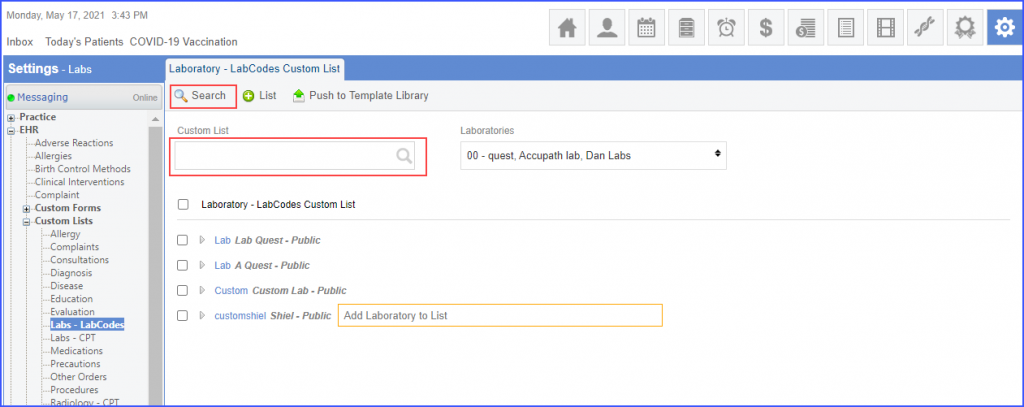
If no list is added for a laboratory that is set in the filter, the system should display ‘No Record Found’.
