Spanish Language Support for Kiosk Consents and Custom Forms
How it Works
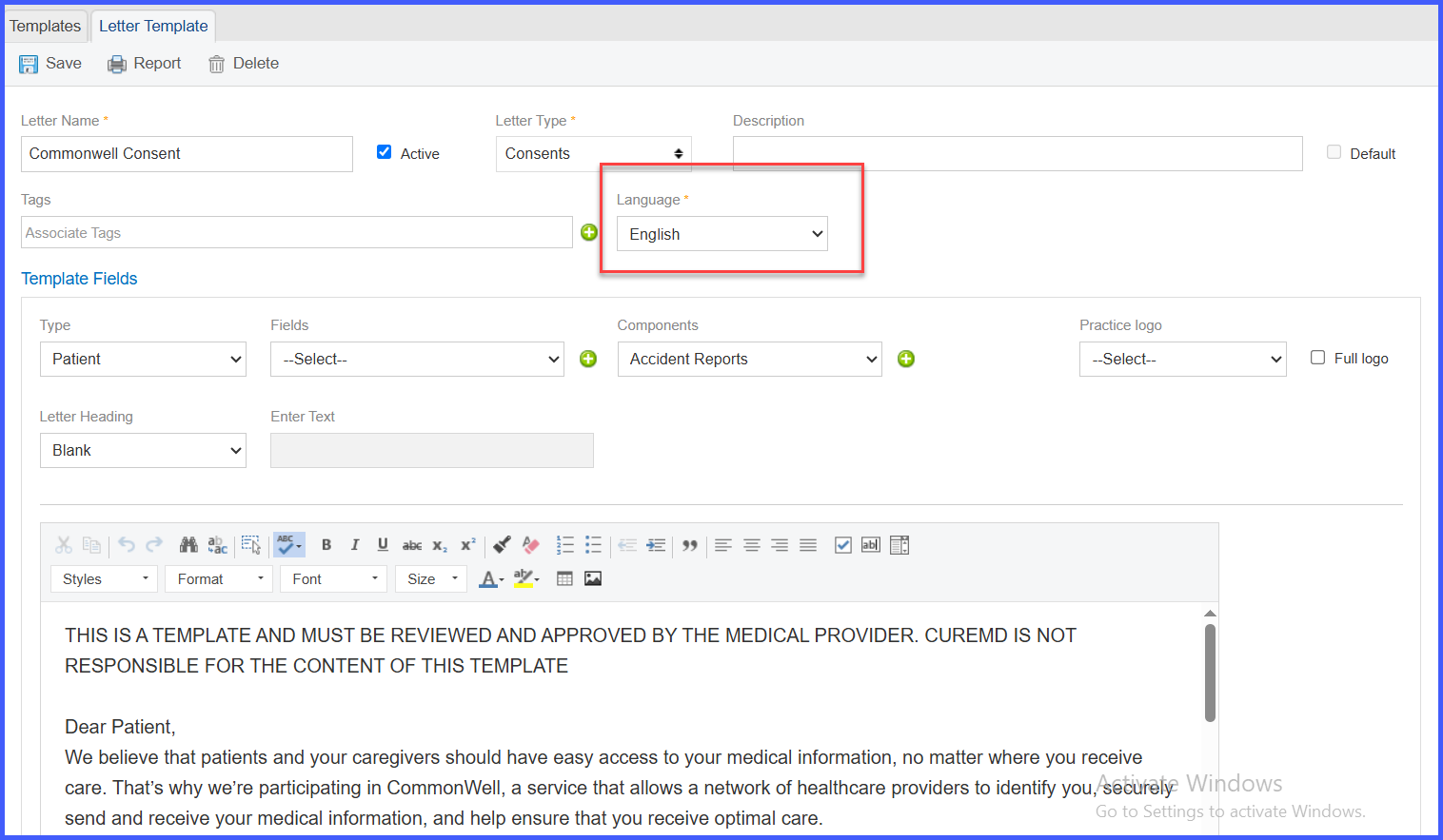
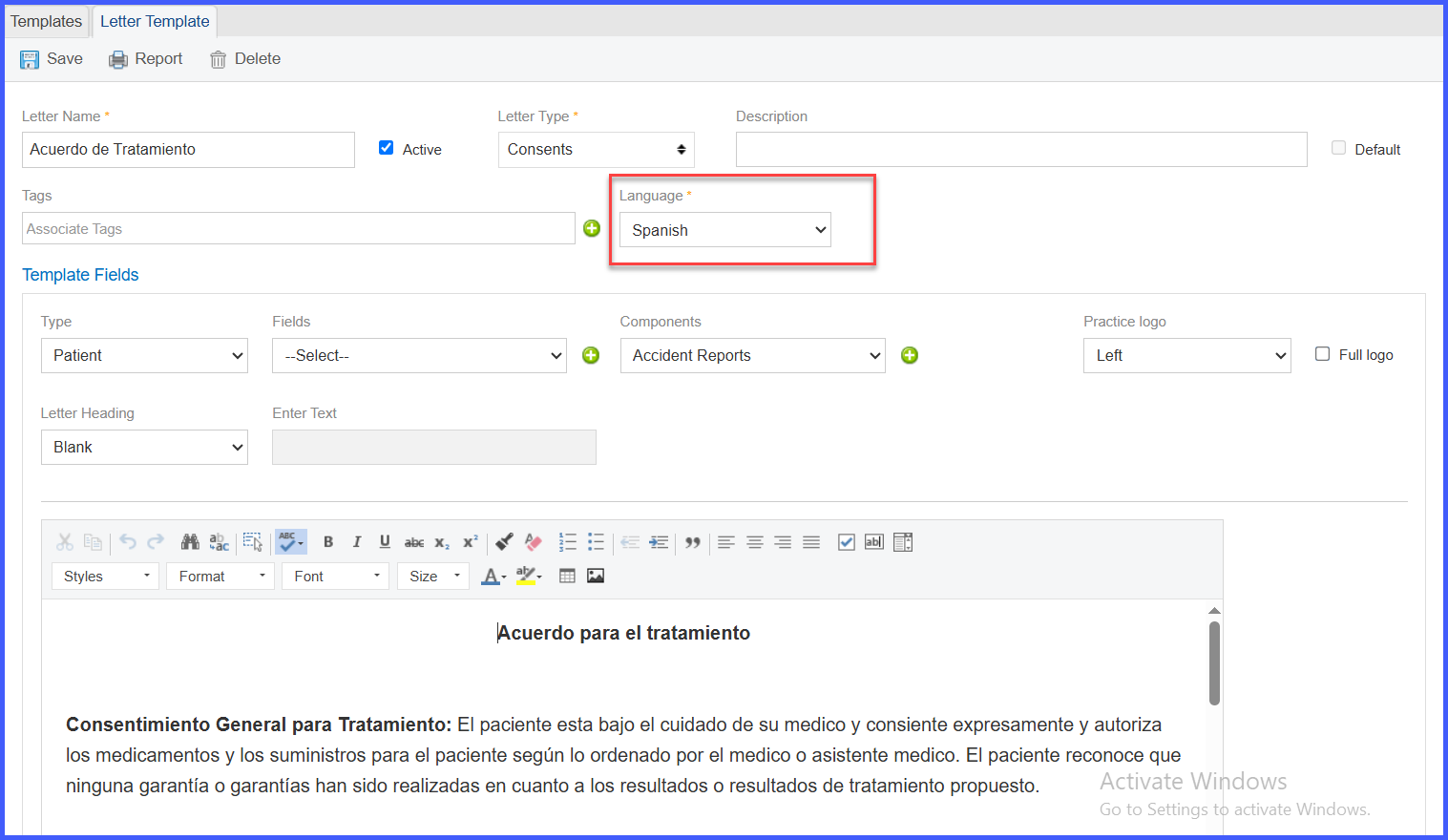
Providers can manually assign language tags to consents, ensuring targeted and accurate communication. If consents aren’t language-tagged, Kiosk will show all available consents by default.
To tag Consent Forms by Language: Navigate to Settings → Reports → Letter Templates and tag each consent form with the appropriate language.
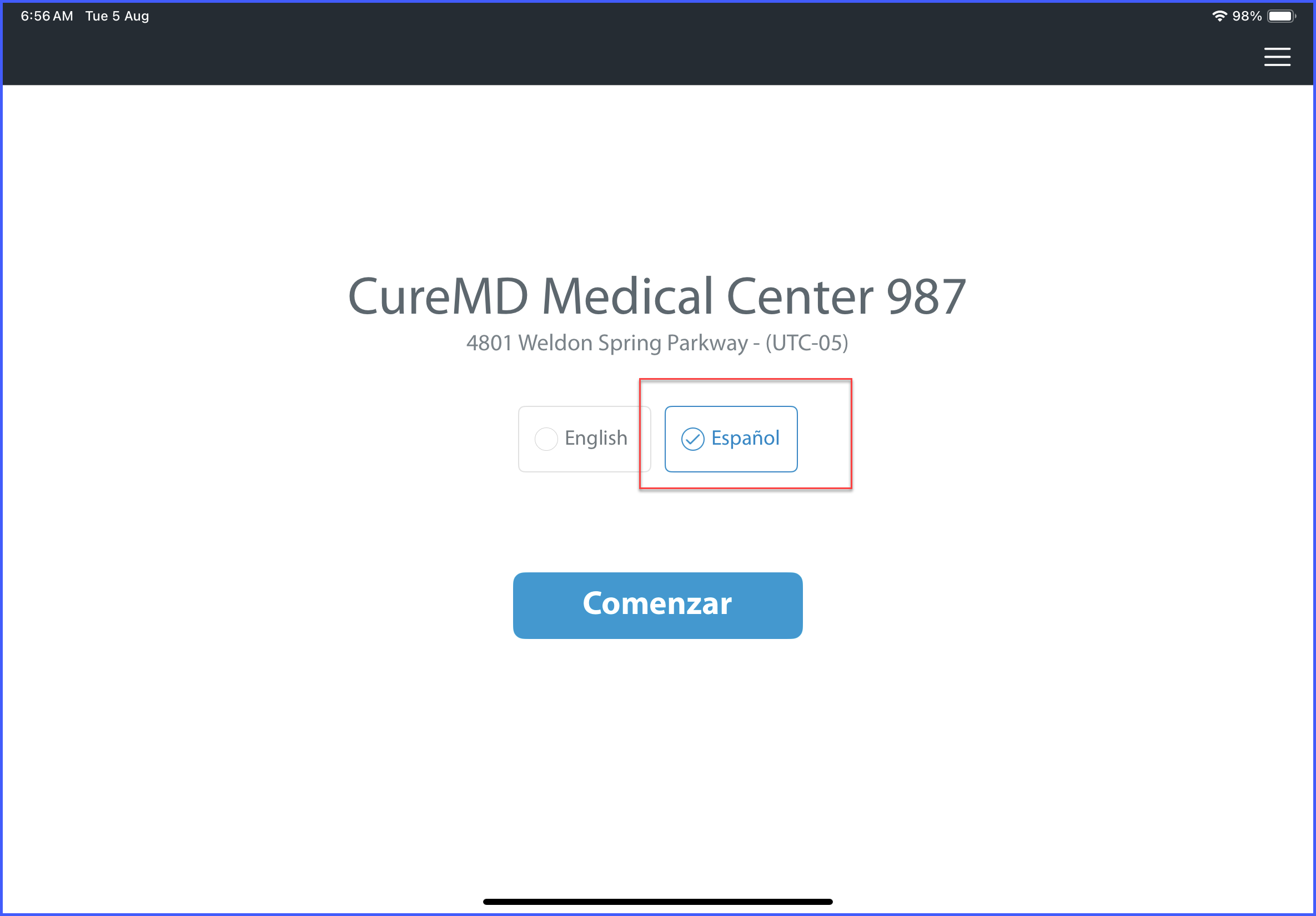
How it Works on the Kiosk App
- If no language is tagged to the consents configured in Settings → Practice → My Practice Settings → Kiosk, then all available consents will be displayed during the appointment check-in process.
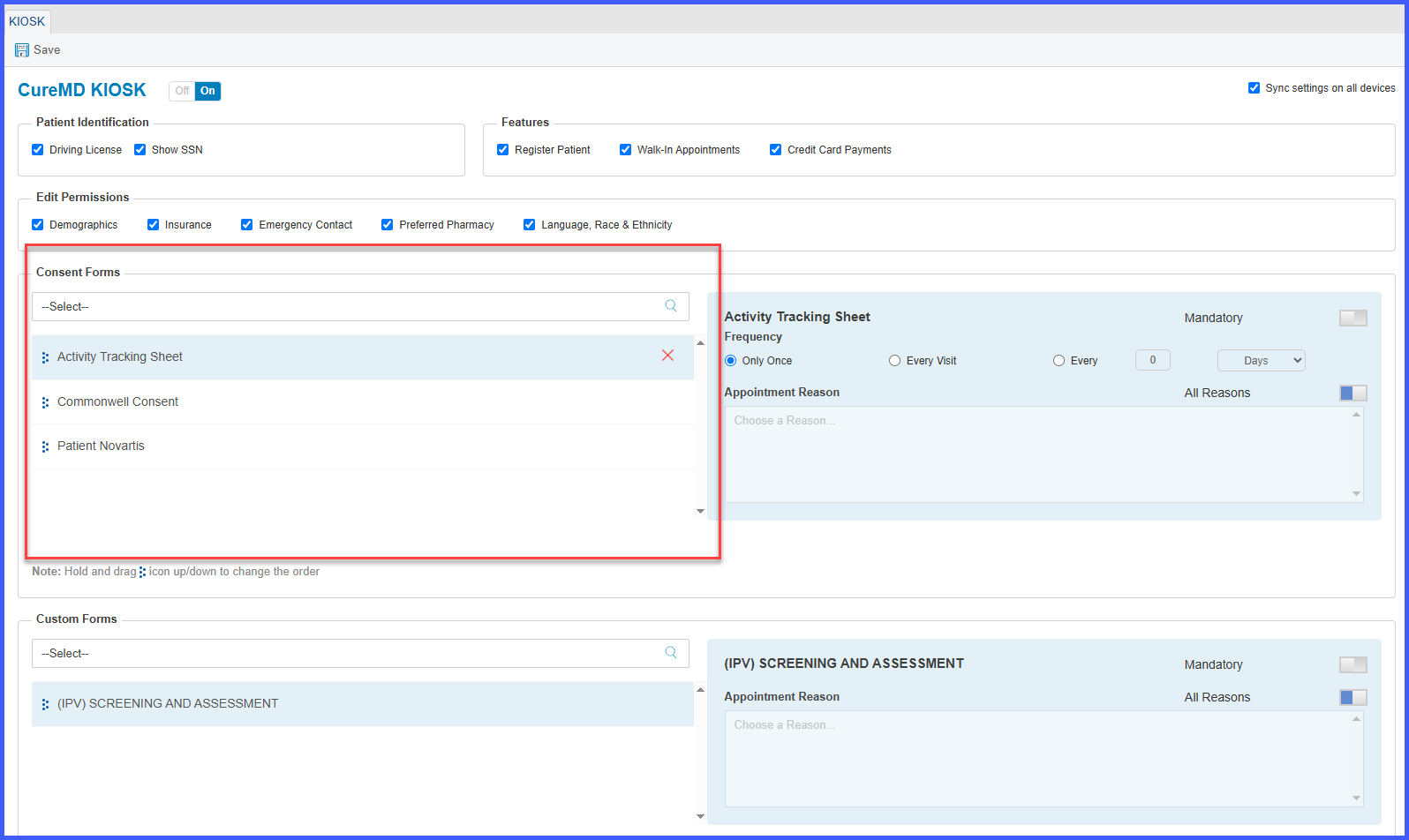
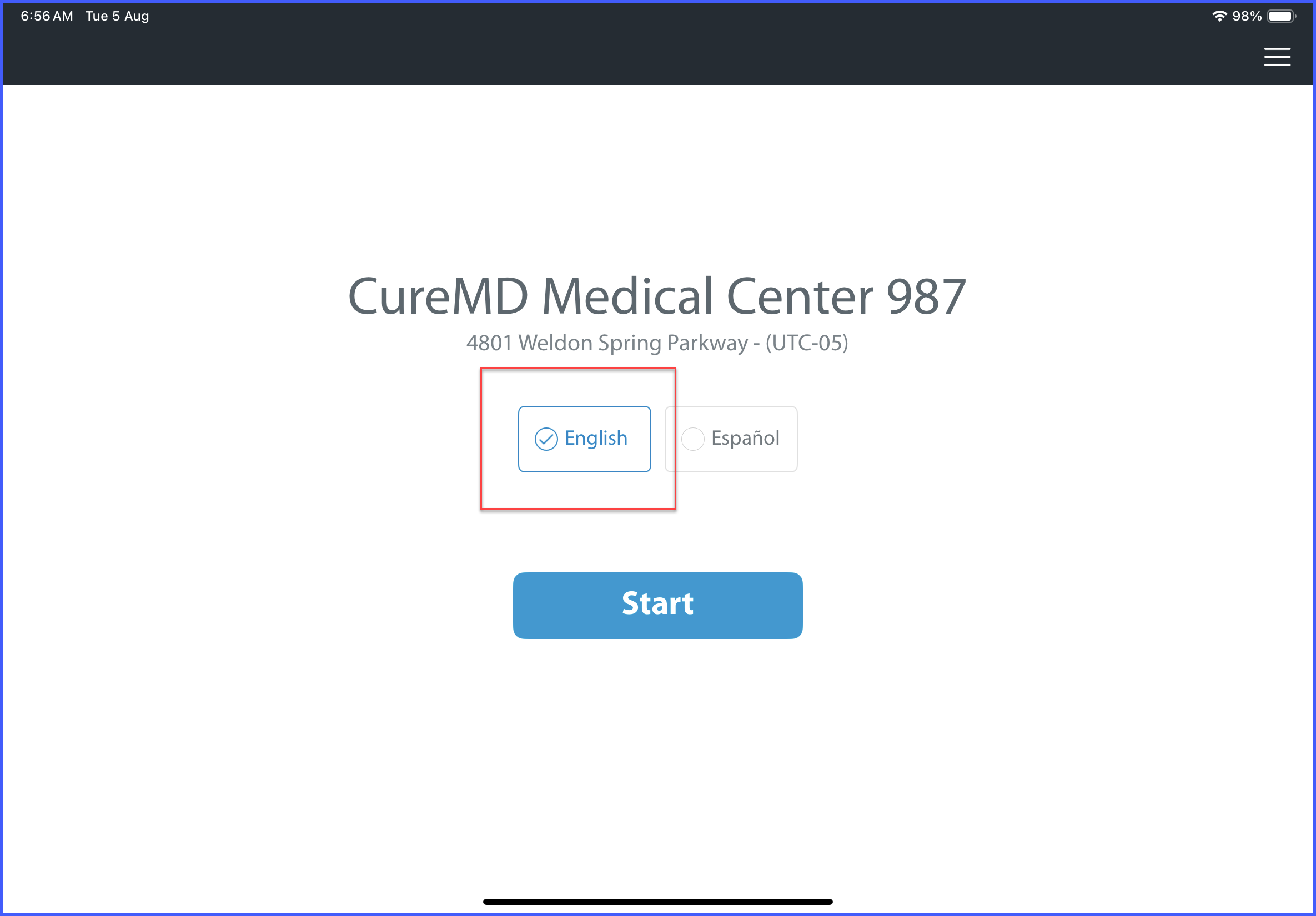
- If a language is tagged to the consents in the same settings, then only those consents matching the selected language will be shown when the user selects that language during check-in.
Benefits
- Enhanced Patient Experience: Provide consents and custom forms in Spanish, ensuring clarity and understanding for Spanish-speaking patients.
- Improved Compliance: Display relevant consents, reducing errors and enhancing regulatory adherence.
- Optimized Consent Management: Precisely control consent visibility with manual language tagging, ensuring patients only see relevant consents.
- Flexible Documentation: Maintain default behavior for untagged languages, ensuring seamless user experience in multilingual settings.
User Guidance
- Language-Tagged Consents: If a language is tagged with specific consents, only those tagged consents will be displayed.
- No Tagging Present: If no consents are tagged for the selected language, all available consents will be shown, following the previous default behavior.
- Partial Tagging: If a language is tagged with, for example, 2 out of 3 consents, only the tagged two will be visible for signing.
- Language Mismatch Example: If consents are only tagged for English and the user selects Spanish, no consents will be displayed unless a Spanish version has been created and tagged.
- Manual Tagging: Consents must be manually tagged with the appropriate language during the consent creation/edit workflow. There is no auto-tagging.
