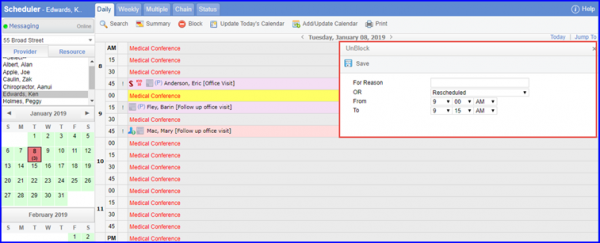
How to Delete a Block ?
A user can delete a Calendar or Patient Block at any time.
Follow the workflow to reach Scheduler page.
From the Scheduler page, click ‘Block’ button and select from ‘Calendar’ or ‘Patient’ options.
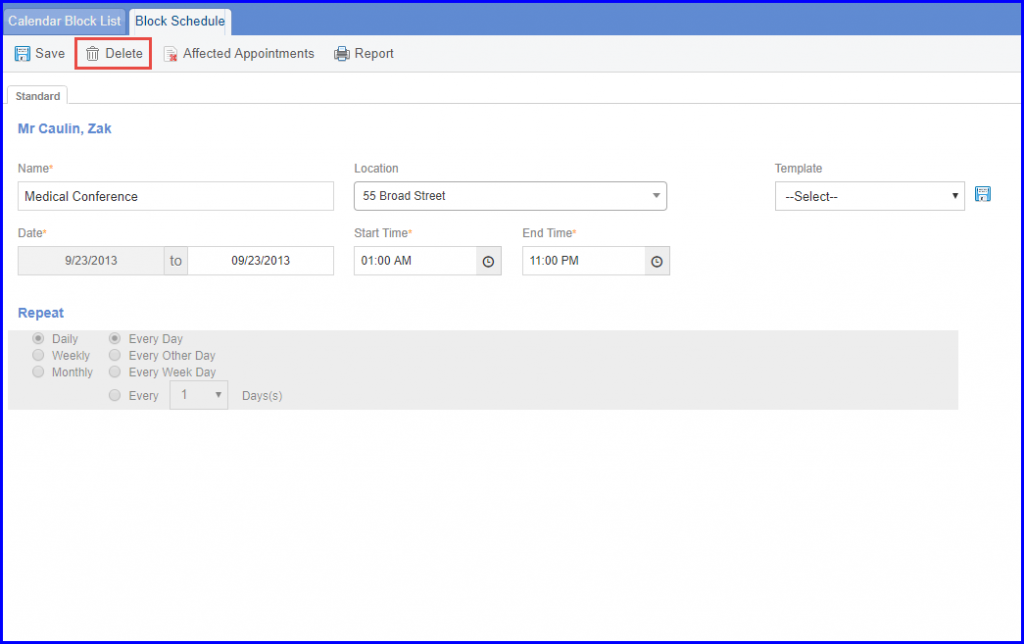
For Calendar, to remove a blocked schedule, click the ‘Delete’ button on the ‘Block Schedule’ page.
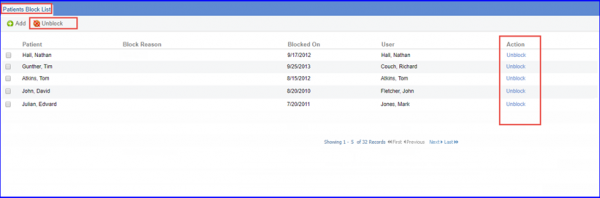
For Patient, user can unblock patients by marking the patients’ checkboxes and clicking ‘Unblock’ button. User can also clicking ‘Unblock’ text from ‘Action’ column, respective to each patient.
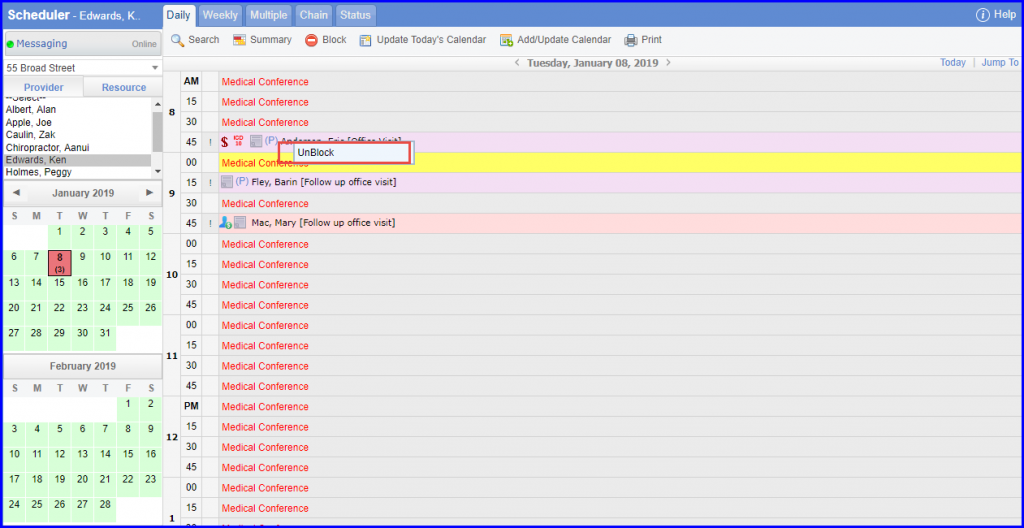
To unblock a slot in blocked schedule, click on the ‘Block Name’ on respective slot, and select ‘Unblock‘.
User can Unblock a Schedule by providing a reason.