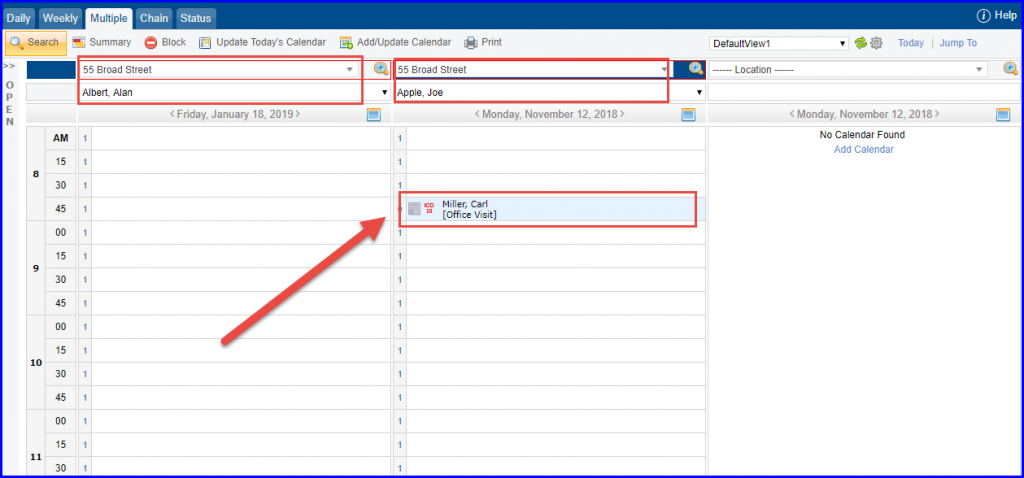
How to Drag and Drop Appointments in Provider’s Calendar?
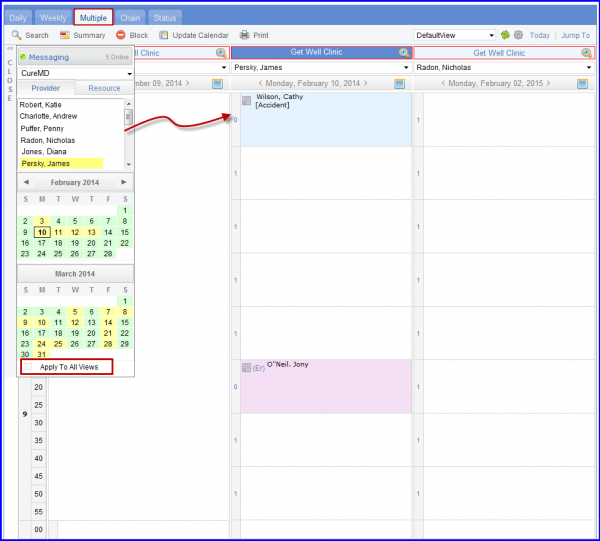
User can drag and drop a provider or resource from the list onto one of the ‘Multiple Scheduler’ columns.
Similarly, user can also drag and drop a patient’s appointment from one to another Provider’s schedule, if the location of both providers is same.