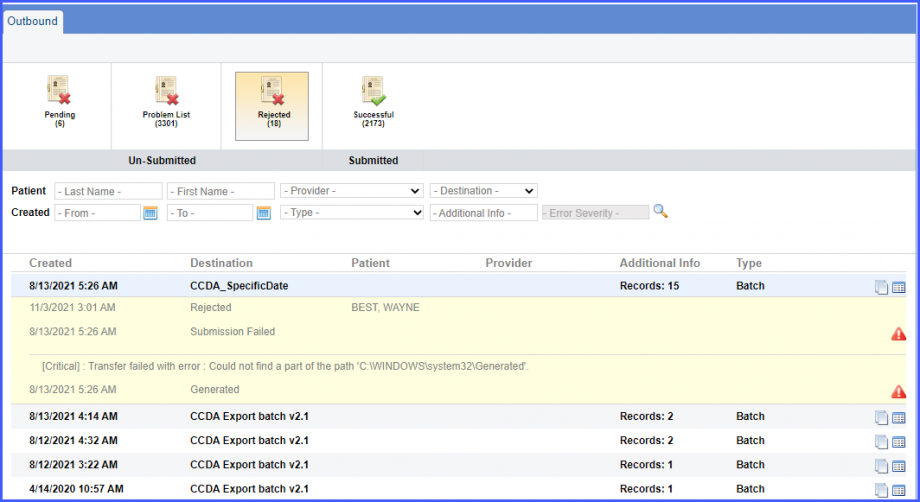
What is Batch Message?
This section is used to track Outbound Immunization Messages that a practice sends to the Ministries of the State. It has four tabs:
- Pending
- Problem List
- Rejected
- Successful
The user is able to perform following actions: - Search: Search for desired messages.
- Reject: Reject any message that they don’t want to send.
- Generate Batch: Generate the batch to send to the ministry that administers the vaccines.
- View Log: View the log by clicking the log icon.
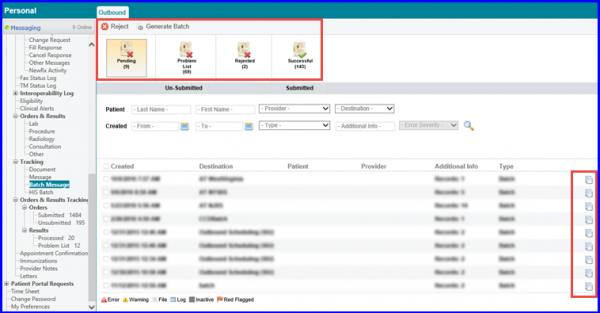
Once a CCDA batch has been successfully generated, it can be accessed from the ‘Successful’ bucket. 
In order to see how to configure settings for CCDA batch generation, click here.
To view the batch log or download the batch, click the ‘ ’ or ‘
  ’ icon respectively. The batch is available for download only for 30 days.
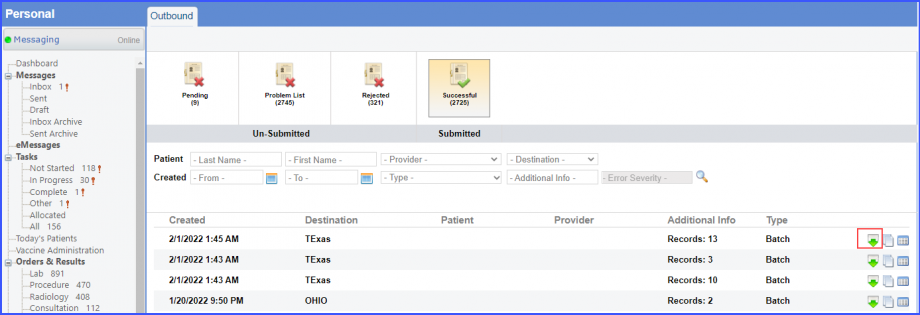
To view the log for individual files in a batch, first click the ‘ ’ icon and then click the log icon next to the desired file.

If an error occurs while generating or uploading a batch, the batch is moved to either the ‘Problem List’ bucket or the ‘Rejected’ bucket. In addition, the system maintains a log of the error(s).
When a user clicks on the error icon, the error logs are displayed.