How to Assign a Provider Note to the Other Users?
Follow the workflow mentioned above to land on the ‘My Notes’ screen.
Enable the checkbox next to the required note and click on ‘Assign’ button.
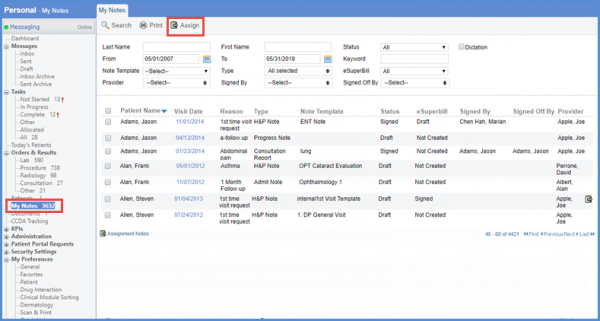
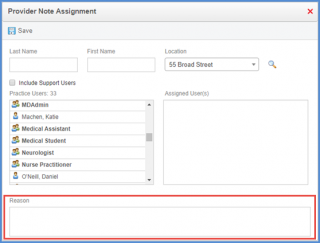
The ‘Provider Note Assignment’ pop-up will be displayed.
From the list of Practice users, double click on the practice user to assign the note to that user.
The list of ‘Assigned User(s)’ is also displayed.
Click on the assigned user name to remove it from the ‘Assigned User’ list.
In the ‘Reason’ text field, users can define reasons for assigning notes to other users.
Once done, click ‘Save’.
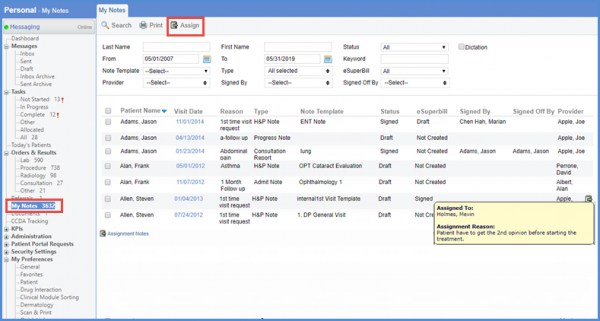
Navigating back to My Notes screen, user can hover on the Assigned icon to view the ‘Assigned To’ and ‘Assignment Reason’ in tool tip.
This feature is also available in the ‘Assigned to Me’ tab. The  icon displays assignment reasons. Also, legends have the “
 ” icon that indicates all ‘Assignment Notes’.
