How to View Assigned to Me – Results?
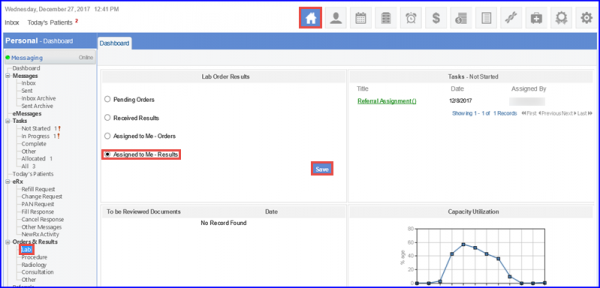
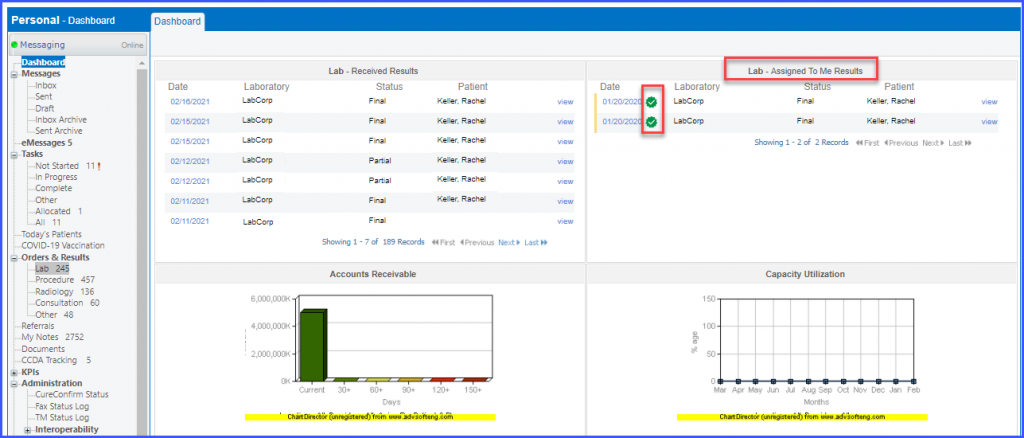
Users can view results specifically assigned to them by dragging the specific component from the left tree menu to the dashboard and selecting Assigned to Me – Results option. On clicking the Save button results are displayed on the dashboard.
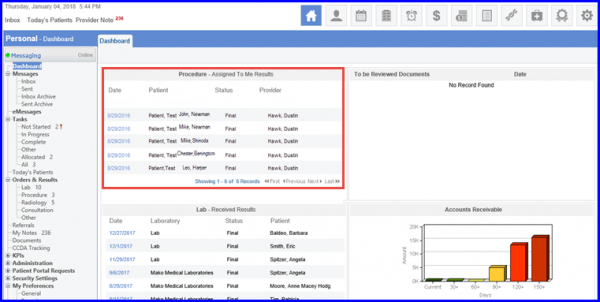
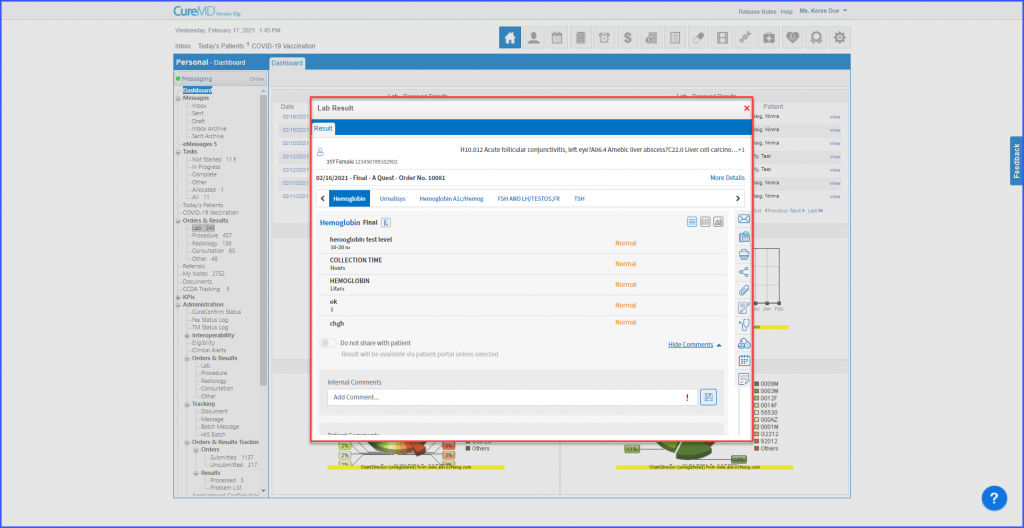
Lab results can be viewed in beta view from the dashboard. 
User should first enable ‘Beta’ option from the ‘Personal’ module. Click here to see how to enable it.
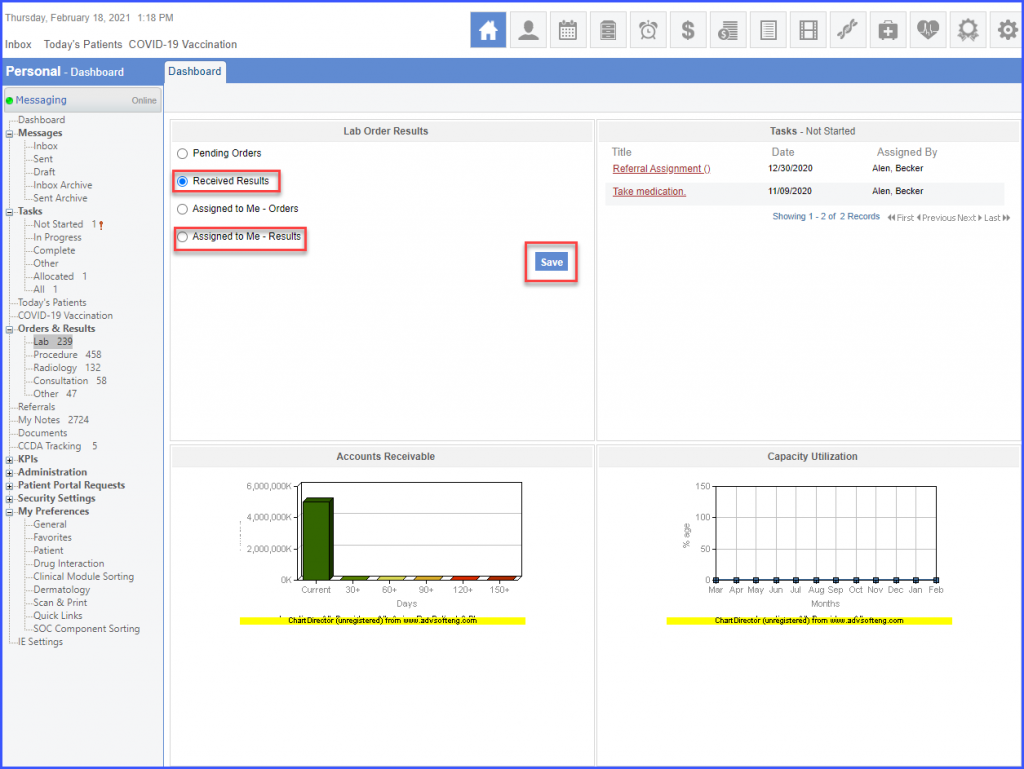
Drag the ‘Lab’ module from the left tree menu to the dashboard. Select ‘Received Results’ or ‘Assigned to Me – Results’, from the ‘Lab Order Results’ window and click ‘Save’.
‘View’ hyperlink appears in front of each lab result.
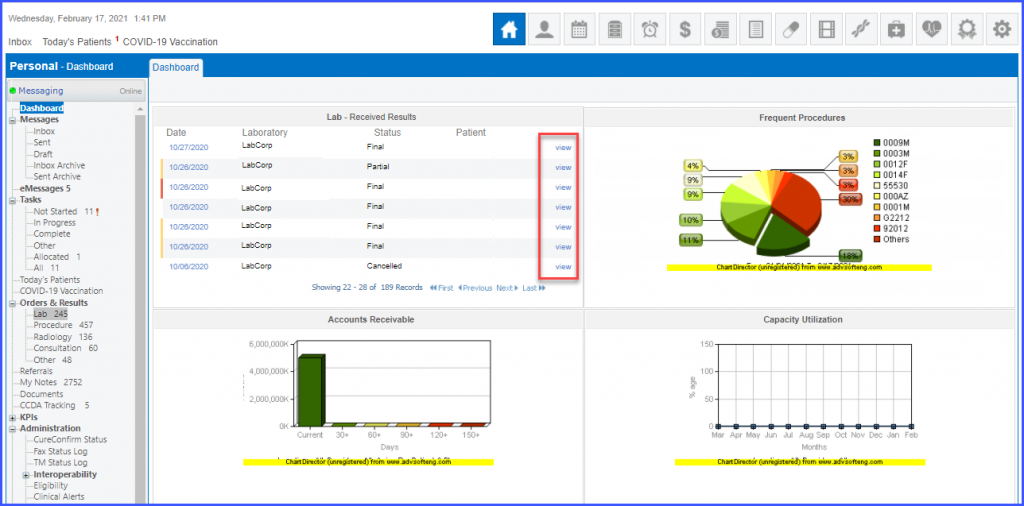
Click the ‘view’ hyperlink and the lab result opens in beta view in a pop-up window. Users can perform all relevant actions from this pop-up.
For ‘Assigned to me – Results’ users can distinguish between acknowledged and unacknowledged results via the ‘ ‘ badge.
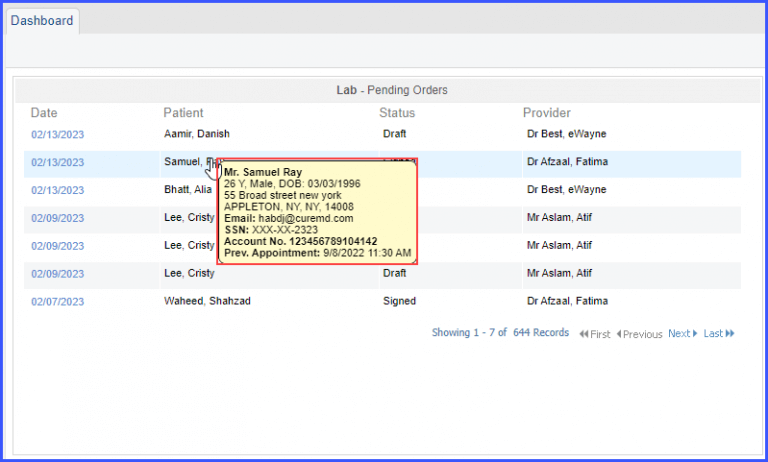
A tooltip containing basic patient details is displayed upon hovering over the patients’ name on the Dashboard.
This ensures that patient demographics data is readily accessible without having to visit patient profile each time.
The tooltip appears when the user hovers over the patient name in the ‘Orders & Results’ tile.
The enhancement is implemented to all components under ‘Orders & Results’, which include:
- Labs
- Radiology
- Procedure
- Consultation
- Other
Similarly, the change is implemented to all categories under each component, which include:
- Pending Orders
- Completed Results
- Assigned to Me – Orders
- Assigned to Me – Results
