What Actions Can be Performed with School Forms?
In order to add a form, navigate to School Forms and click on Add.
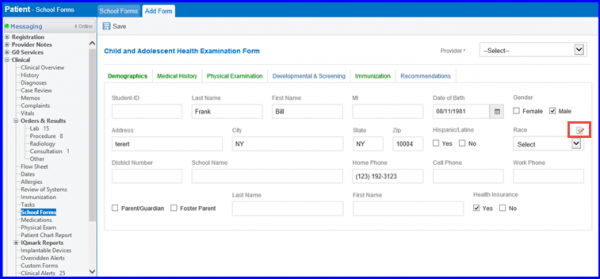
A list of templates is displayed. The user can select the desired one by clicking on the template name.
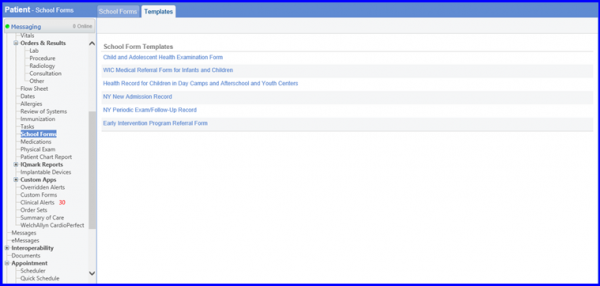
The sections highlighted with green color represents that some information is already present in these sections. This information is auto populated from patient’s data or has been manually added by the provider. The sections highlighted in blue infer that there is no information in these sections.
User can enter “Race” manually if the desired option is not available. In order to do this, click on the edit icon.
After entering the required information, click on Save.
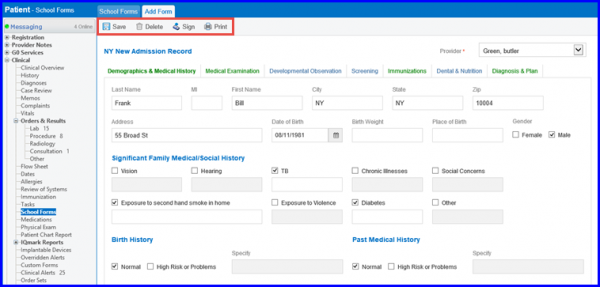
Once the user clicks on Save, they can carry out the following actions:
- Save: Saves the form as a draft and can be edited later.
- Sign: Signs and saves the form. A signed form cannot be edited at a later time.
- Delete: Deletes the form from the record. A signed form cannot be deleted.
- Print: User can print the form in order to hand it over to the patient.
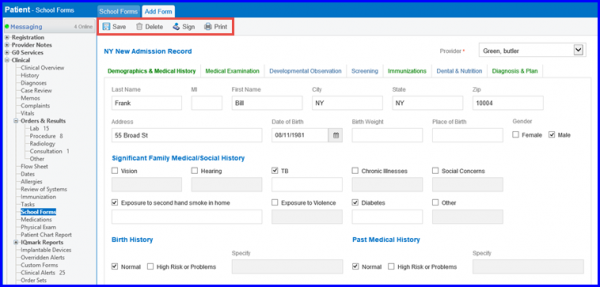
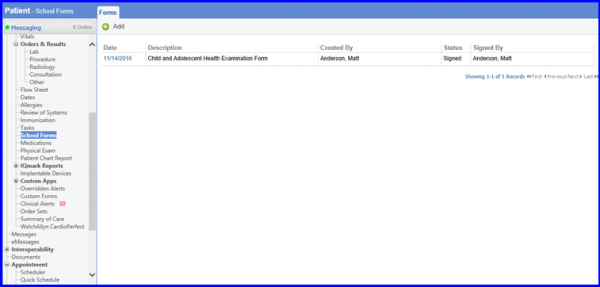
After saving the form, the form appears in the record. The forms are displayed with the following information:
- Date
- Description
- Created By
- Status
- Signed By
Click on the date to edit/ print the form.
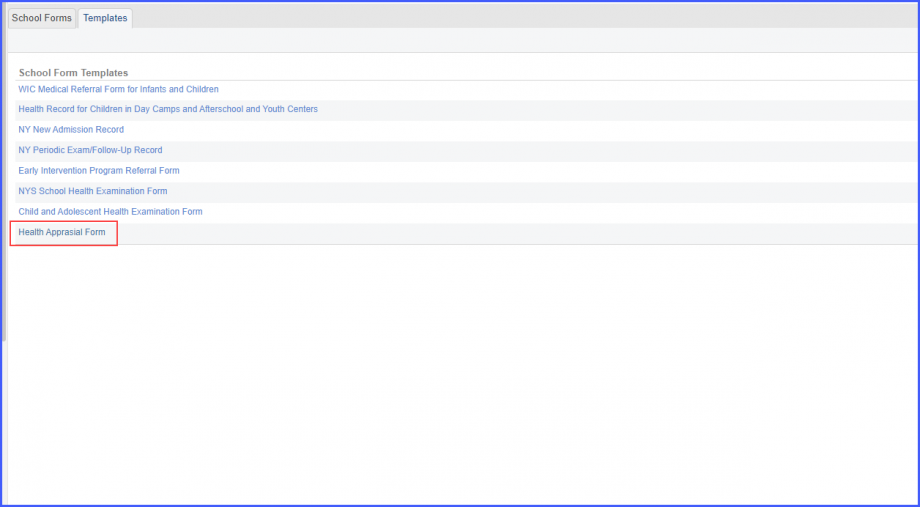
The template of health appraisal form has been added in the School Forms.
When the user clicks on the ‘+ Add’ button, the system displays the ‘Templates’ screen and the users can fill-out the ‘Health Appraisal Form’ from the listing.