How to Add Patient Risk Details?
Risk details of a patient can be recorded by the user.
User permissions need to be enabled for the ‘Risk’ component. To see how it is done, click here.
Follow the above mentioned workflow to land on ‘Risk’ tab.
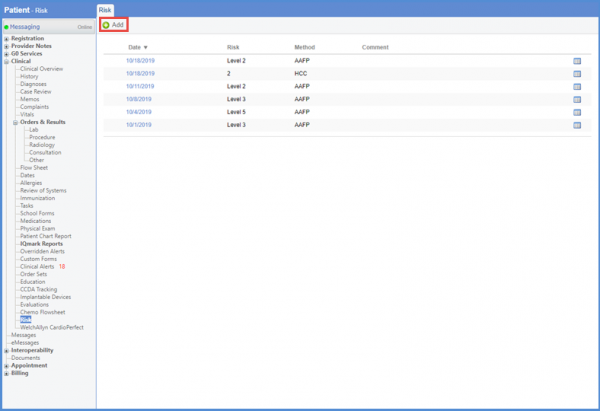
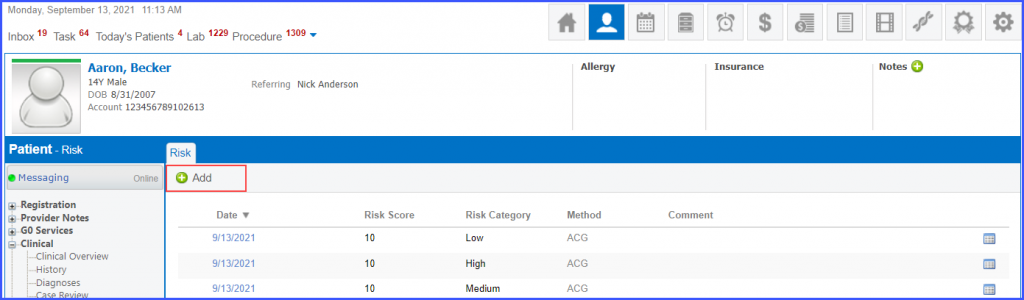
Click ‘Add’ to add a risk against a patient.
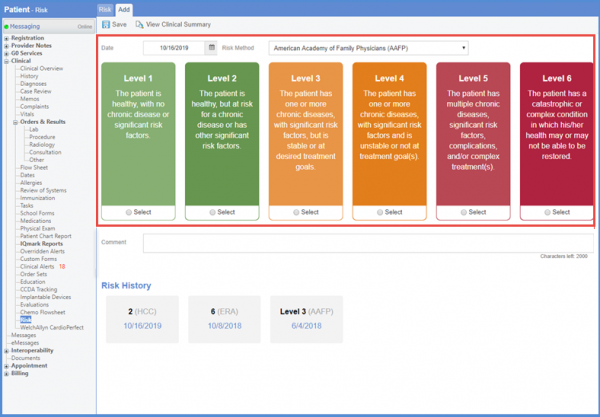
Select a date from the ‘Date’ field. To document the risk intensity, a risk method needs to be selected first. Click the ‘Risk Method’ dropdown to select a risk method.
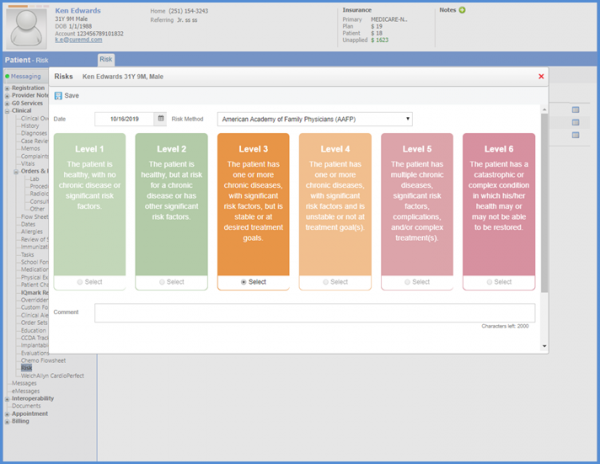
If ‘American Academy of Family Physicians (AAFP)’ risk method is selected, the risk intensity is segregated into different risk levels on the basis of the clinical data of the patient. User can select risk level by clicking the relevant radio button.
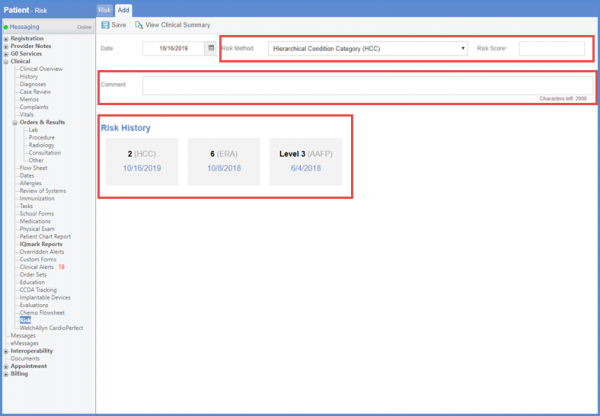
If a user selects any risk method other than ‘AAFP’, then a ‘Risk Score’ field is displayed next to the ‘Risk Method.’
Any comments related to the patient can be added in the ‘Comment’ box.
Under the ‘Risk History,’ past risk evaluations are displayed.
Once all the required information is selected, click the ‘Save’ button.
Clicking the ‘View Clinical Summary’ button displays the ‘Clinical Summary’ screen where the user can mark the information they want to include in the report.
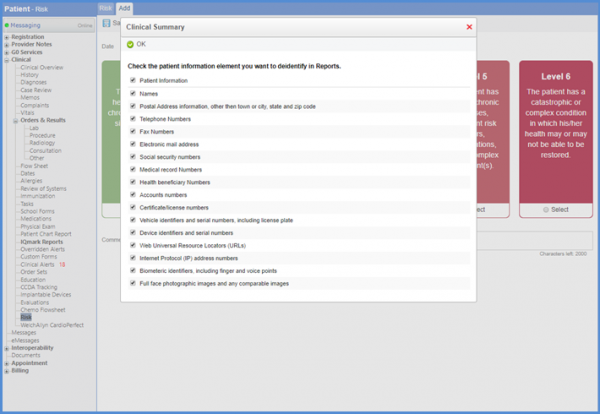
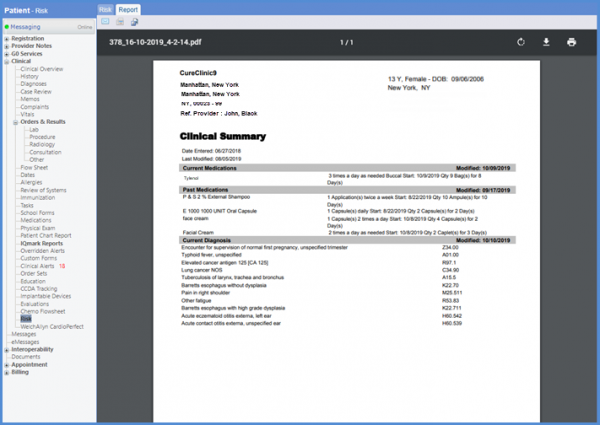
Upon clicking ‘OK’ clinical summary report is generated.
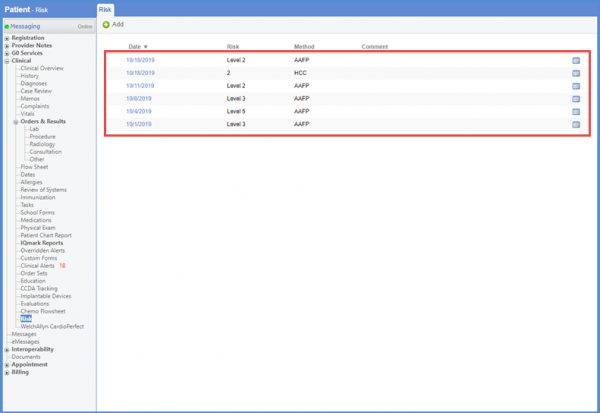
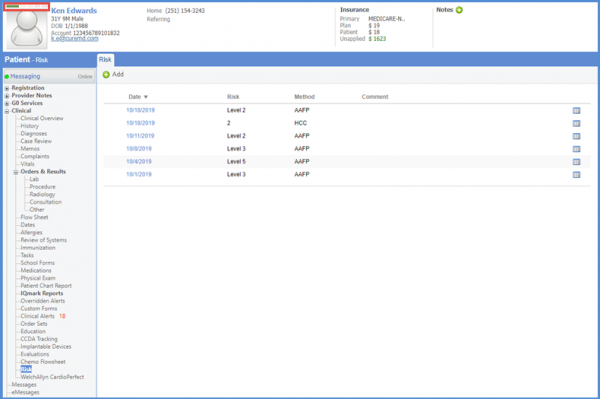
All risk evaluations are listed on the ‘Risk’ tab.
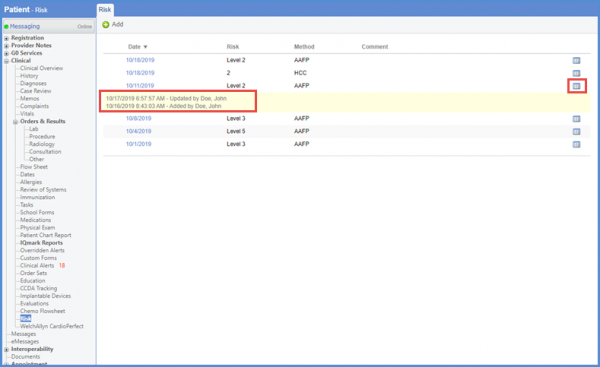
If any record of risk is added or updated, a log is maintained for it. To view, click the ‘log’ icon.
Users can remove an already added risk by clicking the ‘Delete’ button.
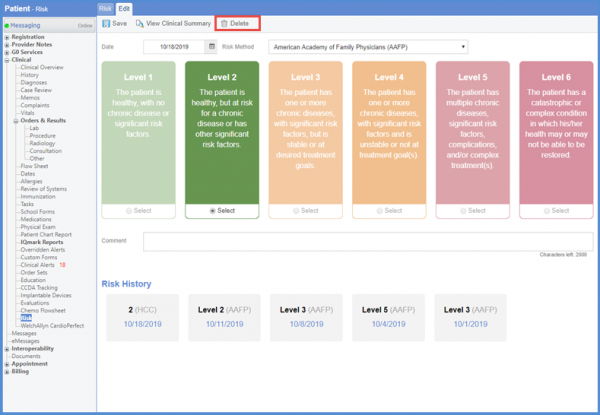
If a patient’s risk has been evaluated by the ‘AAFP’, then a color bar is displayed on the patient banner indicating the risk level.
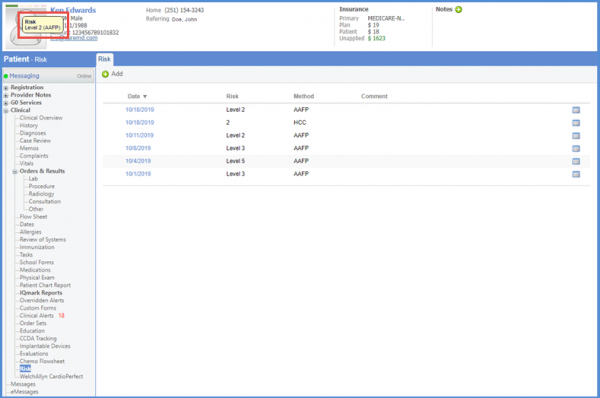
Upon hovering the patient’s profile picture, a tooltip is displayed containing patient risk level and method.
Moreover, by clicking the risk bar, user can update the risk level of the patient.
Users can sort ‘Risk’ component for the ‘Clinical’ component according to their preference. To view, click here.
Users can assign a risk category to a patient. 
Select a risk method other than ‘American Academy of Family Physicians (AAFP)’ and select a risk category from the ‘Risk Category’ dropdown.
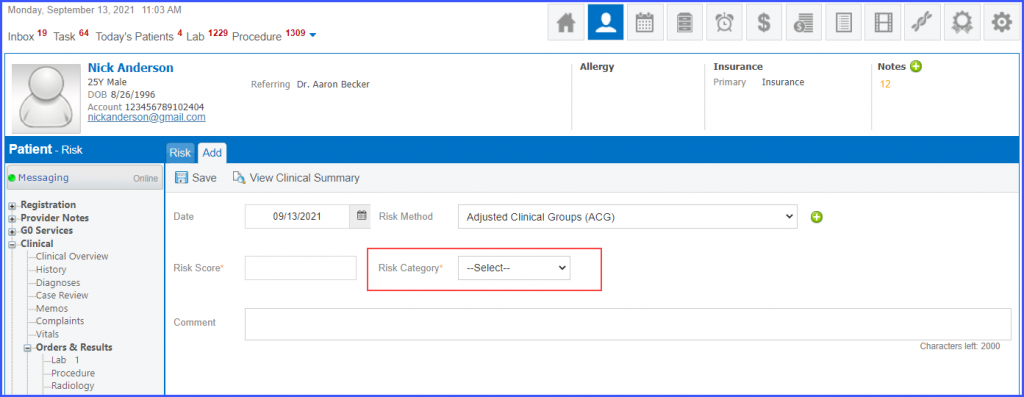
Then click the ‘Save’ button.
The system maintains a log of the saved risk in the ‘Audit Trail – Clinical’ section in the ‘Reports’ module. To view the log, click here.
Once a risk is saved, its category is also displayed in the risk list of the patient in the ‘Risk Category’ column.

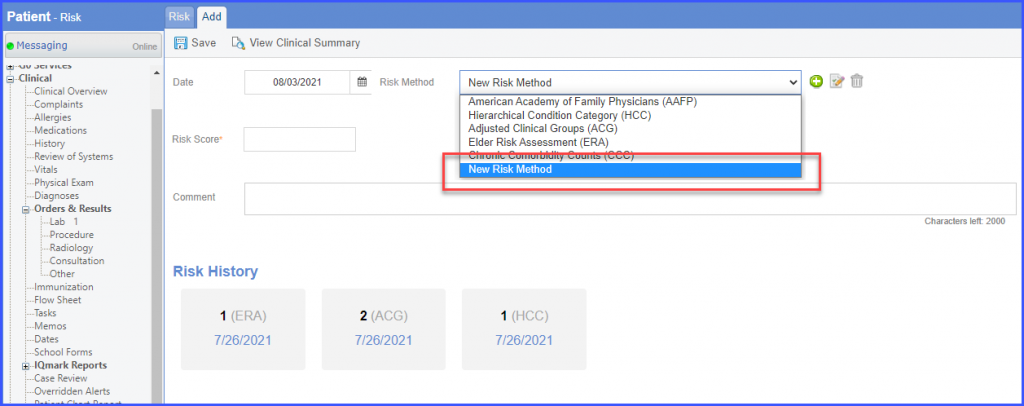
A new risk method can be added for a patient. Settings must be enabled to add a new risk method. Click here to enable settings.
Click ‘+Add’ to add a risk.
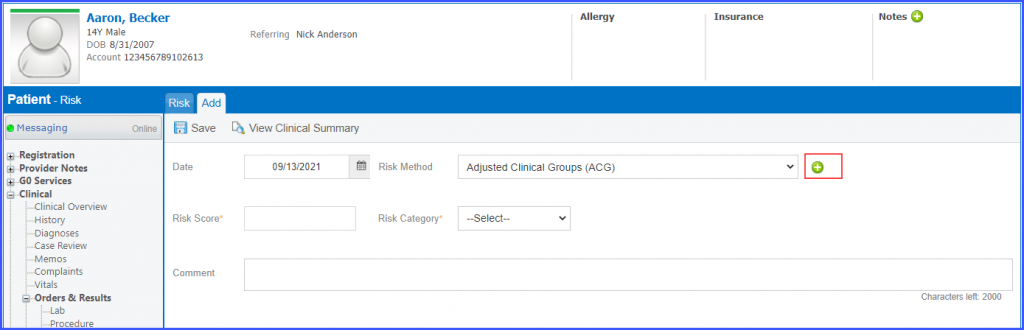
Click ‘+’ icon next to the ‘Risk Method’ dropdown and enter the name of the new risk method.
Then click the save icon next to the ‘Risk Method’ textbox.
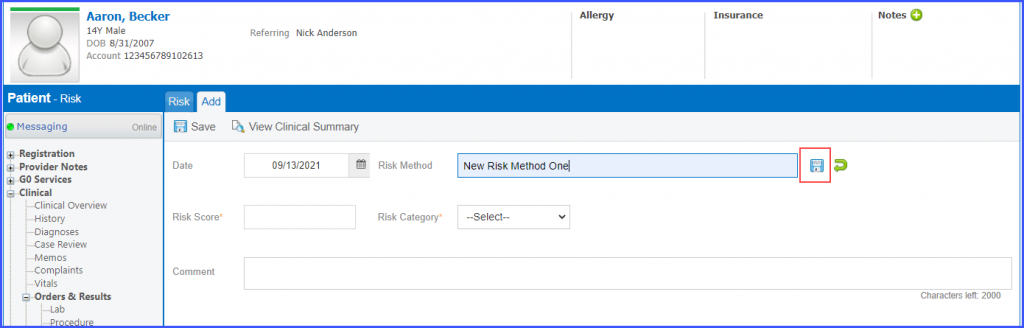
In case a user forgets to click the save icon next to the ‘Risk Method’ textbox but clicks the ‘Save’ button, the system auto-saves the newly added risk method.
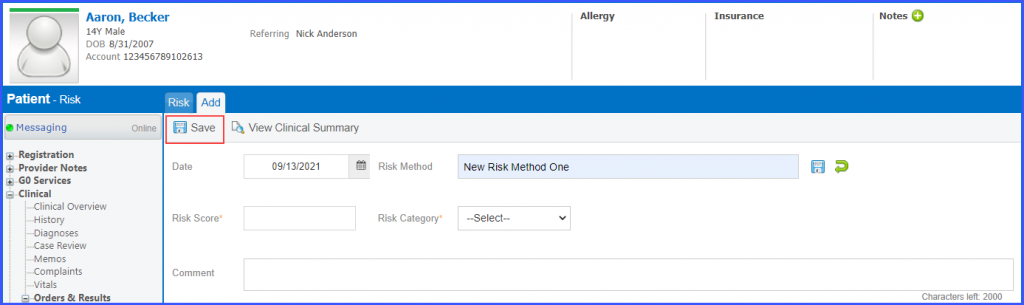
The new risk method is added to the ‘Risk Method’ dropdown and is retained for future use.