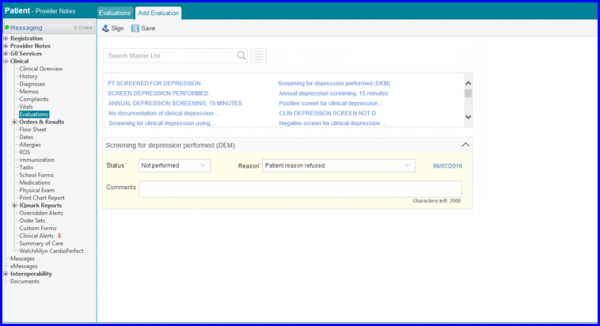
How to Add Evaluations?
The ‘Evaluations’ component is used to record interventions, risk assessments, and patient screenings.
Follow the above mentioned workflow to land on the ‘Evaluations’ screen.
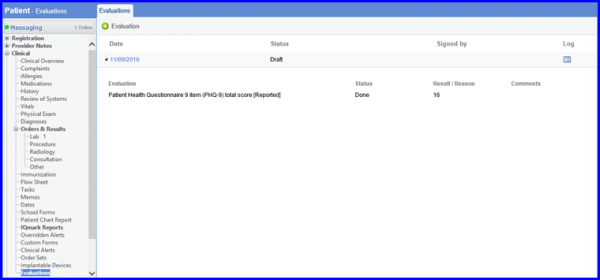
A list of all the evaluations recorded for the patient will be displayed.
To add a new evaluation, click ‘+Evaluation’.
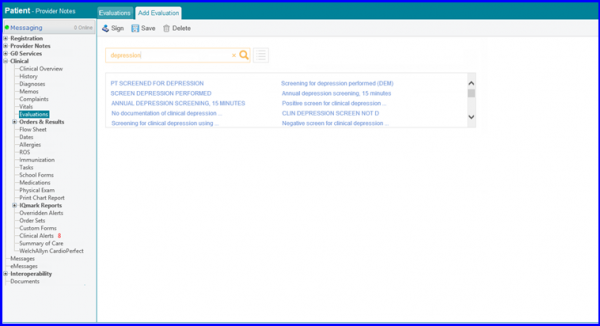
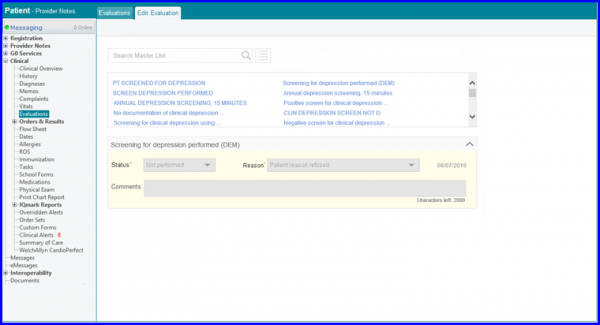
On this page, user can search for an evaluation by typing in the appropriate keyword in the search bar. The results are populated in the results box.
When a test is selected, it is displayed below the search results. Here, the user can enter details for the evaluation, such as status, reason or result, comments and the date and time. Depending on the type of evaluation selected, the status dropdown displays the relevant options.
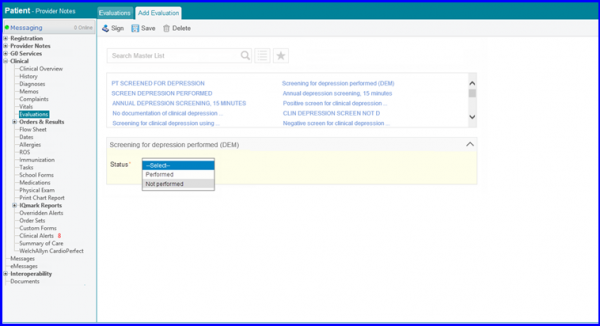
Once the user selects status of the evaluation as Performed, the result field is displayed.
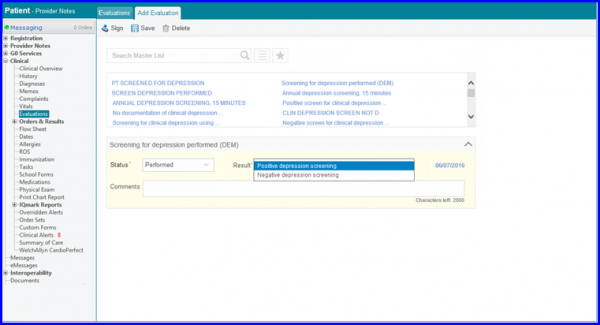
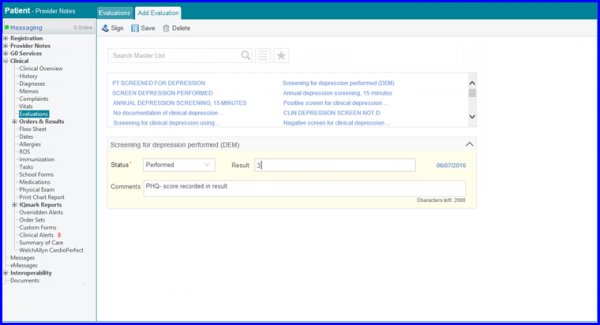
Based on the type of evaluation, the result may be a drop down consisting of SNOMEDCT coded options or a text field to store numeric value.
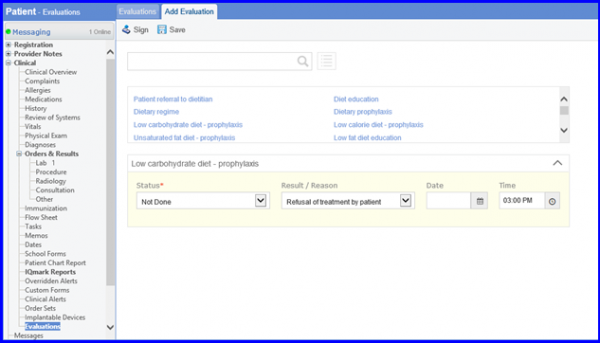
If the status is set as Not Performed, a reason field is displayed with coded options.
Any additional information can be typed in as comments.
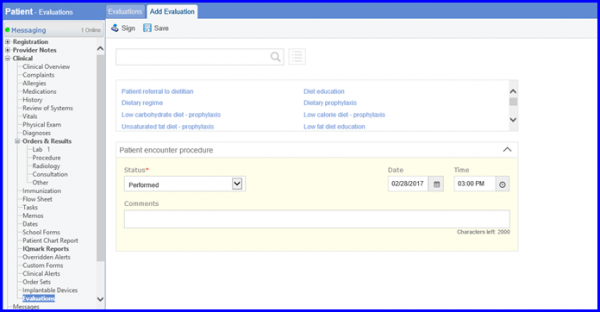
After recording all the evaluation details, users can either save or sign the evaluation:
- Sign: A signed evaluation cannot be edited and is displayed in read only mode.
OR
- Save: Saves the record as a draft which can be modified in future.