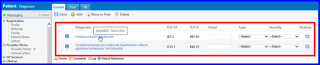
How to Search Procedures Conveniently?
Providers can search for a diagnosis using provider friendly terminology. The diagnosis search box recognizes provider specific abbreviations and aliases for diseases and generates accurate billable ICD-10 codes.
Application users no longer have to scroll through lengthy search results to locate the desired code. Simply type in a short keyword, a few characters of the disease name, an alias or a common name for the disease and the application brings forth the desired code.
To understand how this search works, follow the workflow described below. The button for Provider Friendly Terminology or PFT is present next to the “Recently Used” and “Favorites” button.
To search for a diagnosis using Provider Friendly Terminology, click on the PFT button. This enables the system to search using Provider Friendly Terminology.
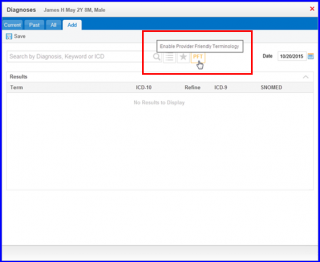
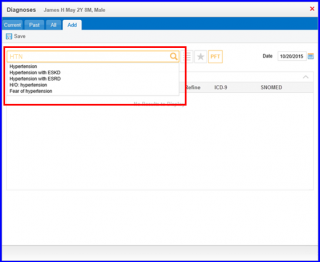
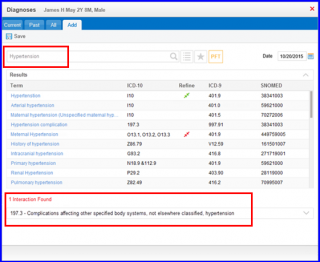
The system recognizes medical abbreviations and other PFT as search keywords and generates accurate ICD-10 codes accordingly. For instance, if user searches for HTN, the dropdown menu lists Hypertension. Similarly, if user searches HPB, the Results dropdown lists Hepatitis B Virus.
All the relevant billable ICD-10 codes are displayed in the search results.
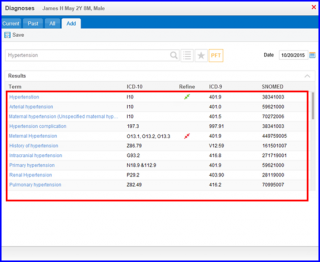
User can hover over any particular description to read the full text.
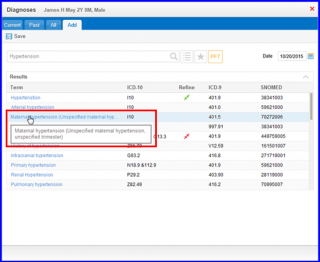
For terms having multiple ICD-10 codes associated with them, the description for each of these codes appears in the tooltip.

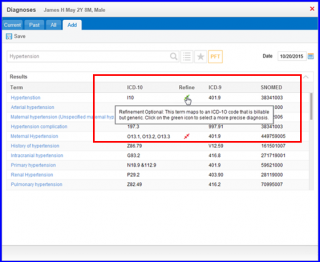
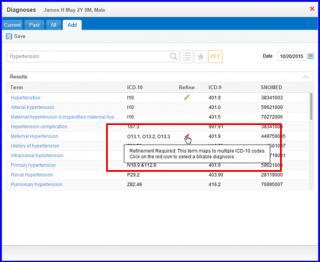
Third column in the Results section, labelled as Refine allows user to further drill down into the results to select a more specific/ billable ICD-10 code. The icons in Red and Green define the type of diagnosis. Depending on the diagnosis, two types of refinement options are available: Optional(Green) & Mandatory(Red).
The tool tip describes the details of how the refinement option works.
Click on the desired Search Result.
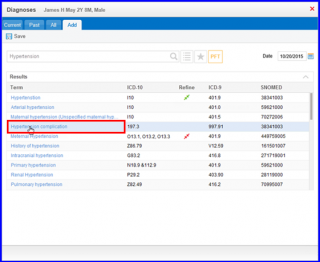
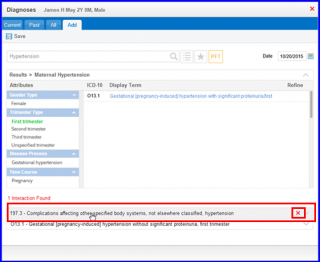
The total number of interactions are displayed if they exist.
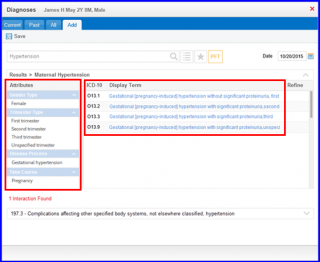
If multiple ICD-10 codes are associated with a search term, they are displayed in a list. To helps select the most appropriate ICD-10, the attributes are displayed against each code.
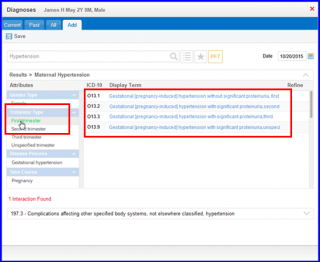
After selecting all the required diagnoses, click on them to fill in details such as Type, Onset, and Severity etc.
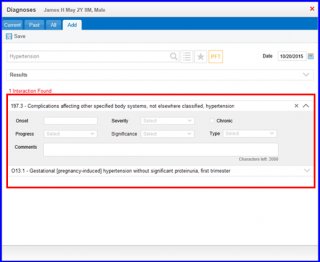
User can click on the X icon that appears upon hovering over each diagnosis, in order to remove the diagnosis.
Once user has selected the desired code, click on ‘Save’ button to add it to the list of patient’s diagnoses.