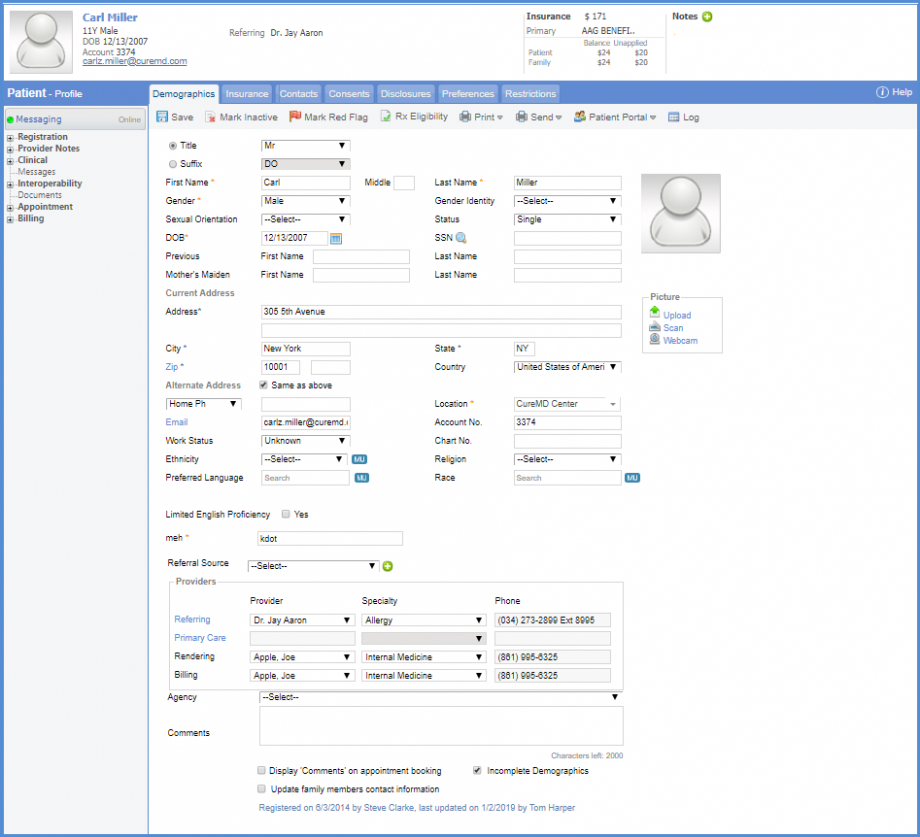
How to View Patient’s Profile?
In order to view patient profile, follow the workflow above to land on Demographics screen.
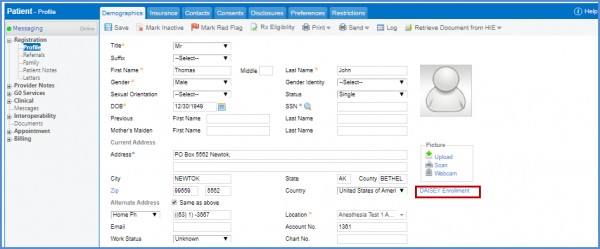
User can view the DAISEY Profile details by clicking the DAISEY enrollment hyperlink on the patient demographics page.
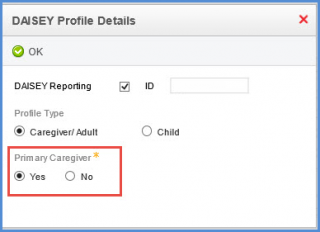
Once the user clicks the hyperlink the details are displayed.
Select profile type as ‘Caregiver/Adult’. This displays the mandatory ‘Primary Caregiver’ option.
The Caregiver/Adult users cannot be DAISEY enrolled without specifying if they are the patient’s primary caregiver or not.
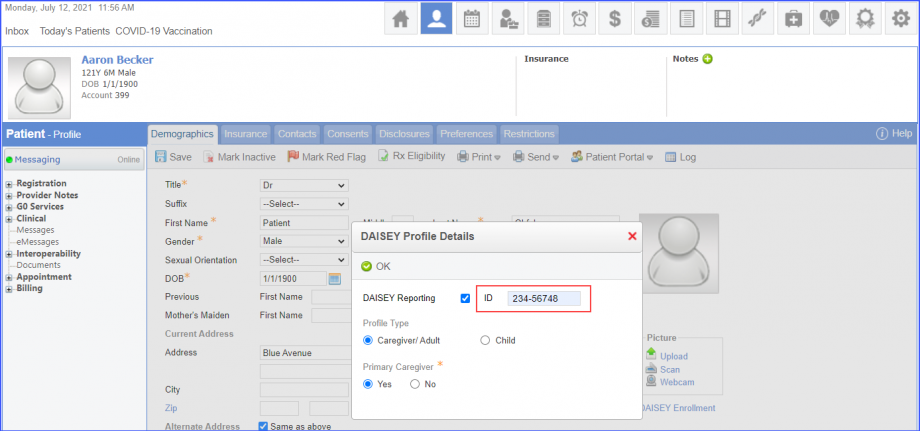
Users can enter patient IDs that do not begin with 307 in the ‘ID’ field. 
This allows users to successfully perform DAISEY reporting for patient IDs that do not begin with the digits 307.
Enter a patient ID, then click ‘OK’.