How to Perform Alert Action?
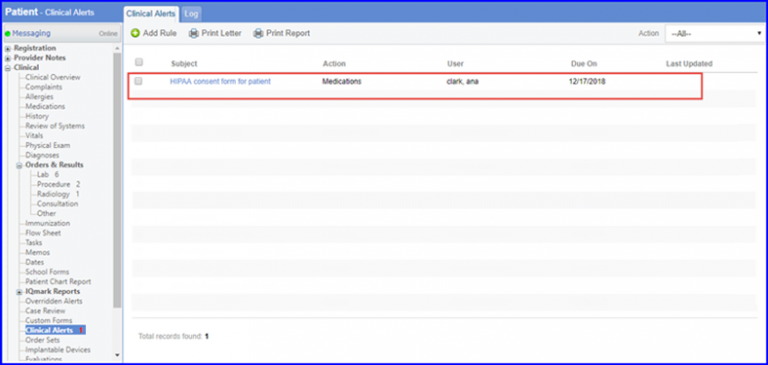
Follow the above mentioned workflow to land on the ‘Clinical Alerts’ screen. Click the required alert to open ‘Alert’ window.
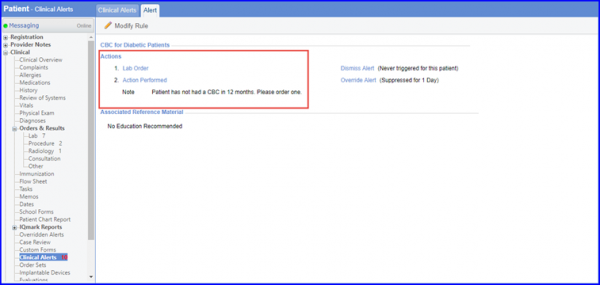
The required actions set when alert is triggered can be edited. In the following example, the action to be performed is placing a lab order.
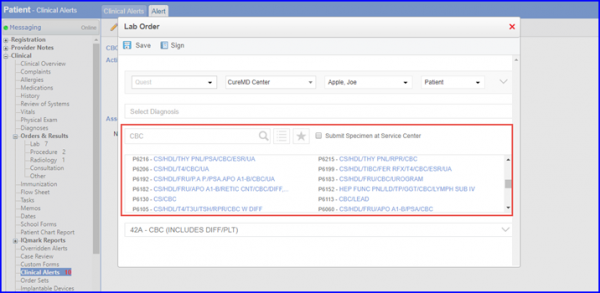
Clicking ‘Lab Order’ takes the user to ‘Lab Order’ pop-up. Here, user can search and select a lab, select a lab from hot list, or select a lab from favorites.
Once a lab is assigned, the user can provide order details and click ‘Save’ or ‘Sign’.
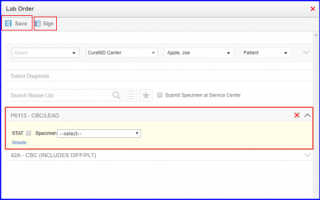
Signing the Lab Order completes the order and removes it from the Clinical Alerts. Signed lab order can be viewed in ‘Log’ tab with Action Status as ‘Performed’.
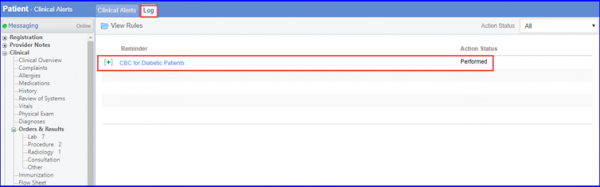
Performing an alert action also removes the alert from clinical alerts list in Patient Module. The performed alert re-triggers as the frequency time is set for that alert.
For example, if the alert frequency is set to be 6 months then, as a user performs the action, the alert re-triggers (reappears in clinical alerts list) after 6 months. This continues until the alert completes its validity period.
To know more about how to set alert frequency, click here.
