How to Review Claim Status while Generating an NF3 Form?
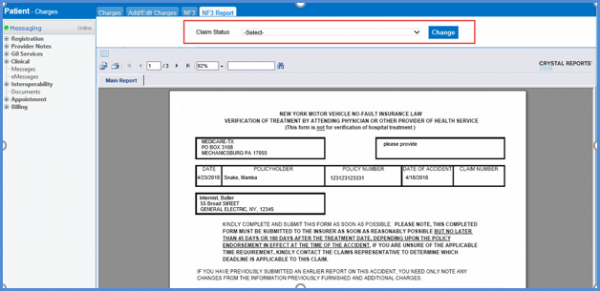
NF3 form provides the user with detailed information regarding the billing and charges. To review the claim status of the report, user has to generate NF3 form report.
Follow the above mentioned workflow. Select the charge from the list by clicking the date link.
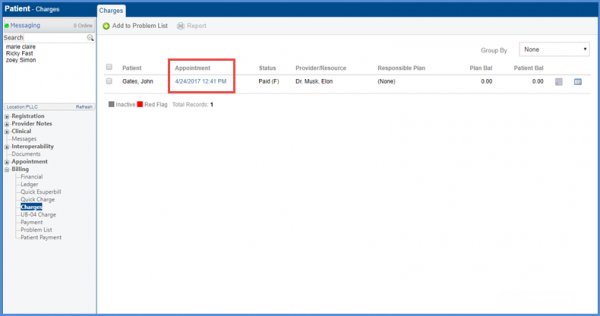
A claim can only be associated to a record once it is saved.
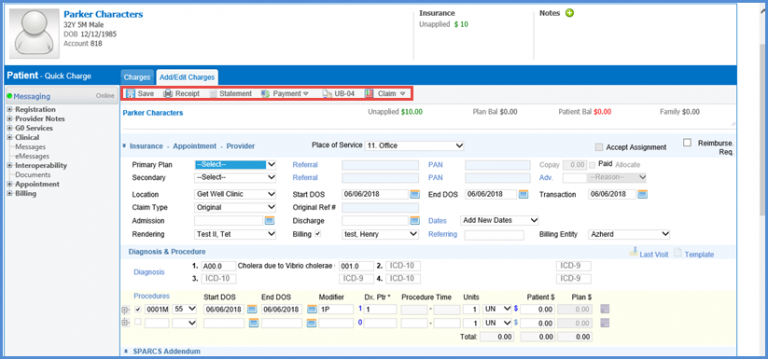
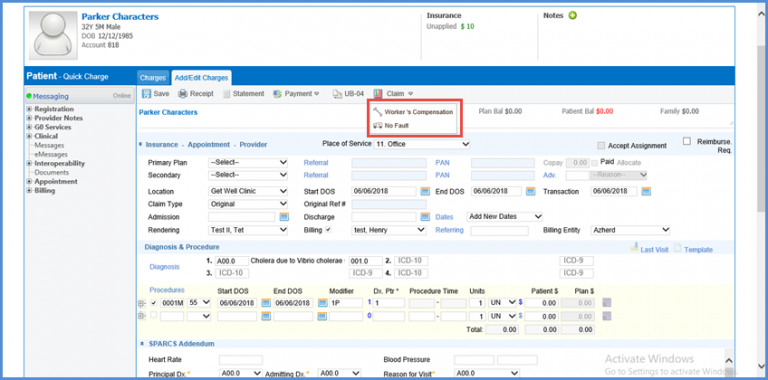
Hovering over the Claim button user can see a dropdown. Click ‘No Fault’ from the dropdown.
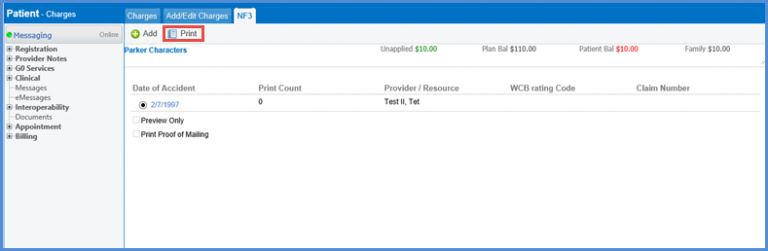
This opens the NF3 tab. Here, user can select a claim by marking the radio button and click the ‘Print’ button.
While printing the NF3 Form user can select claim status from the dropdown.
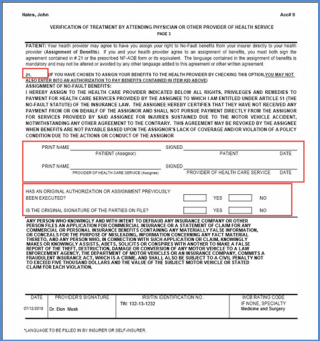
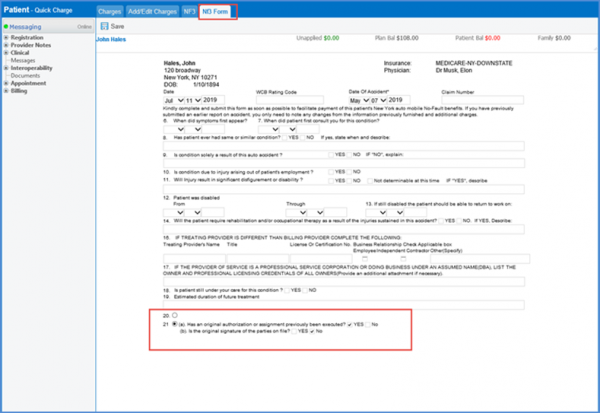
User can choose between ‘Authorization of Benefits’ and ‘Assignment of Benefits’ from NF3 form.
On the NF3 Form, radio buttons ’20’ and ’21’ represent ‘Authorization of Benefits’ and ‘Assignment of Benefits’ respectively.
Provider can pursue payment from the patient directly. To do so, select the radio button for ‘Authorization of Benefits’.
On the contrary, if the user selects ‘Assignment of Benefits’, only the insurance carrier can be pursued directly for payment.
Only the content for selected option is enabled for selection whereas it is read-only for the other.
Similarly, the report displays filled out fields for the selected option.
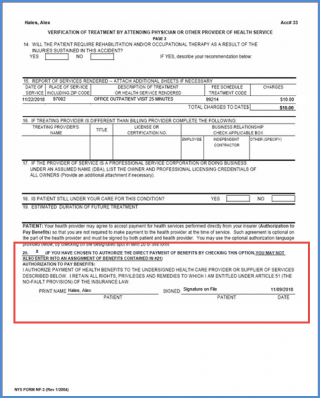
Fields for the unselected option appear empty on the report.