How-to-schedule-an-appointment-through-the-patient-portal
Users can request appointments through the patient portal.
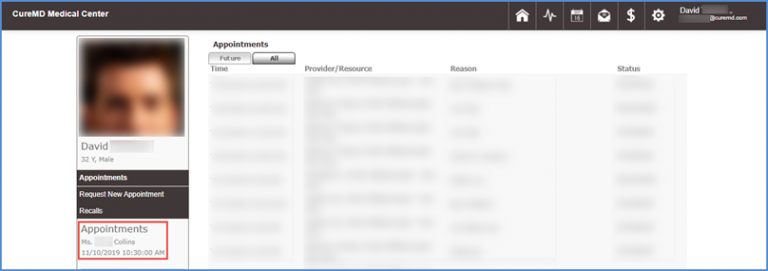
Click ‘Appointments’ to enter the ‘Appointments’ module.
Click ‘Request New Appointment’ to open the ‘New Appointment’ page.
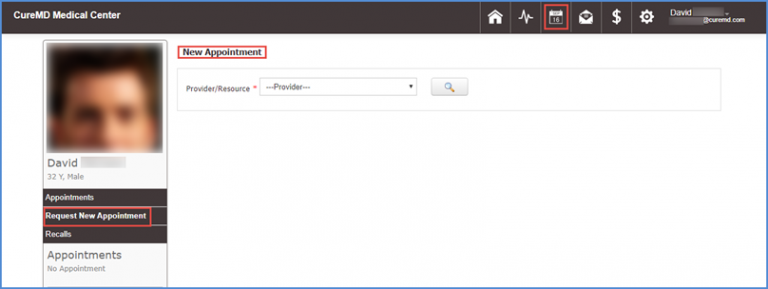
Click ‘Provider/Resource’ dropdown to see list of providers and resources.
Only those providers/resources are displayed in the list which have schedules available for appointment on a specific day.
Select the required and available provider, then click the ‘Search’ button.
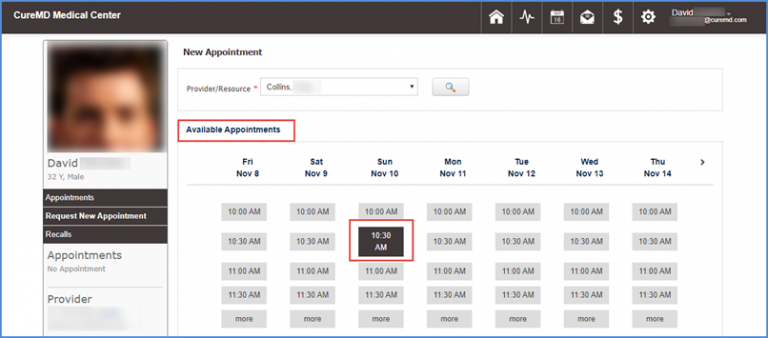
The ‘Available Appointments’ pop up.
User can click the relevant appointment to schedule.
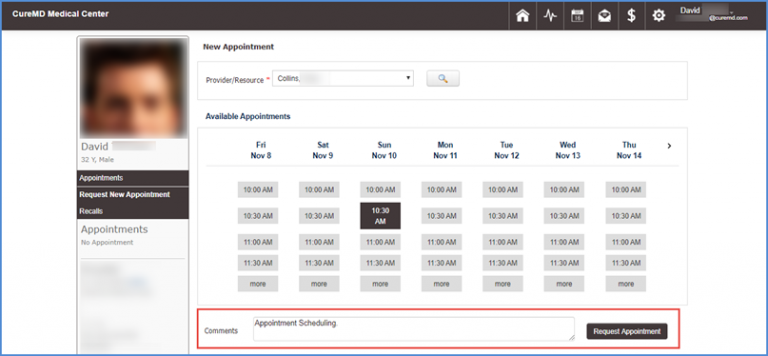
Clicking the appointment button opens up the ‘Comments’ field and ‘Request Appointment’ button.
Users can enter any comments or specific requests if required and click the Request Appointment button.
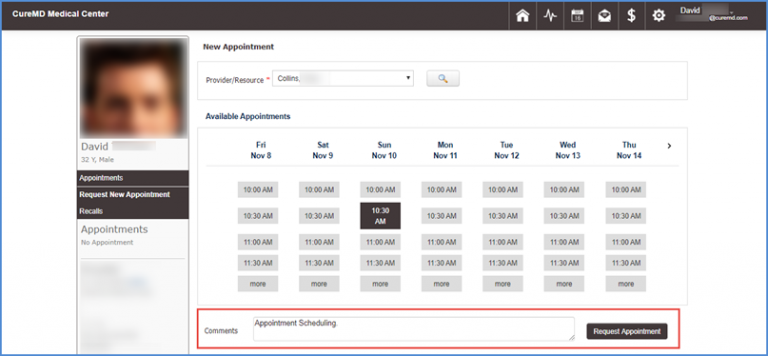
Clicking ‘Request Appointment’ button opens up the ‘Appointment Confirmation Request’ box.
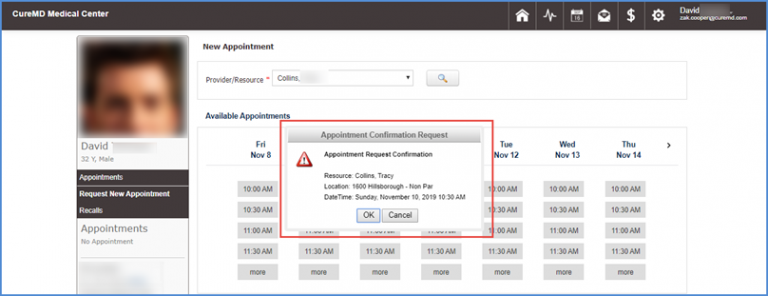
Click ‘OK’ to confirm appointment, or Cancel to go to the Appointments schedule.
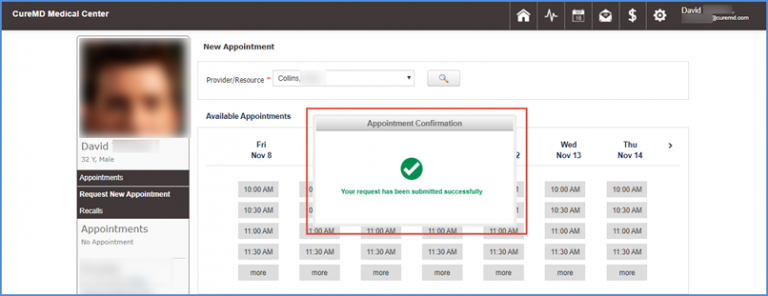
Clicking ‘OK’ displays the Appointment Confirmation box confirming the successful submission of appointment request.
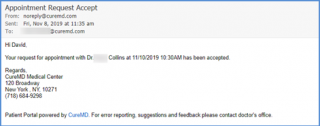
The user receives an email notification once an appointment request has been approved.
Confirmed appointments are also displayed in the left pane menu under ‘Appointments’.