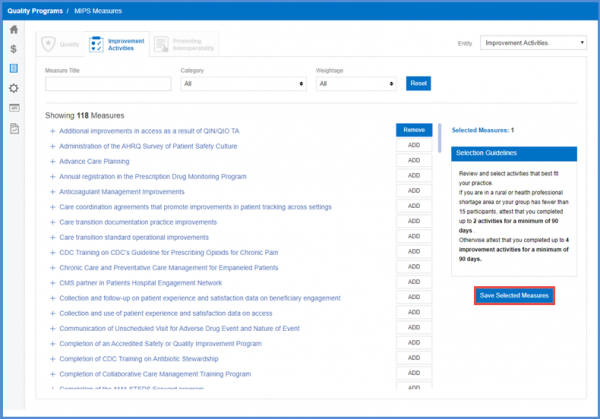
How to Add Measures for Improvement Activities?
Follow the above mentioned workflow to land on the ‘MIPS Measures’ page.
Here, MIPS measures are segregated on the basis of performance categories.
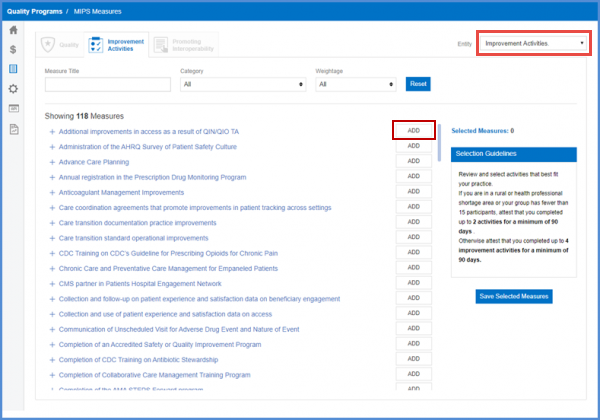
Select the desired entity from the ‘Entity’ drop down.
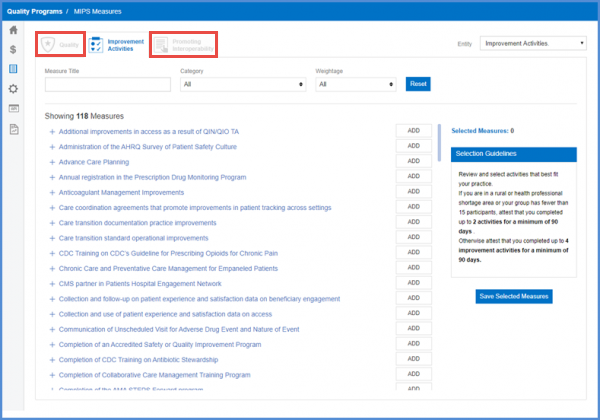
If a performance category is not associated to the selected entity, the tabs for it are disabled.
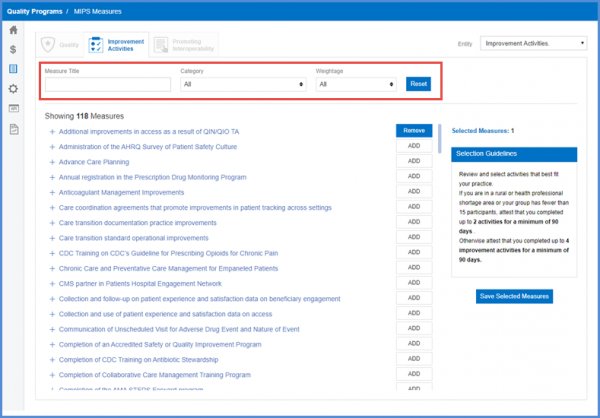
To search for a specific measure, user can search for it using ‘Measure Title’, ‘Category’ and ‘Weightage’.
Search criteria can be reset by clicking the ‘Reset’ button.
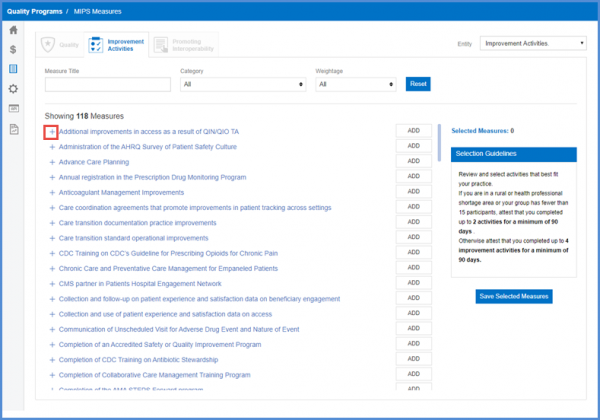
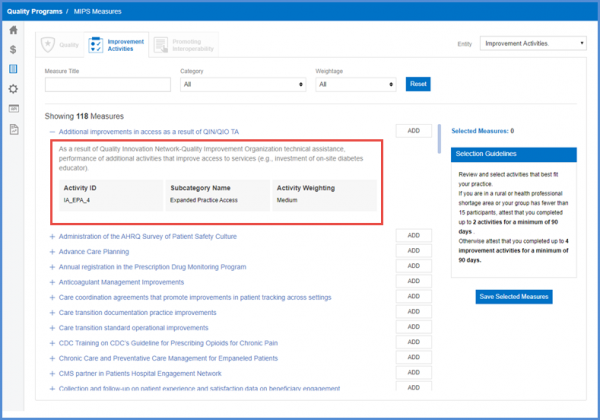
To view the details regarding a measure, click the ‘+’ icon alongside it.
Doing so expands the measure, displaying relevant details.
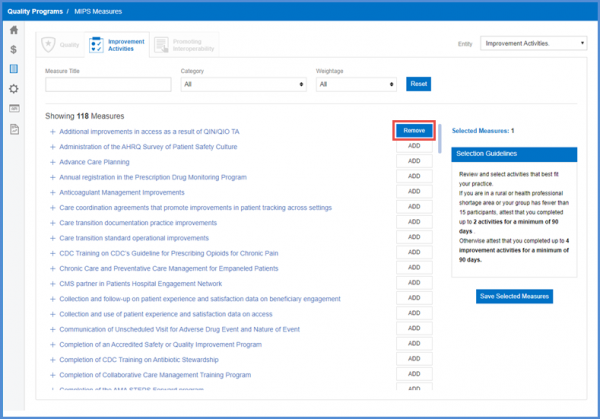
To add a measure, click the ‘ADD’ button next to it. Doing so changes the text to ‘Remove’.
Clicking ‘Remove’ removes a measure from the selected performance category.
To save the changes made, click the ‘Save Selected Measures’ button.