How to View Submitted Claims ?
This component contains summaries of all claims submitted and any responses that have been received.
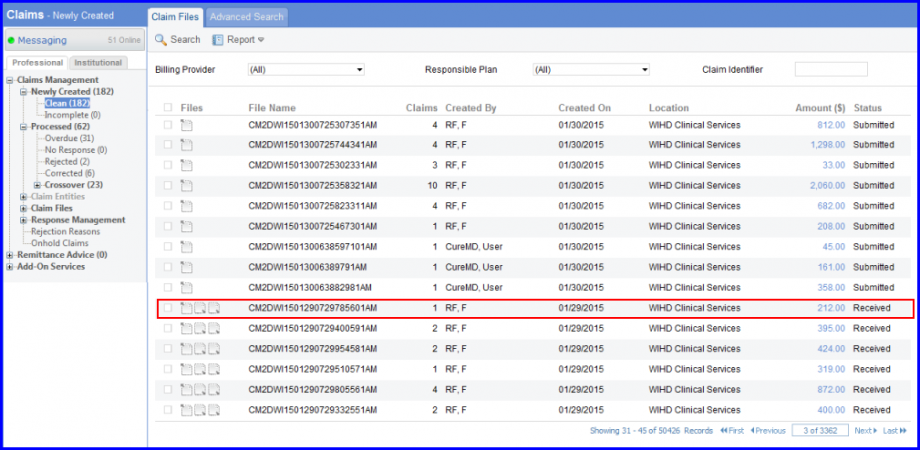
Here is how it works:
Clicking on the icon pointing towards left allows user to view the Uploaded claim file. It is in standard ANSI format.
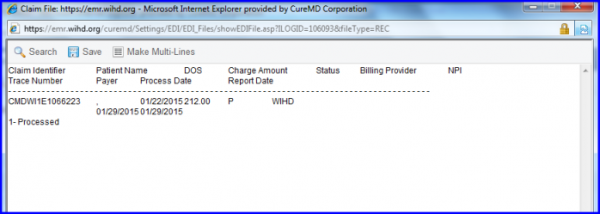
Clicking on the first downward icon opens up a new window that shows the Response from the Electronic Clearinghouse (REC). This lets user know the names of the patients on the claims received. It also may list mistakes that the clearinghouse edits found.
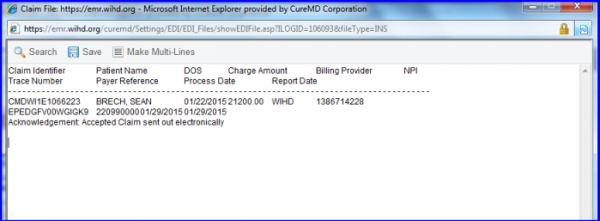
When user hovers the mouse over the second downward icon, a tool tip appears that says ‘View downloaded INS File’. If user clicks on this icon, a new window opens up showing the ‘INS file’. It usually will either say the claim is accepted or will list the errors found.
User can also Search for claims by:
- Billing Provider- Responsible Plan
- Claim Identifier – This is a number that is unique to this claim. So, instead of looking through many claims, it will find the specific one user need.
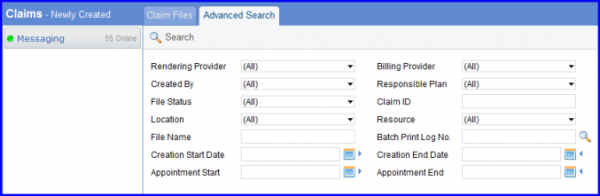
- Advanced Search Tab – Lets user look for claims using more than one criterion.