How to Filter No Charge Appointments in Billing List?
User can choose either to view no-charge appointments with the regular appointments in the Charges Appointment list.
Navigate to appointment “Basic” search page by following the above mentioned workflow.
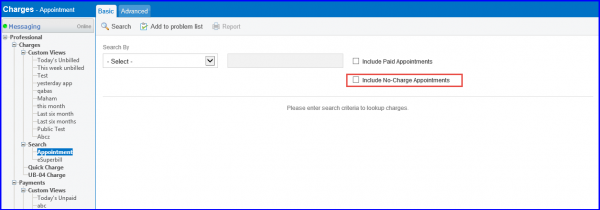
Here, mark the ‘Include No-Charge Appointments’ checkbox to include appointments for which charge is not made, in the search results list.
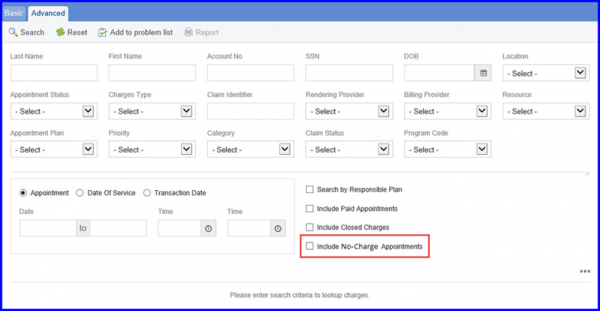
User can also choose to mark ‘Include No-Charge Appointments’ checkbox in “Advanced” search page.
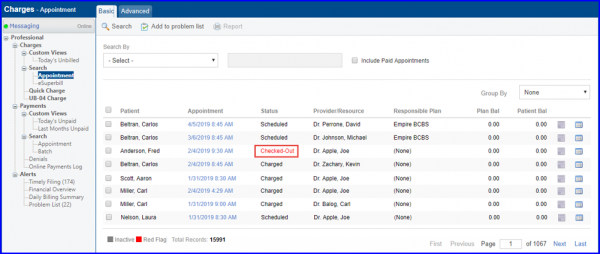
By default, the Charges Appointment list contains no-charge appointments with their status in red font.
Similar changes have been made in “eSuperbill” , “Add/Edit Custom Views” ,”Appointments” and “Batch” screens.
The value of C4 has been replaced by WC, in the charge type dropdown. 
The value C4 has gone obsolete and has thus been replaced by the updated label ‘WC’.
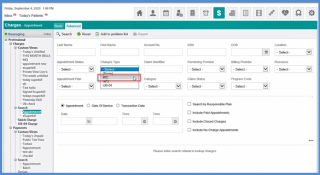
Similar change has been made on the charges page. Click here to see more.
