How to Add a New Patient?
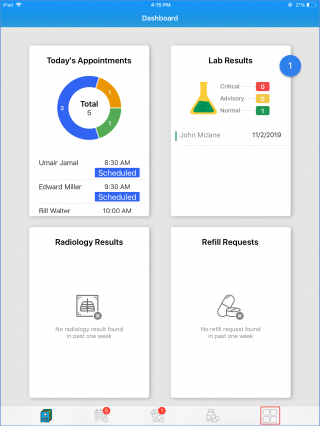
To add a new patient, tap on the ‘Menu’ icon from the Tap bar at the bottom of the screen.
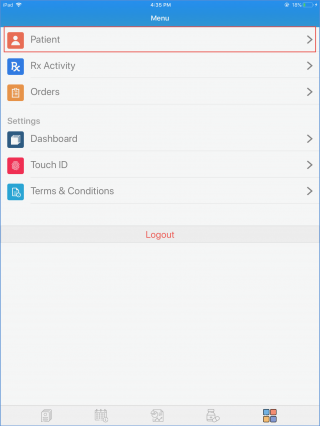
This opens up the “Menu” screen. From the available menu options, tap on ‘Patient’ option to view the patient screen.
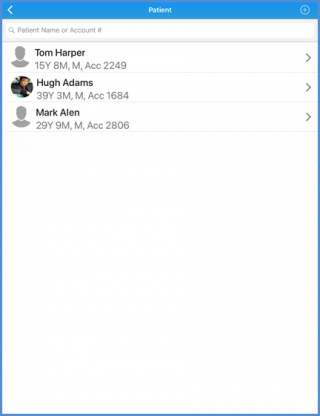
Click on the ‘Add’ icon at the top-right corner to add a new patient.
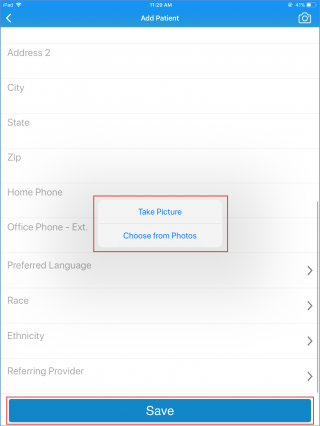
From the ‘Add Patient’ screen, fill in the mandatory fields. For more demographics options, tap on ‘More Options’.
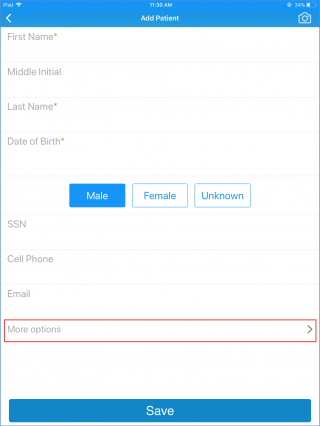
Here, users can enter the Address and Phone Number too.
The Preferred Language, Race, Ethnicity and Referring Provider are multi select fields. To select an option, tap on the respective field.
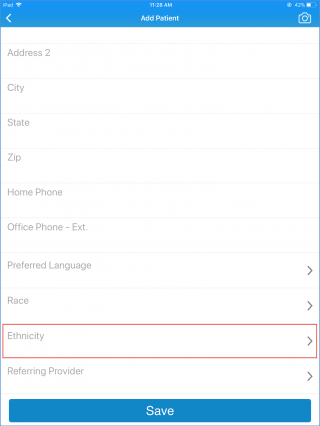
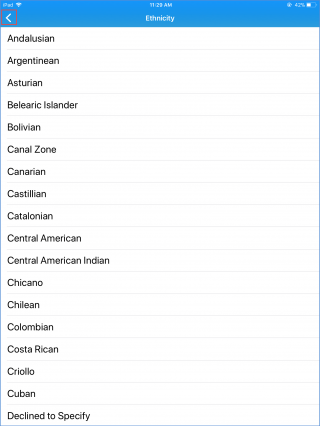
This takes users to the available options. Select the suitable ones and then tap on the back arrow to go back to the ‘Add Patient’ screen. Here, repeat the steps for other fields as well.
To add the patient’s picture, tap on the ‘Camera’ icon at the top-right corner of the ‘Add Patient’ screen.
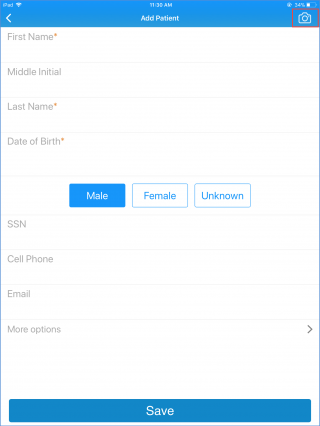
Users can either choose a photo from the gallery or take a new one. Once all the information has been added, tap ‘Save’.