How to Enable Touch ID to Login to Application?
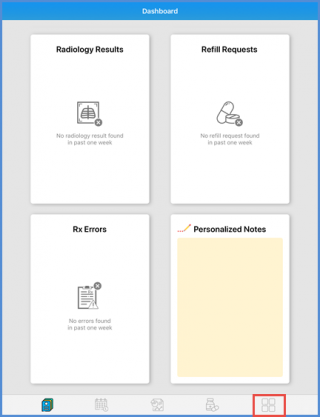
User can see the dashboard as they login to the Avalon. From the ‘Tab’ bar, tap the Menu icon to access the main menu.
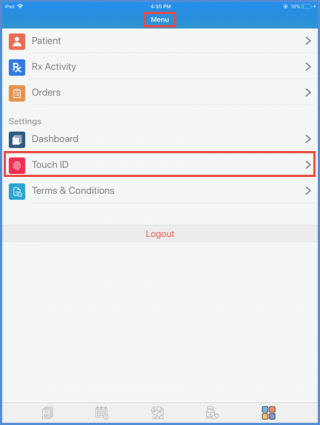
On the ‘Menu’ screen, user can see the Touch ID option. Tap the Touch ID option.
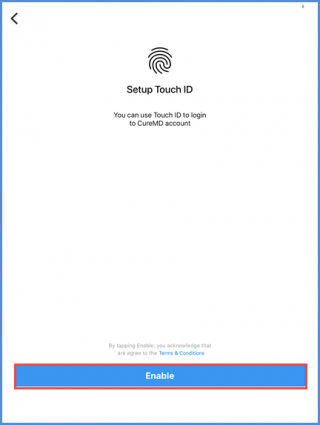
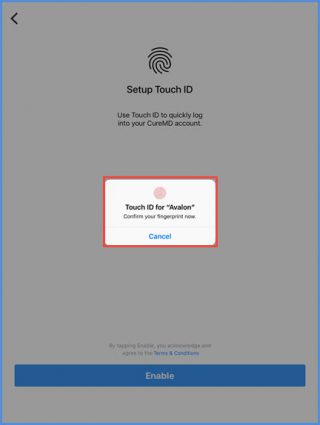
User is navigated to the “Setup Touch ID” screen. At the bottom of the screen, user can see the ‘Enable’ button. Tap the Enable button to allow the Avalon application to use the Touch ID.
‘Touch ID for Avalon’ option can be seen on the screen. User can confirm the Touch ID by registering the same finger registered for the device Touch ID recognition.
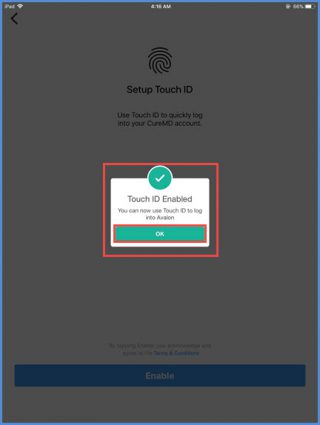
After registration, user can see the success message on the screen “Touch ID Enabled”. Tap ‘OK’ to save the changes.