How to View Patient’s Clinical Record?
Patient’s clinical review displays the record of patient’s medication history, family history, alerts/recalls and provider notes. This helps the user to understand and maintain the patient’s health record.
Search the particular patient to view the clinical record of the patient. To know how to search a patient, click here.
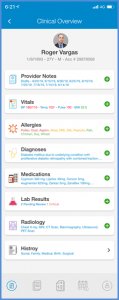
User is directed to the patient’s profile. Here, user can see the patient’s clinical details.
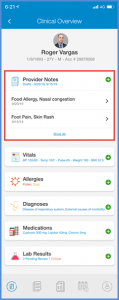
At the top of the screen, patient’s provider notes are displayed. All the provider notes with “Draft” status are listed under provider notes section. Tapping the “+” icon user can see the details of the provider notes with draft status. Tap the “Show All” hyperlink at the bottom of the screen to view the details of the patient’s provider note.
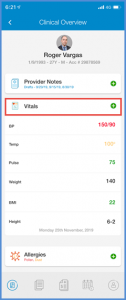
Patient’s recent vitals details are displayed on the clinical overview. User can see the vitals listed under each date. If there are vitals just for a single date, they are listed under that particular date.
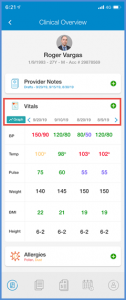
Multiple vitals are displayed under their respective dates, user can select a date to view its vitals details.
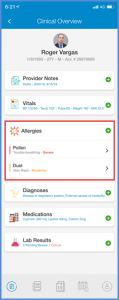
Patients allergies are listed under the Vitals. Allergies can be marked inactive. Select the particular allergy from the list and slide left. Tap the ‘Inactive’ option.
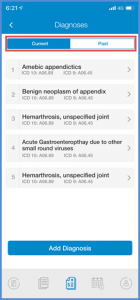
On the “Clinical Overview” screen, patient’s current and past diagnoses are displayed. By default current diagnoses list can be seen under the ‘Diagnoses’ heading. Tapping the ‘Show All’ hyperlink at the bottom of the screen to view all the current and past diagnosis in the patient’s list.
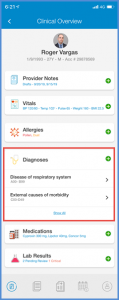
Tap the ‘Show All’ hyperlink at the bottom of the diagnosis section on the screen. This navigates the user to the diagnosis section to view all the current and past diagnosis in the patient’s list.
Patient’s current medications are displayed on the screen. User can also prescribe the medication for the patient. To know how to prescribe the medication, click here.
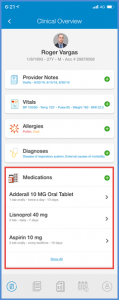
To view the Past Medication tap the “Show All” option at the bottom of the Medications section. All the current and past diagnosis are displayed on the screen.
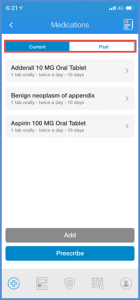
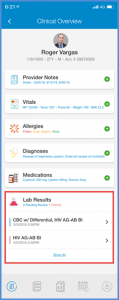
Patient’s lab results can be viewed in the patient’s clinical. Tapping the ‘Lab Results’ option the patient is navigated to the Lab Results.
User can see the Radiology option under the Lab Results option. Tapping the Radiology option on the screen displays the existing radiology results of the patient. Similarly, at the bottom of screen under the “History” heading patient’s history is displayed.
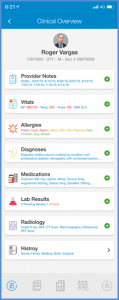
Patient’s provider notes are listed in the “Encounters” heading. To know how to view provider notes, click here.
