How to Create a Provider Note?
Provider Notes help maintain a record for all the variations in a patients’ health. To create a new provider note, users can either select a patient from the hotlist or search for one. To see how to search a patient, click here.
Once in the patients’ profile, navigate to the ‘Clinical’ tab.
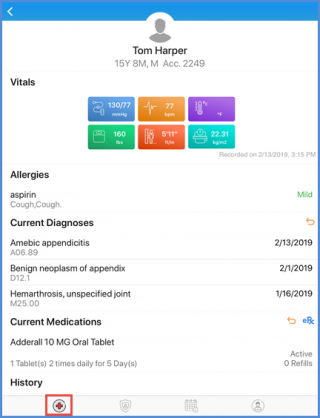
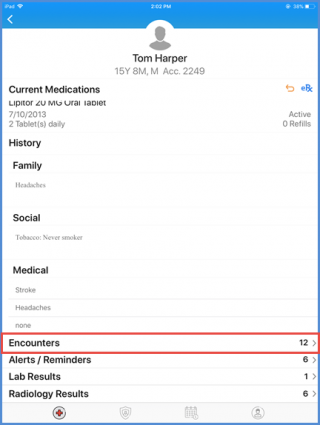
Scroll down and tap on the ‘Encounters’ component.
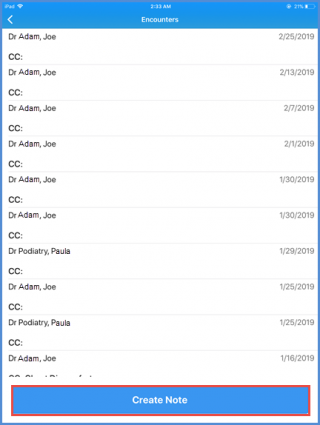
On the Encounters screen, tap on ‘Create Note’.
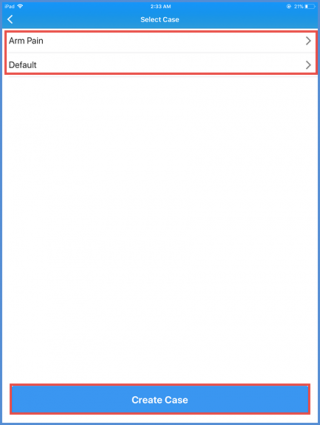
This takes the user to the cases created for the selected patient. Tap on a pre-existing case to add a provider note to it. To see how to create a case, click here.
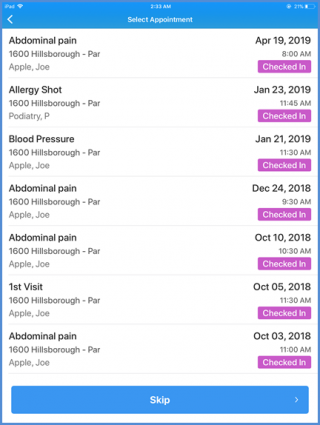
This takes the users to the ‘Appointment’ screen where they can choose an appointment to associate with the Provider Note. If not, tap on ‘Skip’.
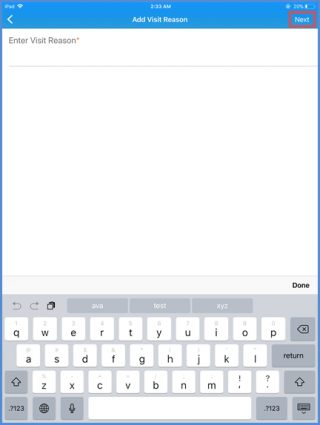
Next, enter the visit reason and tap ‘Next’.
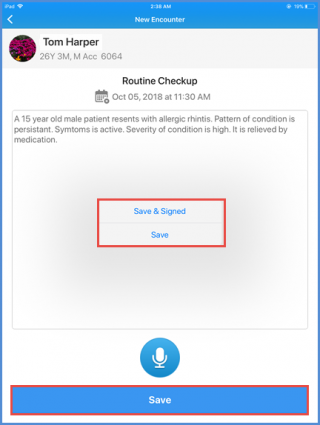
On the ‘New Encounter’ screen, enter the provider note details and then tap ‘Save’.
This shows a pop-up asking the user whether they want to just save the note or sign it as well. Choose the appropriate option.