How to Accept Form Requests?

Personal > Patient Portal Requests > Forms

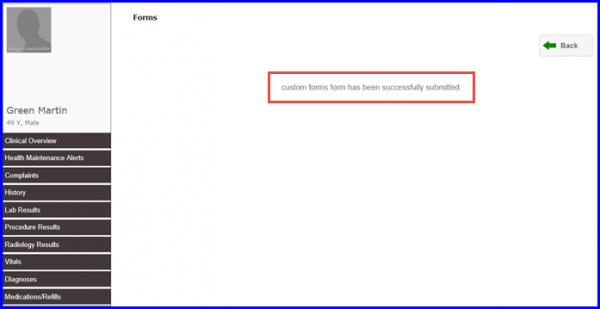
When a Patient Portal user submits a Form, a request is sent to the provider for approval or rejection. On successfully submitting a request, this text message is shown.
F1-1-600x309
Forms

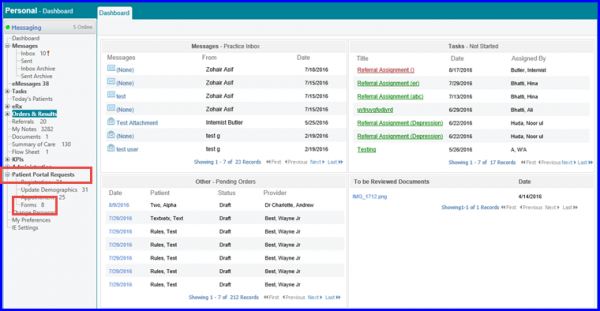
In order to process this request, follow the given workflow.
DB1-600x311
Dashboard

When user clicks on ‘Forms’, a list of all pending requests appear. The user can click on the arrowhead and expand the patient data to view the ‘Form’ that has been submitted by the ‘Patient portal’ user.

Pending-Requests123-600x310
Pending Requests
Patient-Data123-600x308
Patient Data
The user can enable the checkbox next to the desired patient’s name and either ‘Accept’ or ‘Reject’ this pending form request.
AR-Status-600x309
Accept/Reject Request

When the user clicks on ‘Accept’, this pop up appears. Click n ‘Yes’ and the form request moves from ‘Pending’ state to the ‘Accepted’ state.

AR-cn-320x161
Accept/Reject Request
a-rEQ-600x262
Accepted Requests

Same happens when the user clicks on ‘Reject’. A pop up appears, click on ‘Yes’ and the form request then moves from ‘Pending’ state to the ‘Rejected’ state.