How to Enroll a Patient?
When a user navigates to the “Patients” module. This section displays a list of all the patients and their current status. The user is also able to search for patients by:
- Patient Name
- Care Giver
- Account Number
- Month/Year
- Patient Type
- Condition
- Minutes Remaining
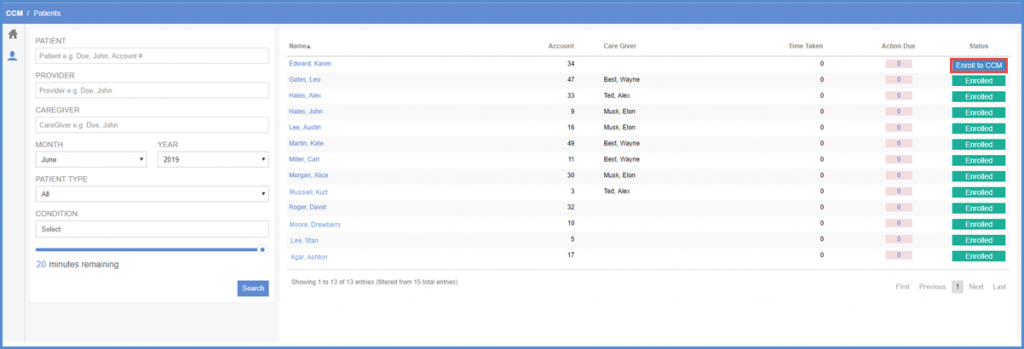
In order to enroll a patient, click the ‘Enroll to CCM’ button.
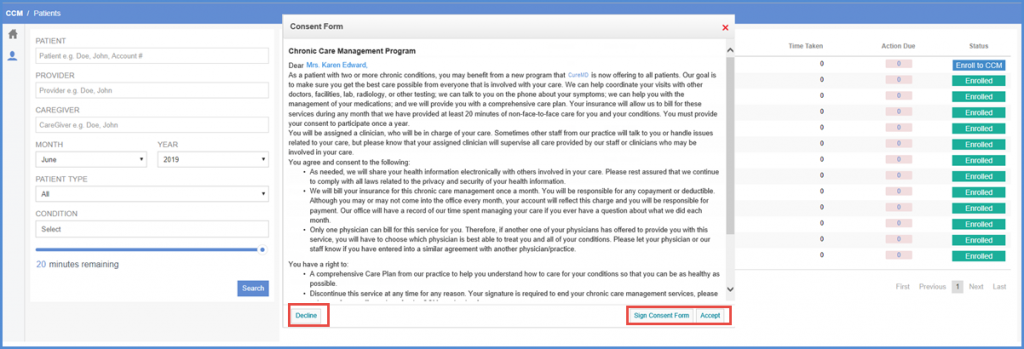
Doing so displays a consent form for the relevant patient, which they can accept, sign, or decline as per their convenience.
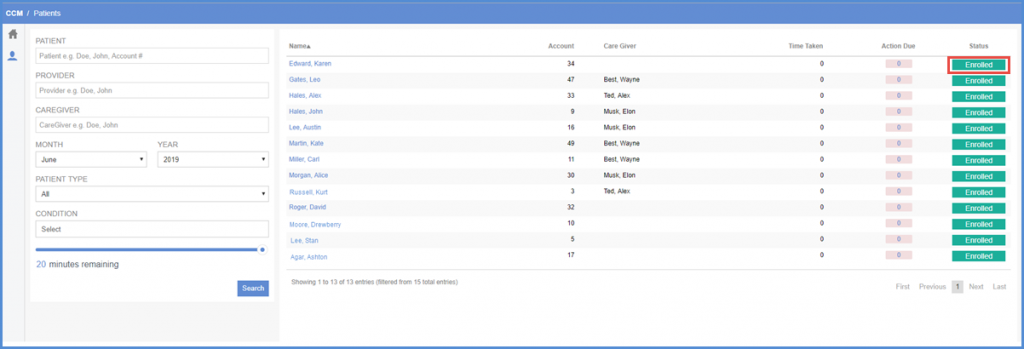
Once the consent form is accepted or signed, the status for the relevant patient is changed to ‘Enrolled’.
If the user clicks ‘Decline’, the status in ‘Status’ column changes to ‘Declined’
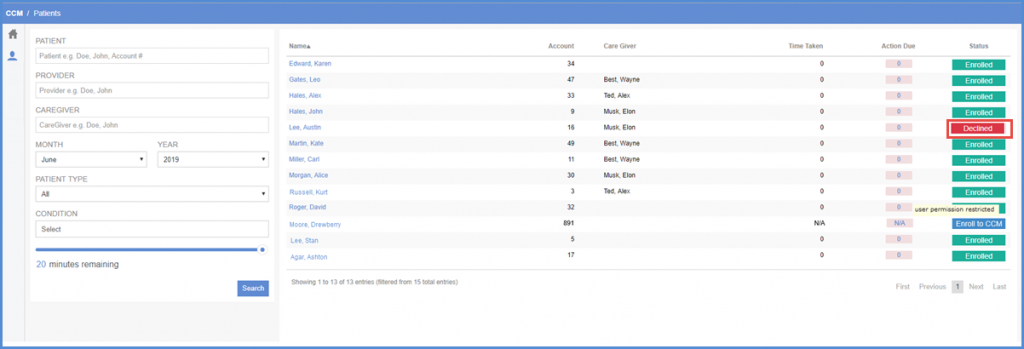
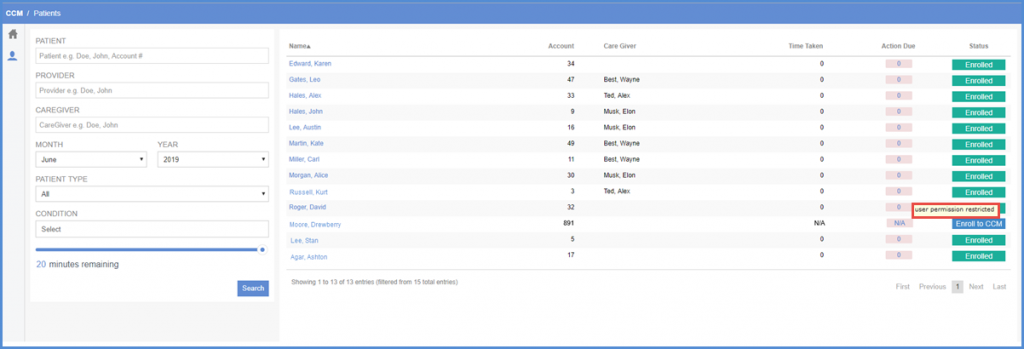
‘Enroll to CCM’ and ‘Decline’ status buttons are disabled if their relevant checkboxes are unmarked from user permissions. A tool-tip is displayed upon hovering over them.
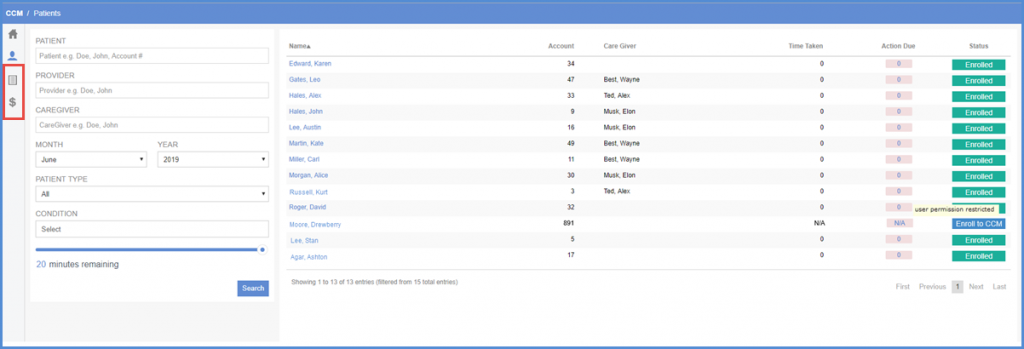
Similarly, the ‘Billing’ and ‘Reports’ modules are displayed in the left panel only if their checkboxes are marked from user permissions.
In addition, each column can be sorted in ascending order by clicking its respective column header.
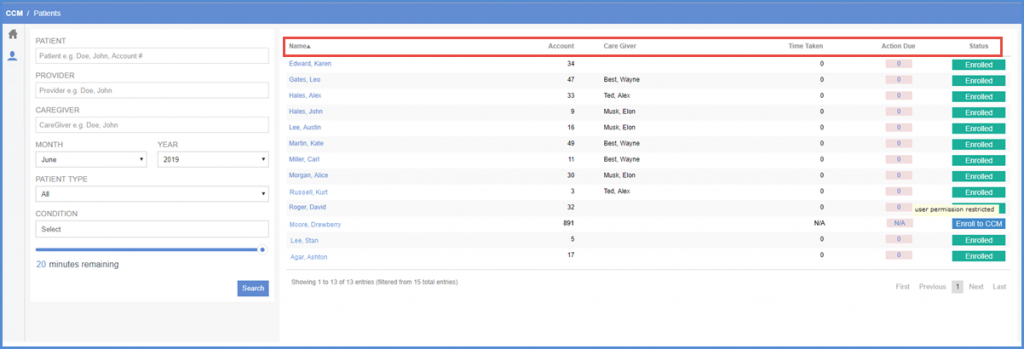
This applies to all columns except the one for ‘Logs’ in ‘Billing’.

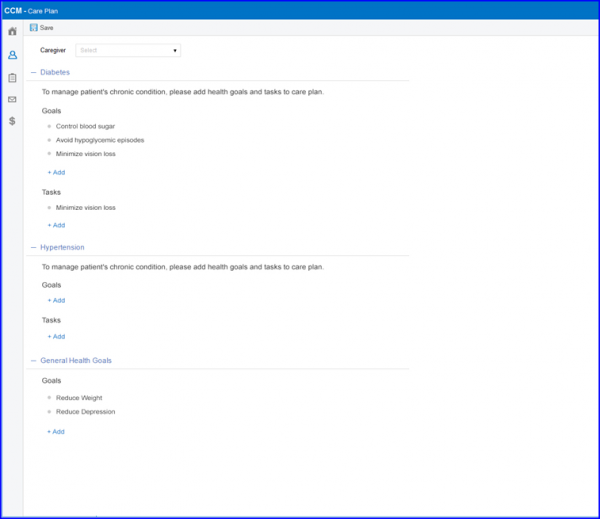
The user is navigated to patient Care Plan by clicking on the patient’s name. In this section, the user can assign a care giver to the patient, plan goals and create tasks for the patient.