Associate Providers
With this enhancement in Associate Providers functionality, users can associate providers with multiple practice users and batch of locations efficiently.
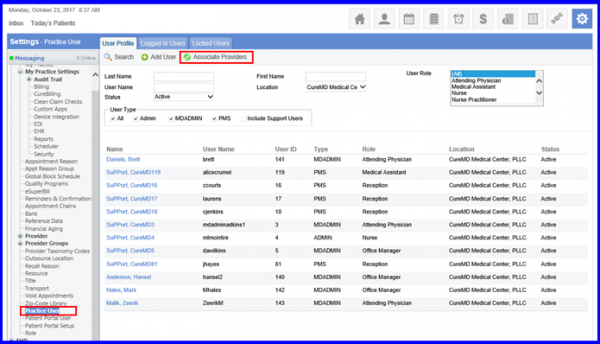
User can click on Practice User, a tab User Profile opens up.
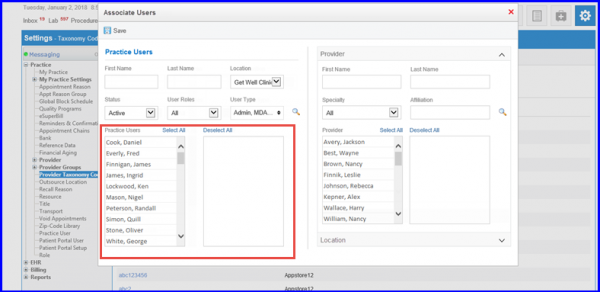
In order to associate providers, from the Practice Users table select all or any number of users and repeat this action on the Providers table. When done, click on Save.
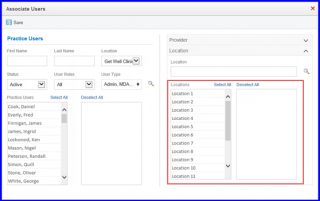
To associate Locations, expand the Locations component.
A sortable multi-select list appears from here the user can select Location(s) to associate with the selected Practice User. All Locations available in the practice populate in the multi-select’s left pane. User can click on the values in the left pane and move them to the right pane.
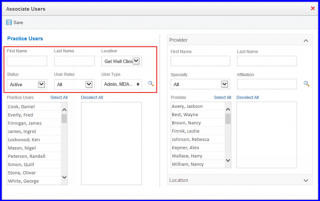
To filter the values in the left pane of the multi-select user can utilize the filters available above the sortable multi-select. After specifying the search filters click on search icon to get the desired results.
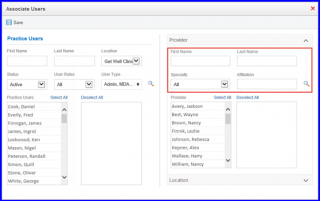
The filter fields for Providers appears.
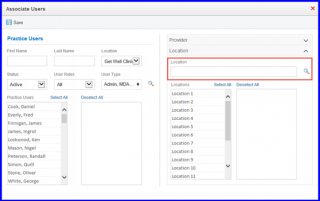
Similarly, user can search for the Location using the location search bar.
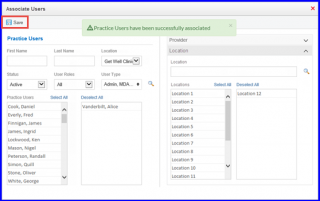
Once done, hit the save button and a success message appears informing that the Practice user has been successfully updated.