Enhanced Name Entry for Unregistered Family Members
Access Family Member Information
Add Unregistered Family Member
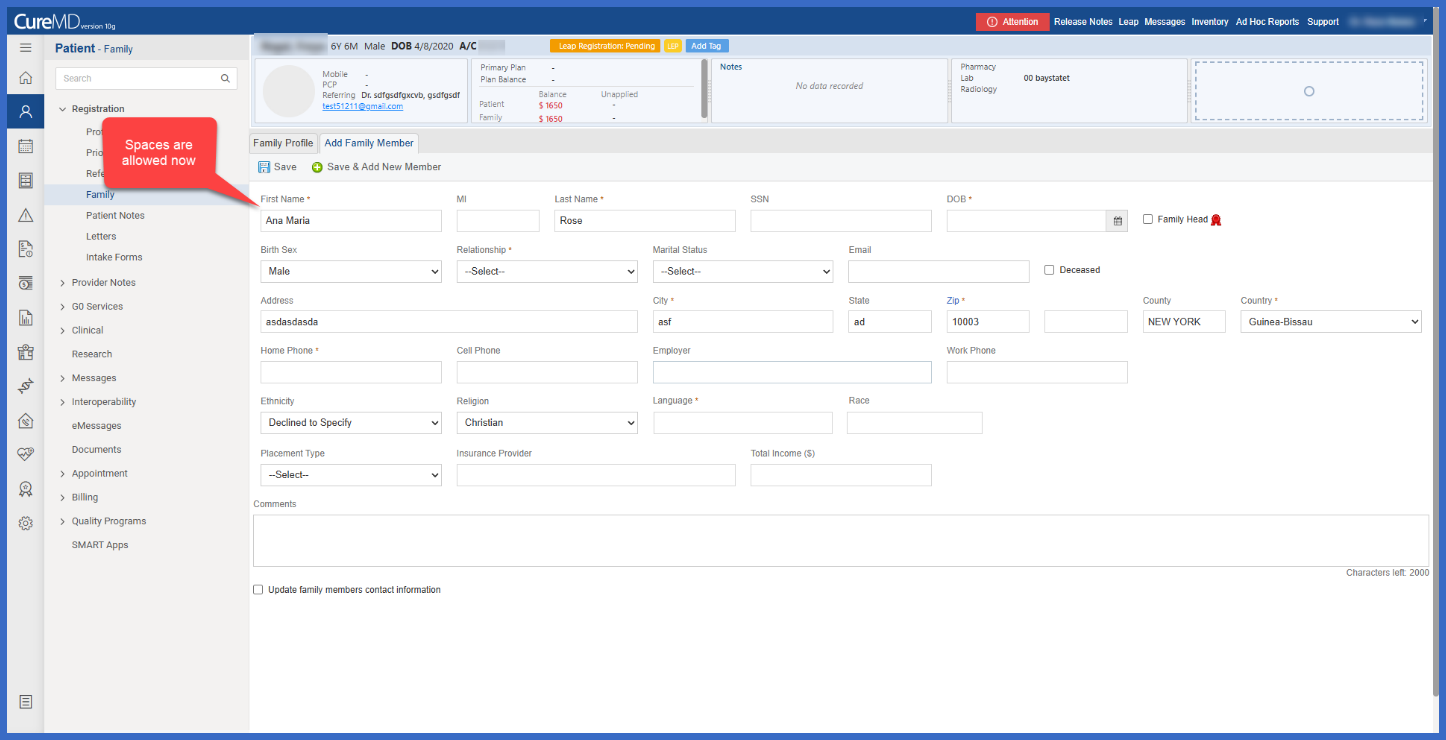
Enter Multi-Word First Name
Enter Multi-Word Last Name
What’s New
- The First Name field now supports spaces between multiple names
- The Last Name field now supports spaces between multiple names.
- Users can enter compound or multi-word names during the initial registration process.
- Names such as “Mary Ann” and “Lugo Smith” can now be entered directly into their respective fields.
- Users no longer need to save the family member’s record and reopen it solely to insert spaces into the name.
- Existing name validation rules remain unchanged, except for the previous restriction preventing spaces.
- The enhancement is incorporated into the existing Add Unregistered Family Member workflow.
- No additional screens or configuration changes are required.
How it works:
- Open the applicable patient’s chart.
- Navigate to Patient > Registration > Family.
- Select Add Unregistered Family Member.
- Locate the First Name and Last Name fields.
- Enter the family member’s complete name, including spaces where applicable.
- Complete the remaining family member details.
- Save the family member using the existing registration workflow.
 Benefit:
- Supports more accurate registration of family members with compound or multi-word names.
- Eliminates the need to edit family member records after registration solely to correct name spacing.
- Reduces unnecessary administrative steps during family member registration.
- Improves flexibility when entering family member demographic information.
- Helps maintain complete and correctly formatted names within the patient’s family records.
- Preserves the existing registration experience while removing an unnecessary input restriction.
