Rendering Provider and Location Effective Date Validation in e-Superbill
e-Superbill Validation
Provider Configuration
Location Configuration
What’s New
- Added effective date validation for the Rendering Provider and Location on the e-Superbill page.
- Validation is performed against the Date of Service when saving an e-Superbill.
- The system checks the configured Effective Start Date and Effective End Date for both entities.
- When the DOS falls within the effective date ranges, the e-Superbill is saved normally.
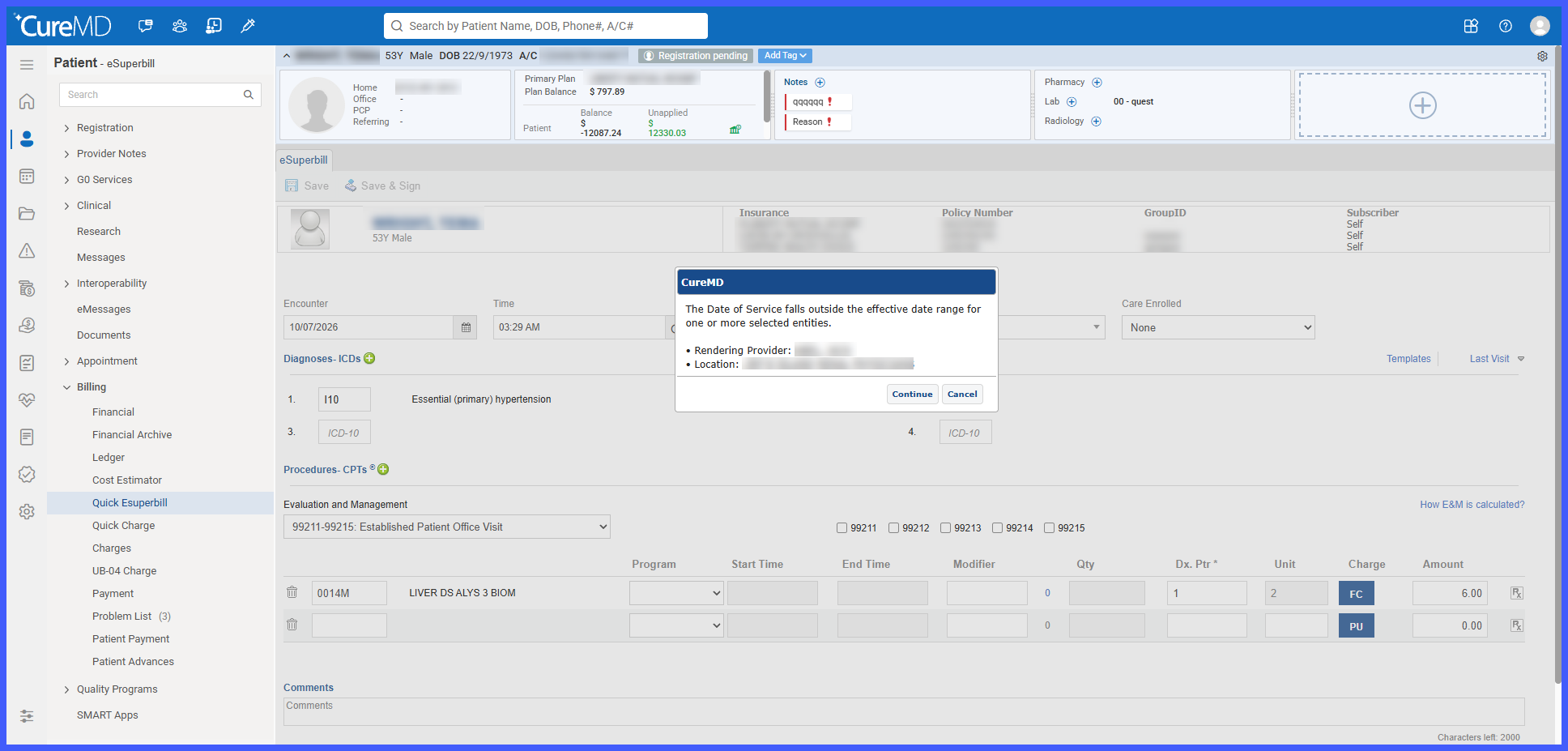
- When the DOS falls outside the effective date range of the Rendering Provider or Location, a warning is displayed.
- The warning identifies only the entities that failed validation.
- Providers and locations without configured effective dates are considered Active by default when their Active checkbox is enabled.
- Existing e-Superbill functionality and permissions remain unchanged.
How It Works
- Configure the applicable Effective Start Date and Effective End Date for the Rendering Provider and Location.
- Open the e-Superbill page.
- Select the applicable Rendering Provider and Location.
- Enter or confirm the Date of Service.
- Save the e-Superbill.
- CureMD validates the selected Rendering Provider and Location against their configured effective date ranges.
- If both entities pass validation, the e-Superbill is saved normally.
- If either entity fails validation, a warning appears identifying the Rendering Provider, Location, or both, as applicable.
 Benefits
- Helps identify Rendering Providers and Locations selected outside their configured active periods.
- Reduces the risk of billing inaccuracies caused by invalid provider or location assignments.
- Supports billing compliance through Date of Service-based validation.
- Provides targeted warnings identifying the specific entities requiring review.
- Reduces manual investigation when resolving provider or location configuration discrepancies.
- Maintains compatibility with existing configurations by treating entities without effective dates as Active when their Active checkbox is enabled.
